

Gbyte Recovery
Free scan and selective preview of 25+ data types like messages, photos, and WhatsApp. No data overwritten — recover only what you need.
Table of contents
There’s no doubt that digital memories last longer than printed photos. However, as time passes, accessing those old pictures can become a challenge of its own.
If you’re an iCloud user, you might assume iCloud is a memory goldmine—automatically organizing everything for you. While that’s partly true, understanding where to start and what can actually be recovered is far less straightforward.
In this guide, you’ll learn 3 practical ways to find old photos from iCloud and other locations where your photos may still exist.
Best For | Mechanism | Limitations | |
Retrieving old photos from a previous iPhone state | Overwrites current device data with a historical backup. |
| |
Finding old/deleted photos from full iCloud history & apps without a reset | Forensic-level recovery techniques for individual users |
| |
Users with an old account or those who didn't enable "iCloud Photos" on their current device. | Retrieve old photos still stored in iCloud but not on iPhone |
|
If the photos once existed on your iPhone, there’s a chance they were automatically captured in an iCloud backup. By restoring your iPhone to a backup created on the day those photos were still present, you may be able to recover them.
That said, this method comes with important trade-offs you should understand first:
Restoring an iCloud backup requires wiping the device. To avoid losing current data, consider using a spare iPhone if you have one.
iCloud only shows the latest backup for each device. Other restore points, if any, aren’t visible until you attempt a restore.
Depending on your settings, photos may not be included in iCloud backups at all
How to Retrieve Old Photos from an iCloud Backup
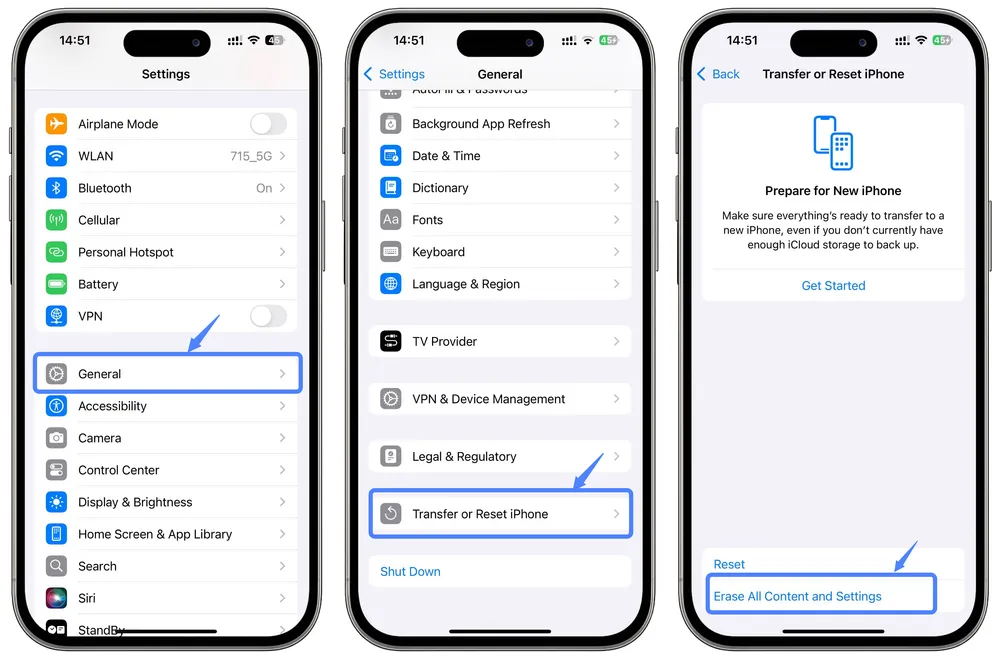
Step 1. On your iPhone, go to Settings > General > Transfer or Reset iPhone > Erase All Content and Settings.
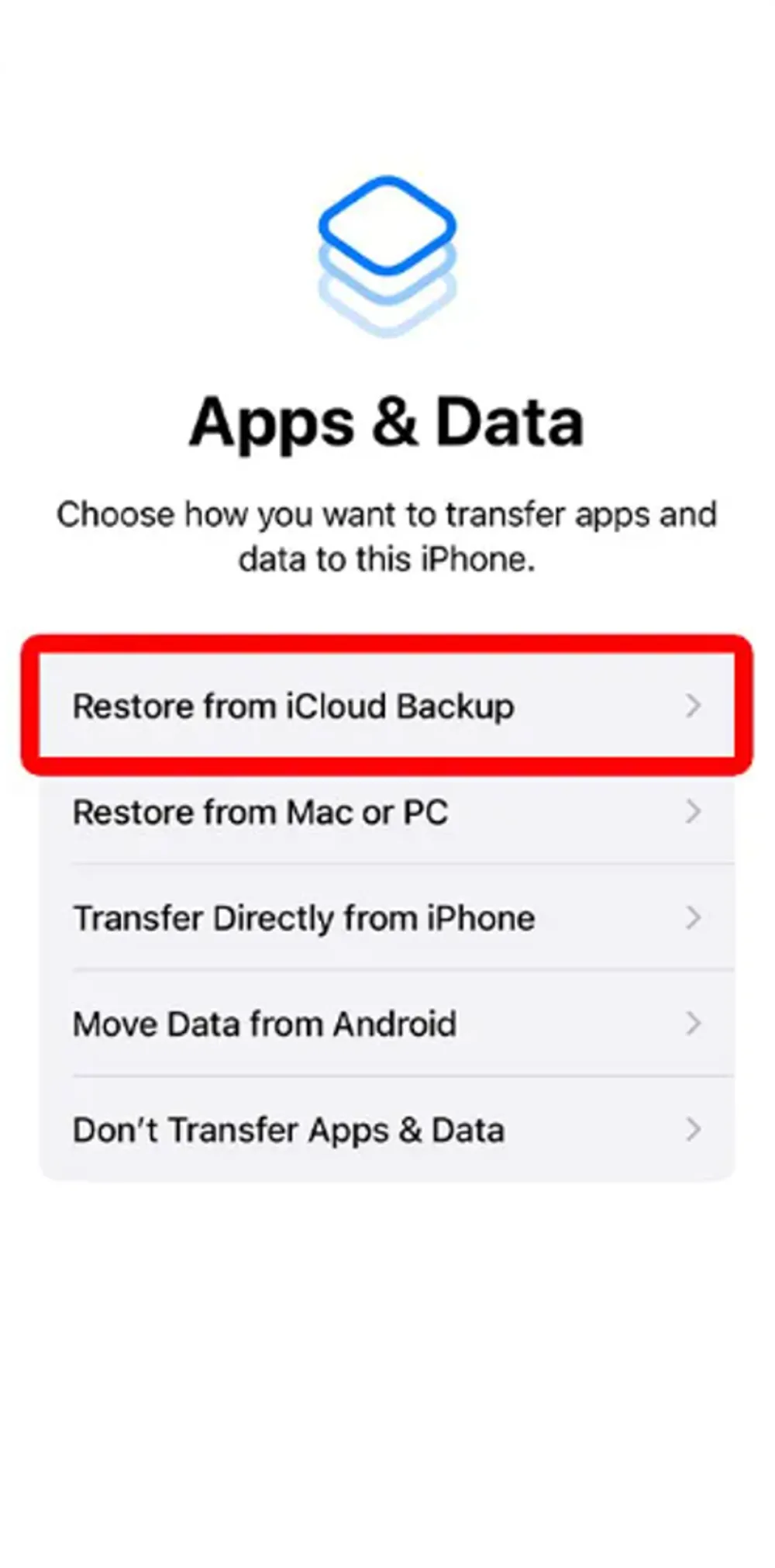
Step 2. Restart your phone and choose Restore from iCloud Backup during setup.
Step 3. Sign in with your Apple ID.
Step 4. You’ll see a list of available backups organized by device. Each device linked to your Apple ID keeps its own latest iCloud backup. If you notice an older or previously lost device in the list, that’s often a good sign — it may contain photos you no longer see on your current phone.
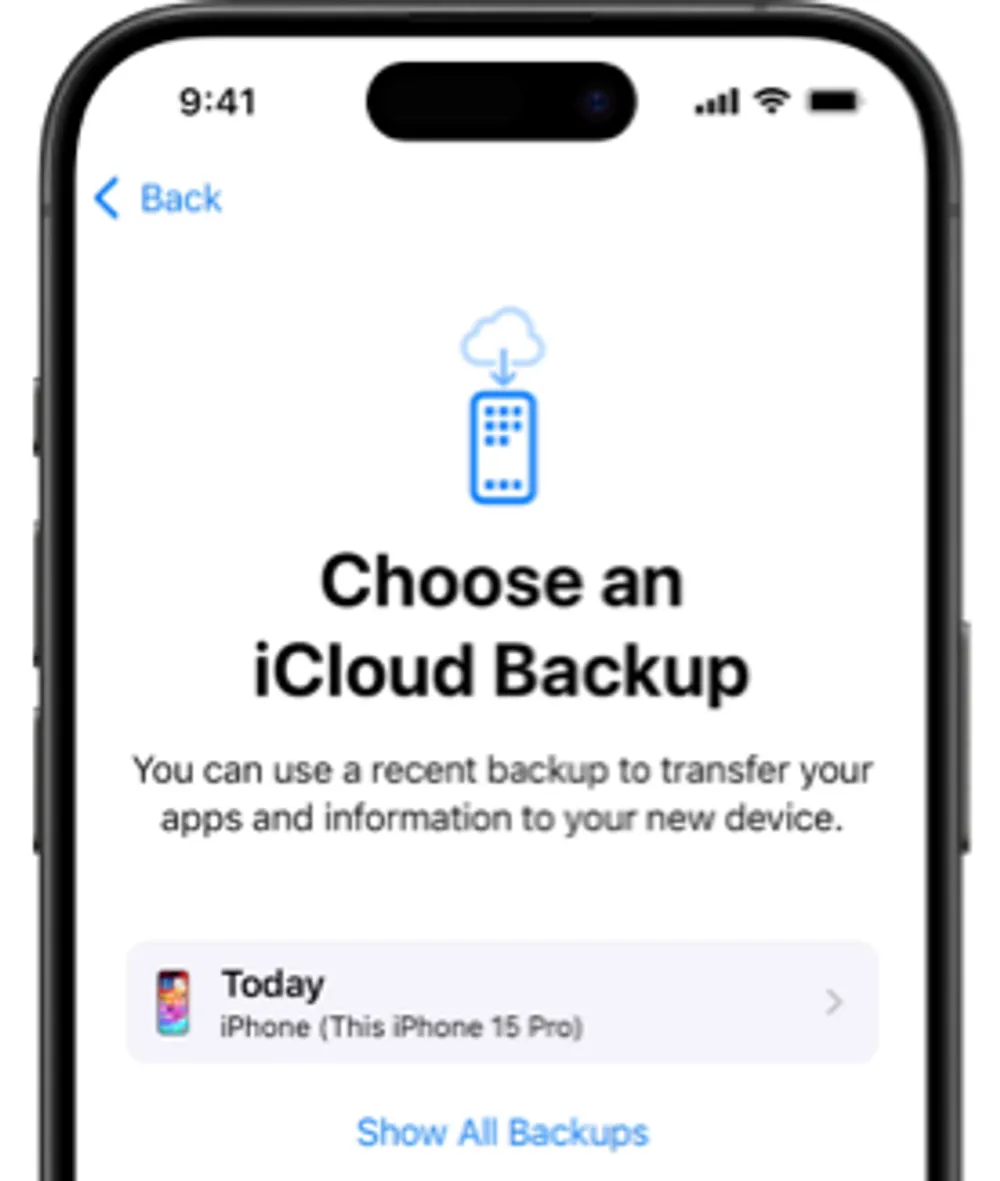
Step 5. Once the restore finishes, open the Photos app and check whether your old photos are back.
Gbyte Recovery is a forensic-grade photo recovery tool adapted for personal use. It integrates multiple deep-scan recovery methods to help you locate old and deleted photos across your iCloud account—without resetting your device or putting existing data at risk.
With Gbyte Recovery, you can:
Recover deleted photos from iCloud, including items no longer visible on iCloud.com
Extract photos from multiple iCloud backup snapshots without resetting your iPhone
Find old photos across all devices linked to your iCloud account
Recover deleted or old photos from 30+ social and messaging apps, using automated analysis to surface missing items without manual effort
Download photos in their original resolution
Run a free, encrypted scan and preview recoverable photos before exporting.
How to Use Gbyte Recovery to Find Old Photos
Step 1. Install and launch Gbyte Recovery on your computer. If a computer isn’t available, you can also start a free scan directly on your mobile device.
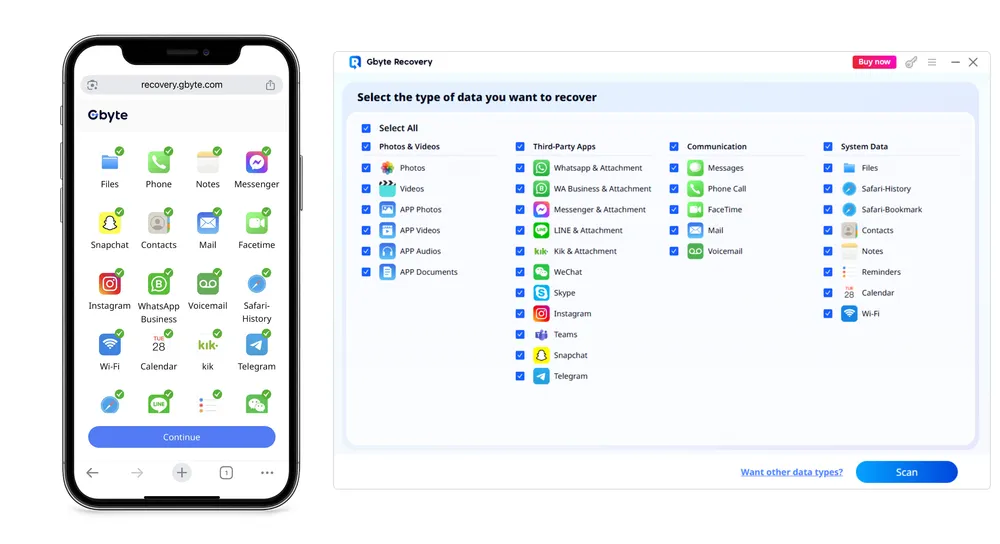
Step 2. Open the app, choose iOS Data Recovery, and select Photos as the data type to scan.
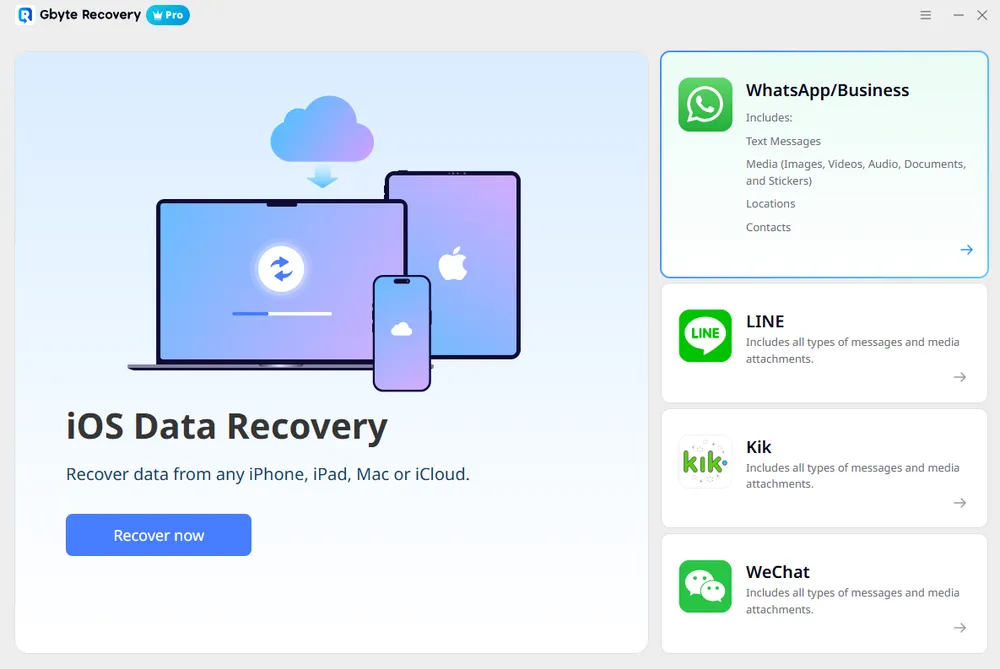
Step 3. Securely sign in to iCloud using your Apple ID to link your account.
Step 4. Wait for the scan to complete. Once finished, preview the results. Deleted photos are grouped into a separate folder. You can use the time filter in the top-right corner to locate older photos more easily.
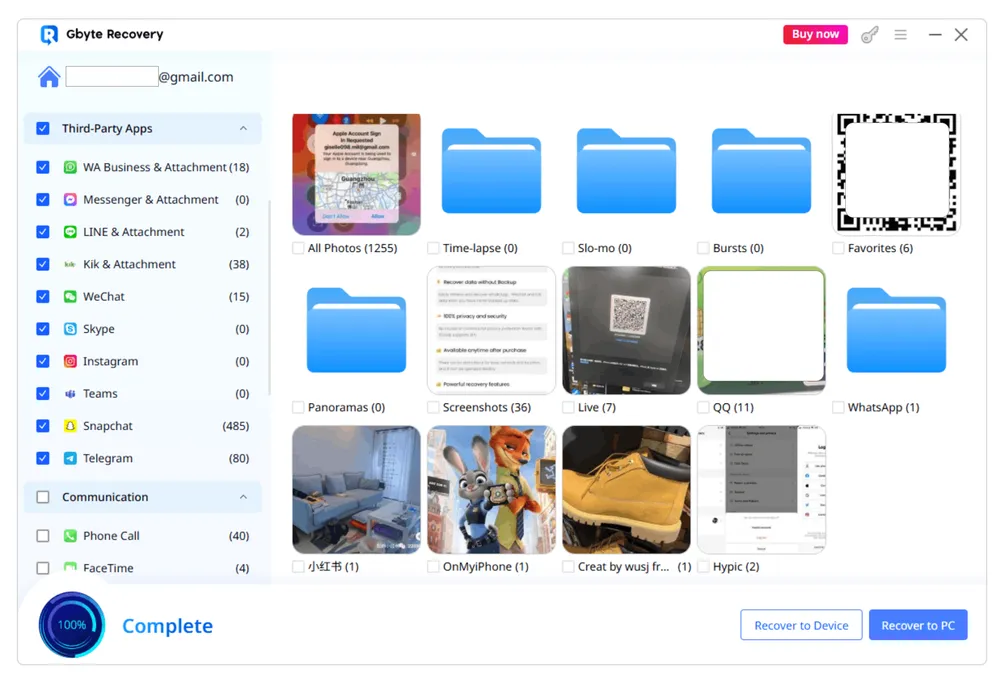
Step 5. Tick the checkboxes next to the data you want to restore, then click Recover to download.
Tip
Apple retains only a limited number of iCloud backup snapshots per device. When a new backup is created, older ones may be overwritten without notice. Gbyte Recovery can surface historical backup data that Apple’s official restore process does not allow you to preview.
When iCloud Photos is enabled on your iPhone or Mac, all photos are automatically uploaded to iCloud. Over the years, your iCloud account quietly becomes a central library, keeping your photos together even as you switch devices multiple times.
If iCloud Photos is not enabled on your current device, the photos stored in iCloud may differ from your local iPhone library. Visiting iCloud library often reveals older photos that no longer appear on your device.
The most direct way to access your iCloud photo library is through iCloud.com, Apple’s official web interface.
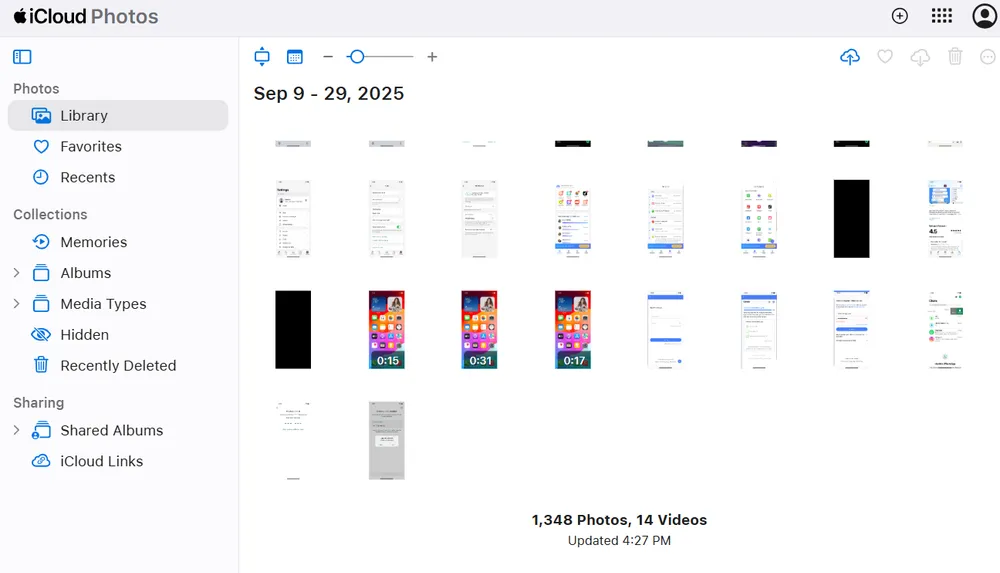
Step 1. Go to icloud.com/photos and sign in with your Apple ID
Step 2. The Photos app's timeline view is quite helpful for people who value taking a trip through their photos in order. The newest photos appear at the bottom. Scroll up to browse your older pictures. Tip: Don’t forget to check the Recently Deleted Folder, Hidden Album and Shared Albums tabs.
The three methods above cover all common ways to find old photos in iCloud. If you still can’t find what you’re looking for, your photos might exist somewhere outside iCloud.
Here are additional places worth checking:
Recently Deleted album: Photos deleted within the last 30 days may still be recoverable and Hidden from the main library view.
Old devices: Power on previous Androids, iPhones, iPads, or Macs. Even if they’re no longer connected to iCloud, they may still store local photo in the Photos app. You can export these photos to your current iPhone or a computer.
Old iCloud accounts: If you’ve used multiple Apple IDs in the past, sign in to those accounts and check their iCloud photo libraries.
Other cloud services: Google Photos, OneDrive, Dropbox, or similar services may still have backups or synced copies.
Social media accounts: Platforms like Instagram, Facebook, or WhatsApp often retain original or compressed versions of photos you uploaded.
Email Attachments: Search your email for file types like “.jpg” or “.png.” You may uncover photos you sent to others years ago.
🎁Use Gbyte Recovery to scan and recover old or deleted photos from 30+ apps in one click
Your digital life isn't stored in just one place. Even if your iCloud library looks empty, checking related accounts and devices often reveals forgotten copies or shared versions of the same photos.
Knowing how iCloud organizes your photos makes it much easier to store, access, and recover them when needed.
In iCloud, your photos can live in two main places: iCloud Photos and iCloud Backup—and they work differently.
iCloud Backup is a complete snapshot of your iPhone at a given moment. It saves your settings, app data, and photos stored locally on the phone. That’s why you can restore old photos from an iCloud backup.
However, iCloud Backup is mainly meant for moving data to a new phone. Relying on it as a photo management system can feel cumbersome and limiting.
iCloud Photos, on the other hand, is directly accessible in iCloud and keeps your photo library synced across all Apple devices. If iCloud Photos is off on your current device, your Photos app only shows what’s stored locally on that device—not the full iCloud collection.
iCloud also uses a non-duplicate storage principle: If iCloud Photos is enabled on a device, those photos are no longer part of that device’s iCloud Backup.
Tip
Other devices with iCloud Photos turned off may still have photos stored in their iCloud backups.
The table below summarizes where your photos are stored under different settings:
iCloud Backup | iCloud Photos | Photos Stored Where |
On | On | iCloud Photos |
Off | On | iCloud Photos |
On | Off | iCloud Backup + iPhone |
Off | Off | iPhone only |
If the photos were deleted less than 30 days ago, you can restore them from the Recently Deleted folder. After that, Apple permanently removes them from iCloud. Using recovery tools like Gbyte Recovery which can recover deleted iCloud data to recover them.
Go to Settings > [Your Name] > iCloud > iCloud Backup.
Scroll to the list of devices and select the device you want to check.
If a Photos Library option is turned on, photos from that device are included in its iCloud Backup.
When iCloud Photos is enabled, your photos are uploaded to iCloud.com/photos, and they are no longer stored in that device’s iCloud Backup. You can safely delete the backup to free up iCloud storage without losing any photos. (Other data like app data and settings will be removed if you delete the backup.)
If you want to download iCloud Photos to iPhone:
Open Settings and tap your name at the top.
Go to iCloud > Photos.
Turn on iCloud Photos.
If prompted, select Merge to combine your iPhone’s local photos with your iCloud library.
Once this is done, your entire iCloud photo library will sync and become accessible on your iPhone.

Sophia Tang
AuthorSophia Tang has five years of customer support experience at a mobile device management company. She's spent most of that time helping users diagnose and fix iPhone issues that official guides don't cover.
Gbyte Recovery
Don't wait until your data is gone forever! Try Gbyte iOS Recovery for free—scan first!
100% secure. Your data always stays private.
Share


Related articles


Subscribe Our Newsletter
For exclusive tutorials, product updates & phone tips, protect your data and prevent loss!
You can unsubscribe from our newsletter at any time by clicking the "Unsubscribe"link at the bottom of our emails.


Copyright @2026 Gbyte. All rights reserved.
The installation wizard will automatically start after downloading.
After registration, the recovery process can be managed through the web interface.
You get it all with your purchase - no locked features, no hidden limitations.