





Installation Guide
Get started with Gbyte Recovery in under 3 minutes

Installation Time: 2-3 minutes
Click "Free download" on the official Gbyte Recovery website. The installer (≈45MB) will download automatically.
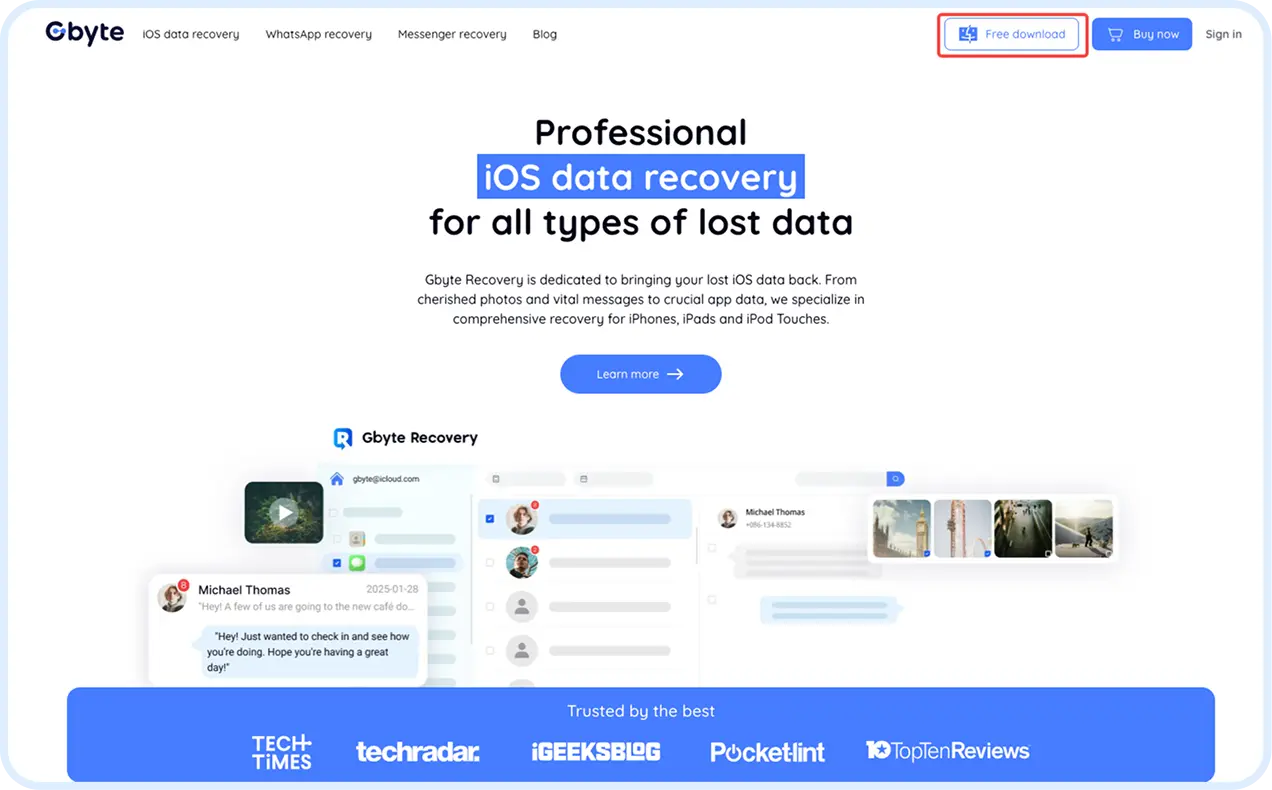

Pro Tip: Download takes 30-60 seconds on most connections. Supports Windows 11/10/8/7 and macOS 10.15+.
Go to your Downloads folder and double-click Gbyte_Recovery_Download.exe (Windows) and Gbyte_Recovery.dmg (Mac).
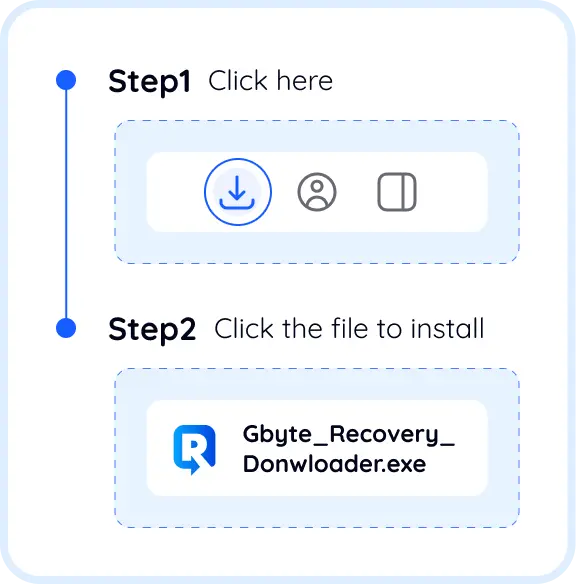
Can't find it? Press Ctrl+J (Windows) or Cmd+J (Mac) to open your browser's download panel.
Click the "Install" button to begin the installation process. The software will automatically install to your default program directory. Installation typically completes in under 60 seconds.
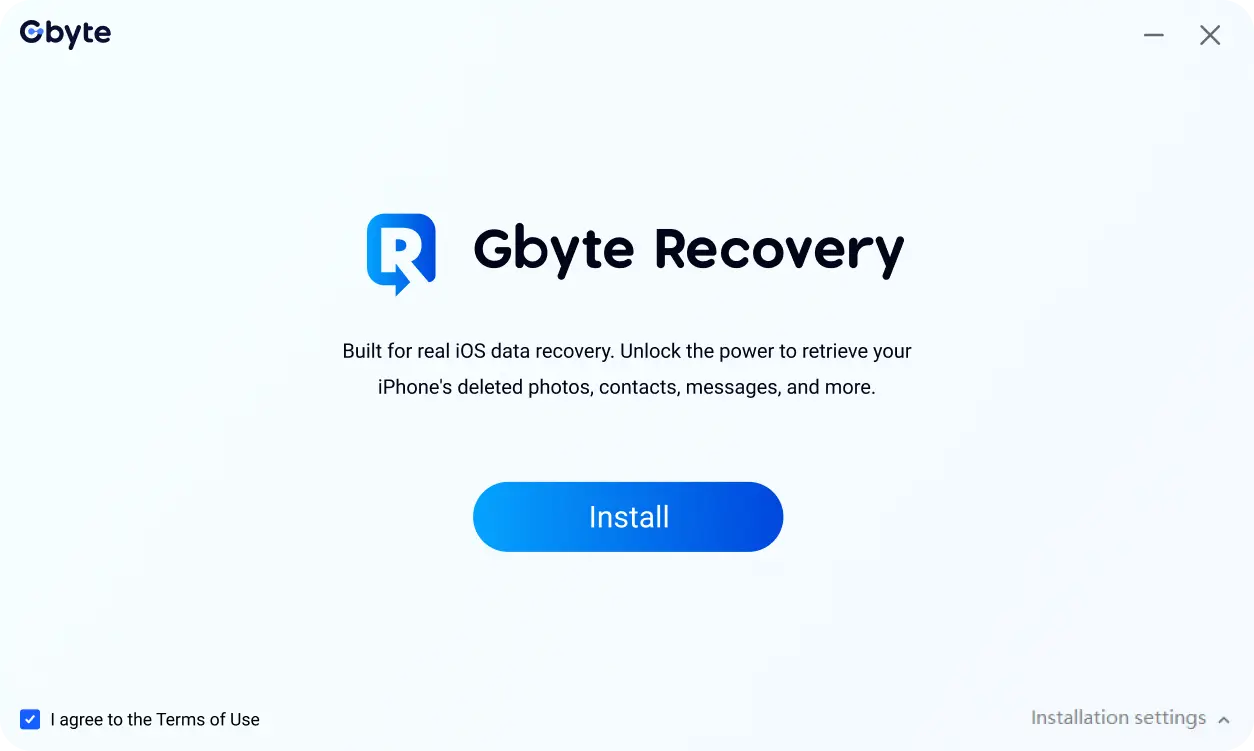
Once installation is complete, click "Start Now" to launchGbyte Recovery immediately. You can also access the software anytime from your desktop shortcut or Start menu.
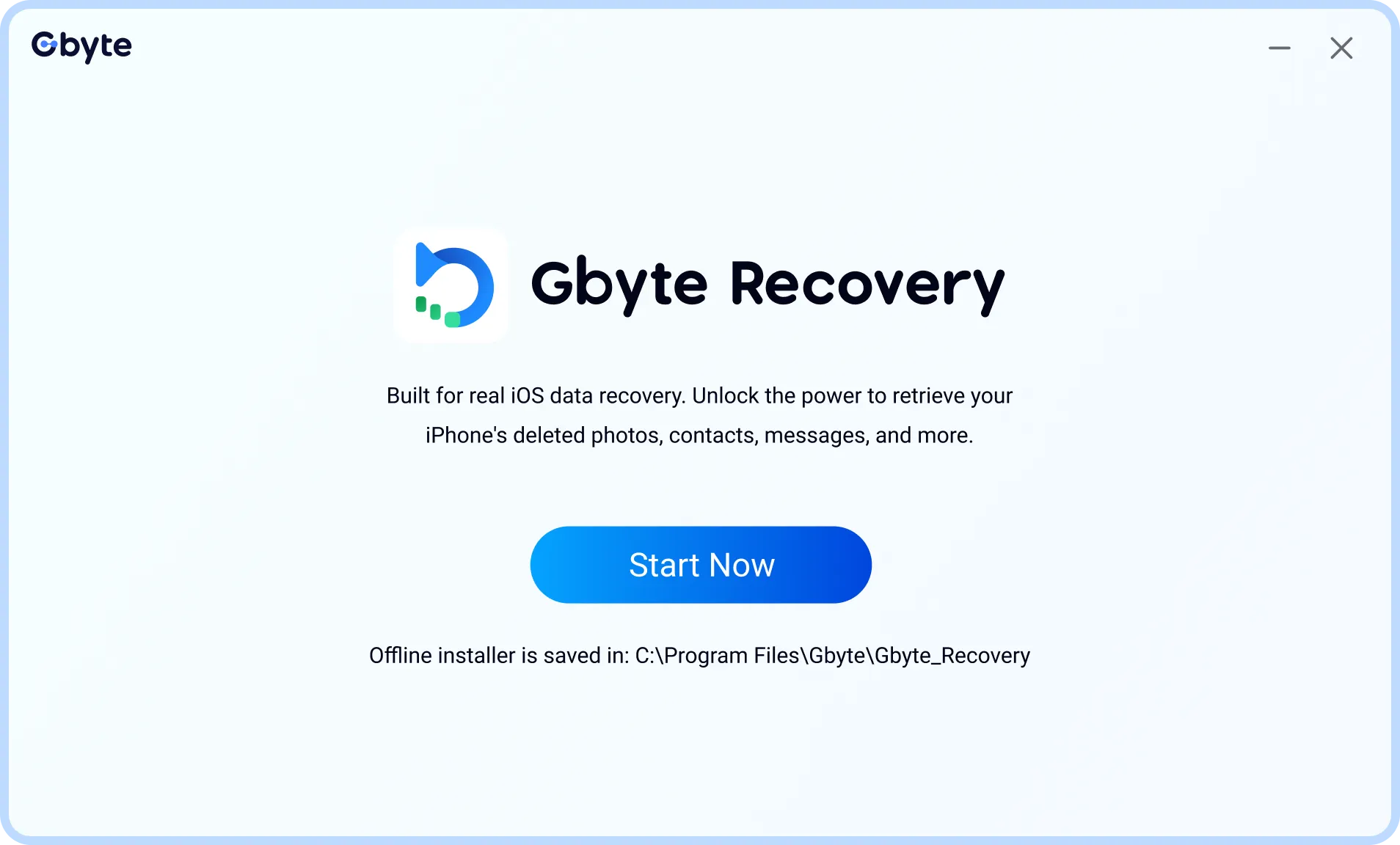
What's Next? Choose your preferred recovery platform below: Use PC Recovery (Windows/Mac) or iOS Device Recovery (iPhone/iPad directly).
How to Recover Lost Data
Recover social data like WhatsApp messages and iOS data from your computer

Two-step verification
5-15 min scan time

100% free scan preview
Recover from iPhone/iPad
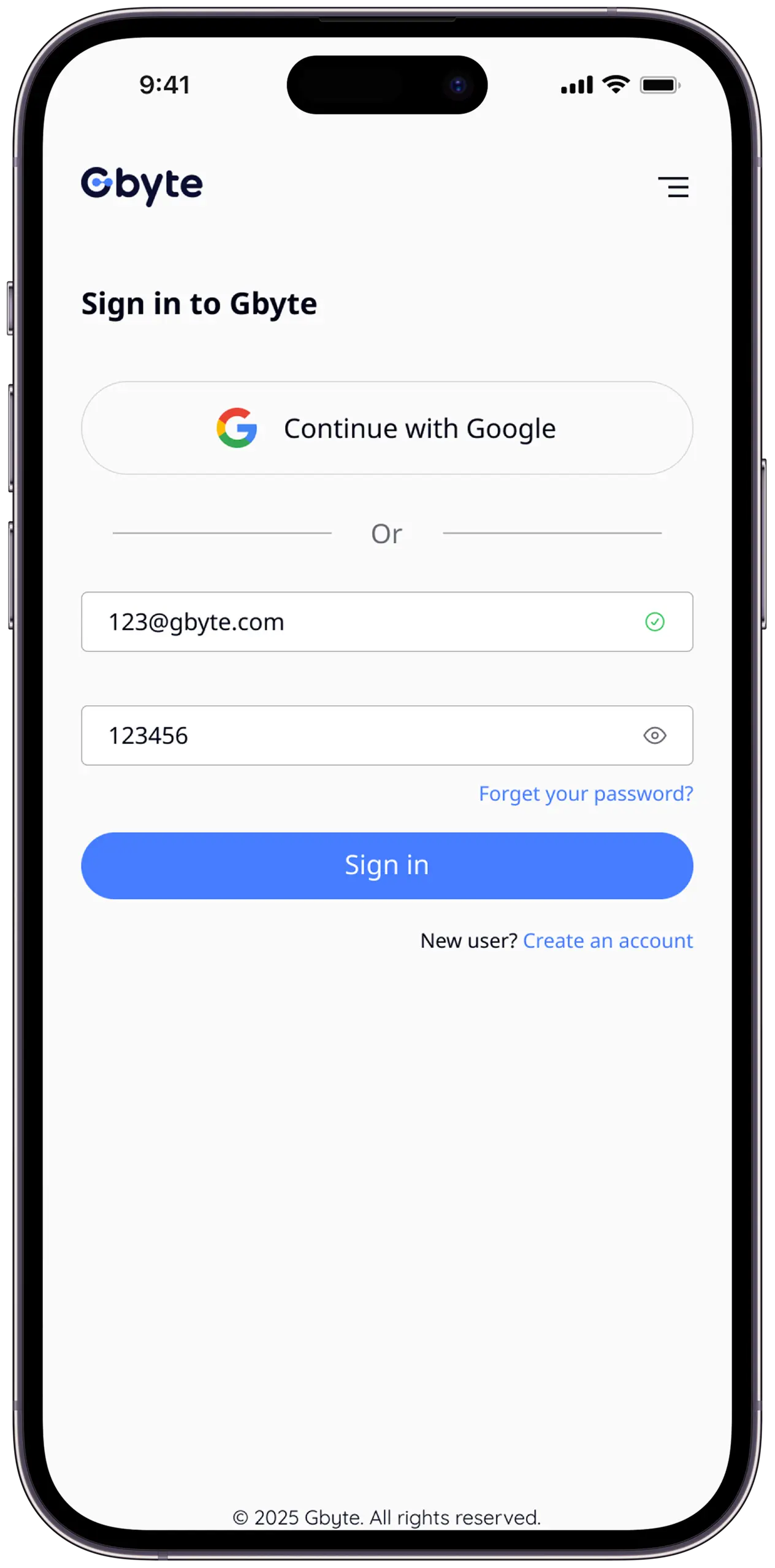
Launch the Gbyte Recovery Web and sign in with your Google account—or quickly create a new account with your email. You can start using it right away, no USB connection needed.
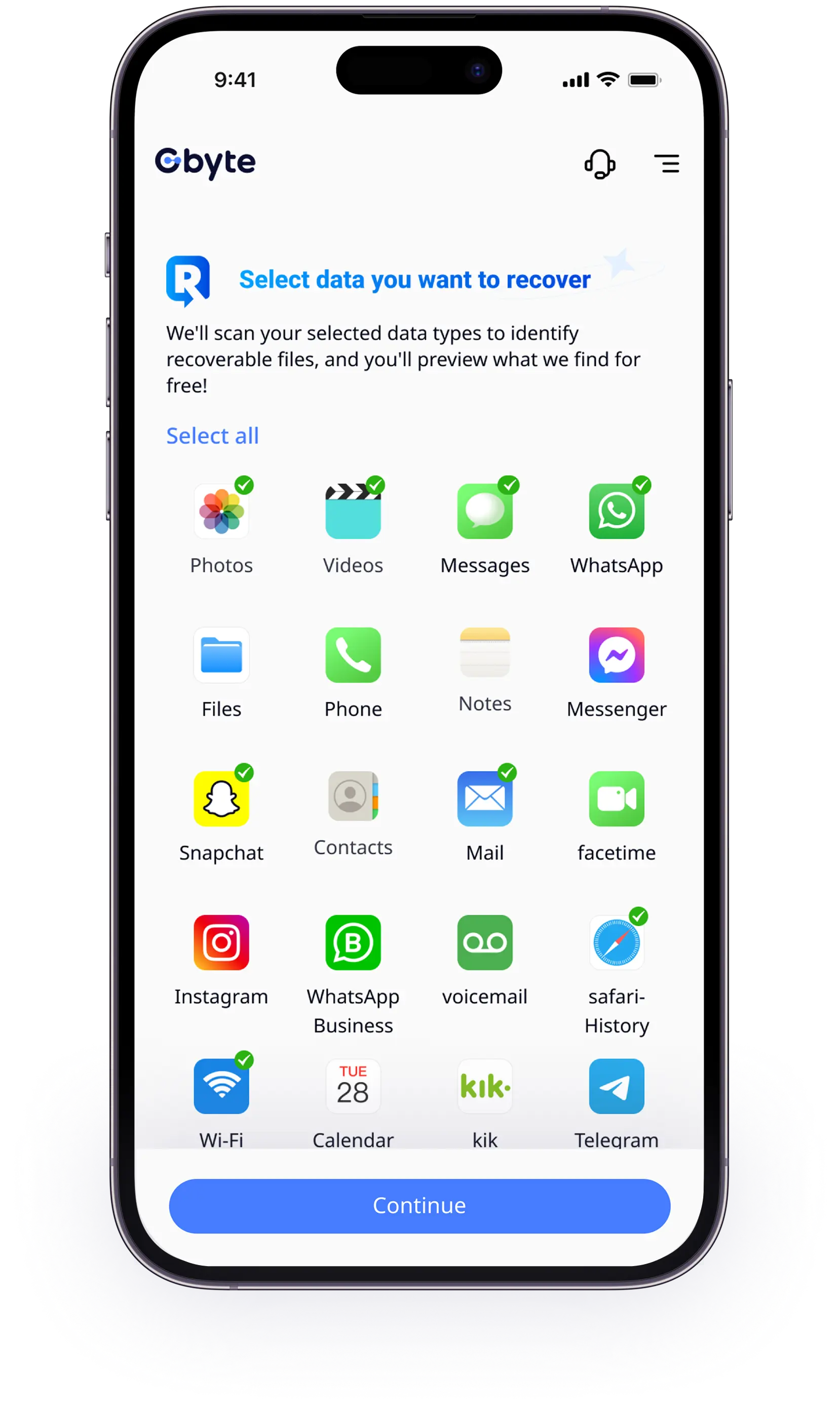
Choose what you want to recover. For example, selecting WhatsApp lets Gbyte Recovery scan and restore deleted messages, photos, videos, and attachments.
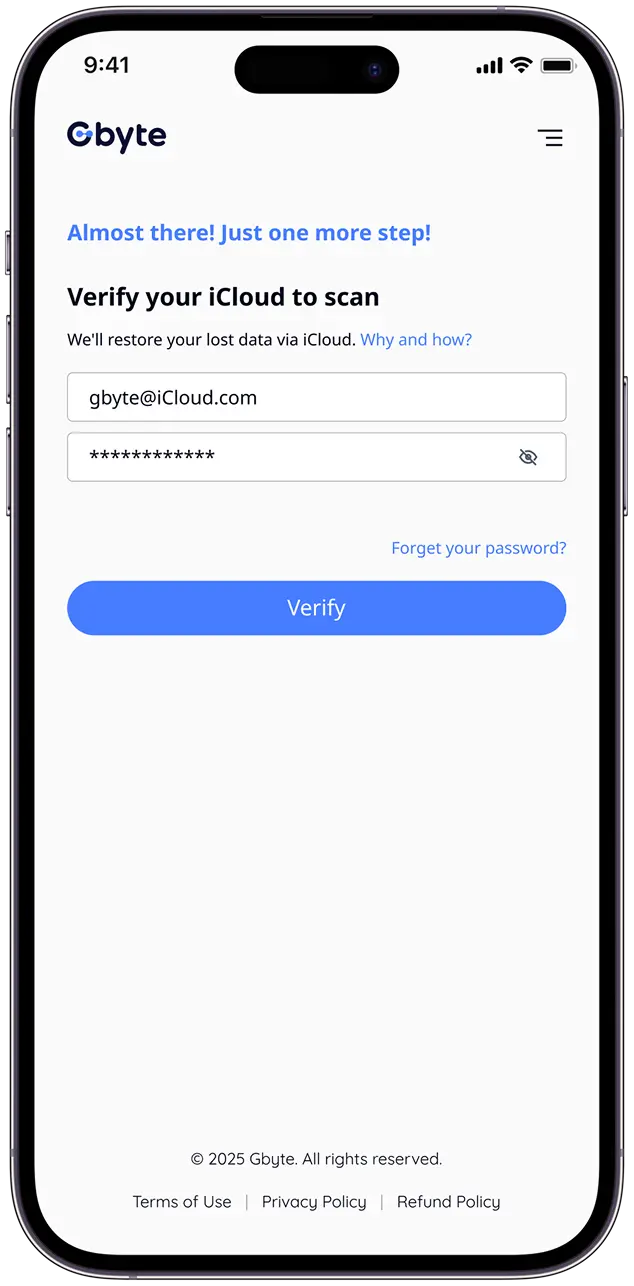
Enter the Apple ID you use on Gbyte Recovery via 2FA. A 6-digit verification code will be sent to your trusted device—enter it to continue.
Need help signing in with your Apple ID? 1. Forgot your Apple ID? Find it here: https://support.apple.com/en-us/102627 2. Can't remember your password? Reset it anytime: https://iforgot.apple.com/password 3. Need more support from Apple? Visit the Apple ID help center: https://support.apple.com/apple-id 4. Phone not working and can't receive codes? Remove your SIM card and insert it into another iOS device to receive verification codes and SMS messages.
Tap Scan to begin analyzing your device. The duration depends on how much data you have, but you can continue using your iPhone during the scan.
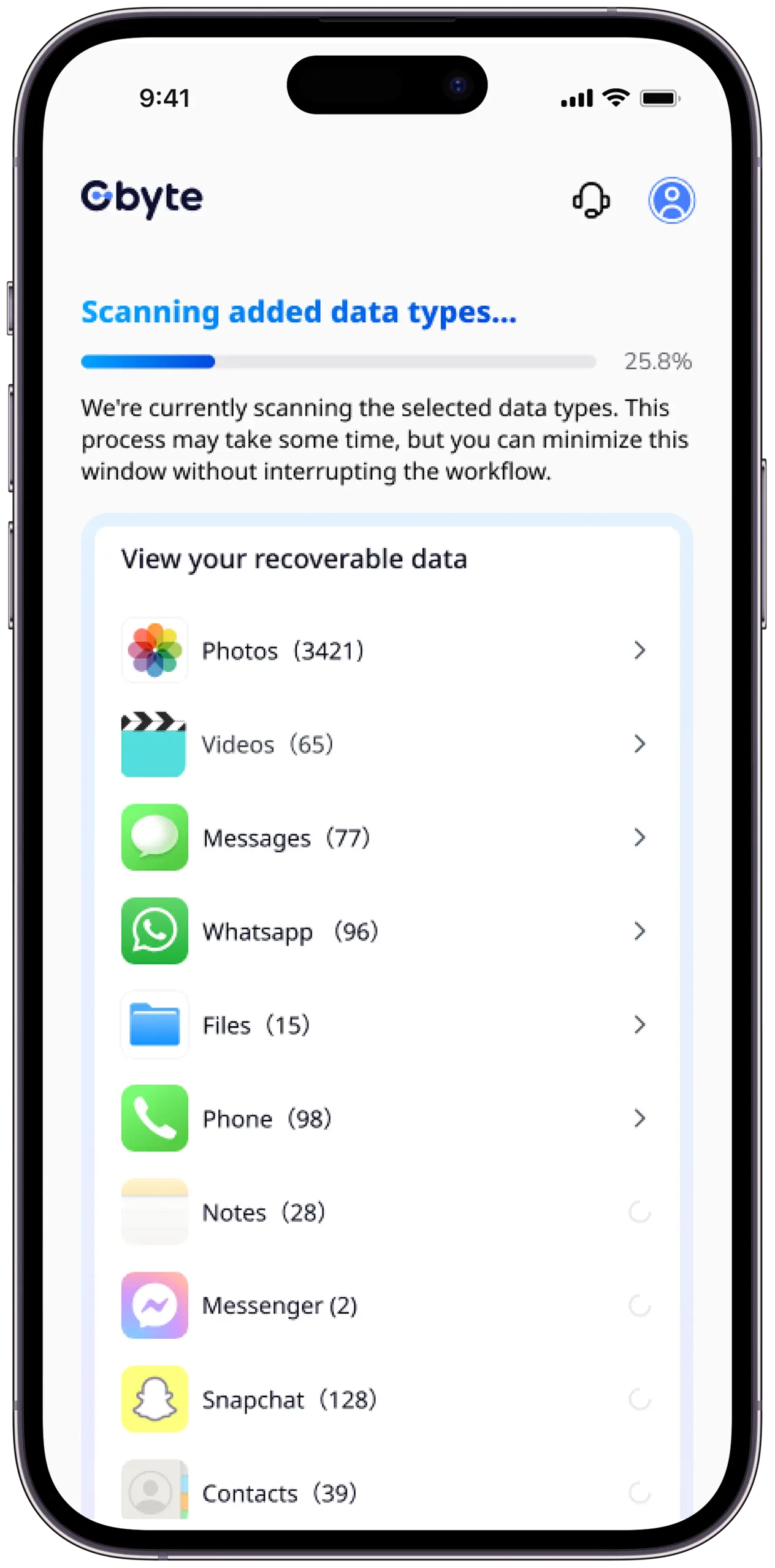
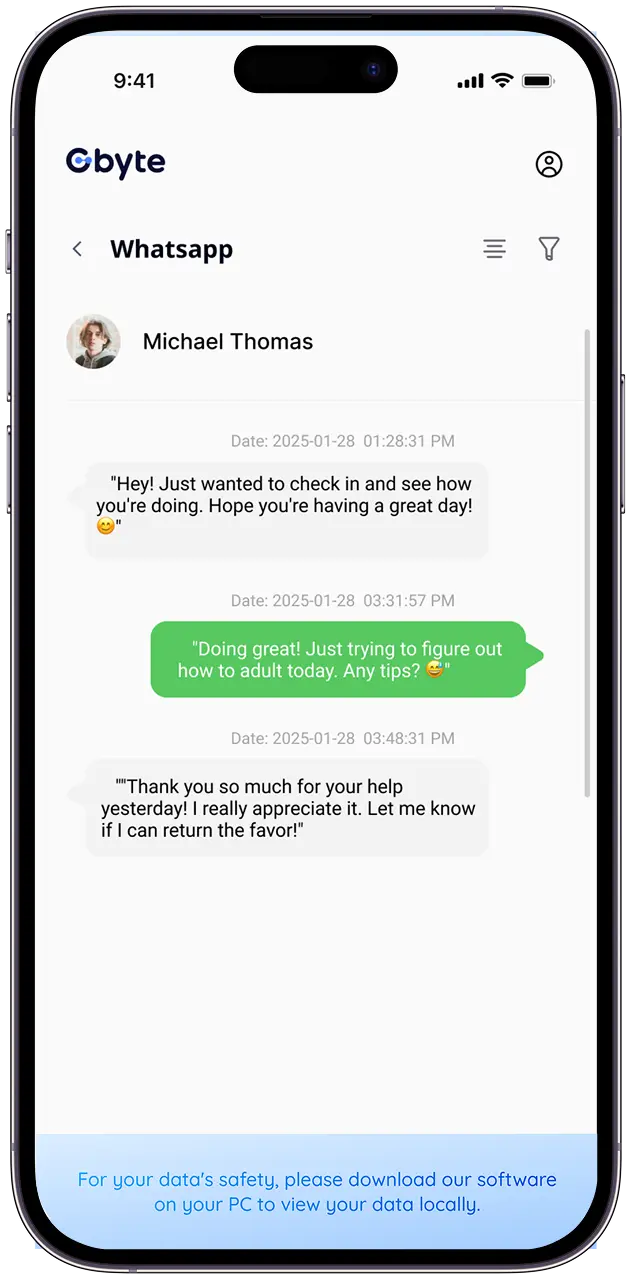
Once the scan is done, preview your deleted WhatsApp chats for free. Then, selectively recover the ones you want—all without data loss or overwriting your existing data.
Recover from PC
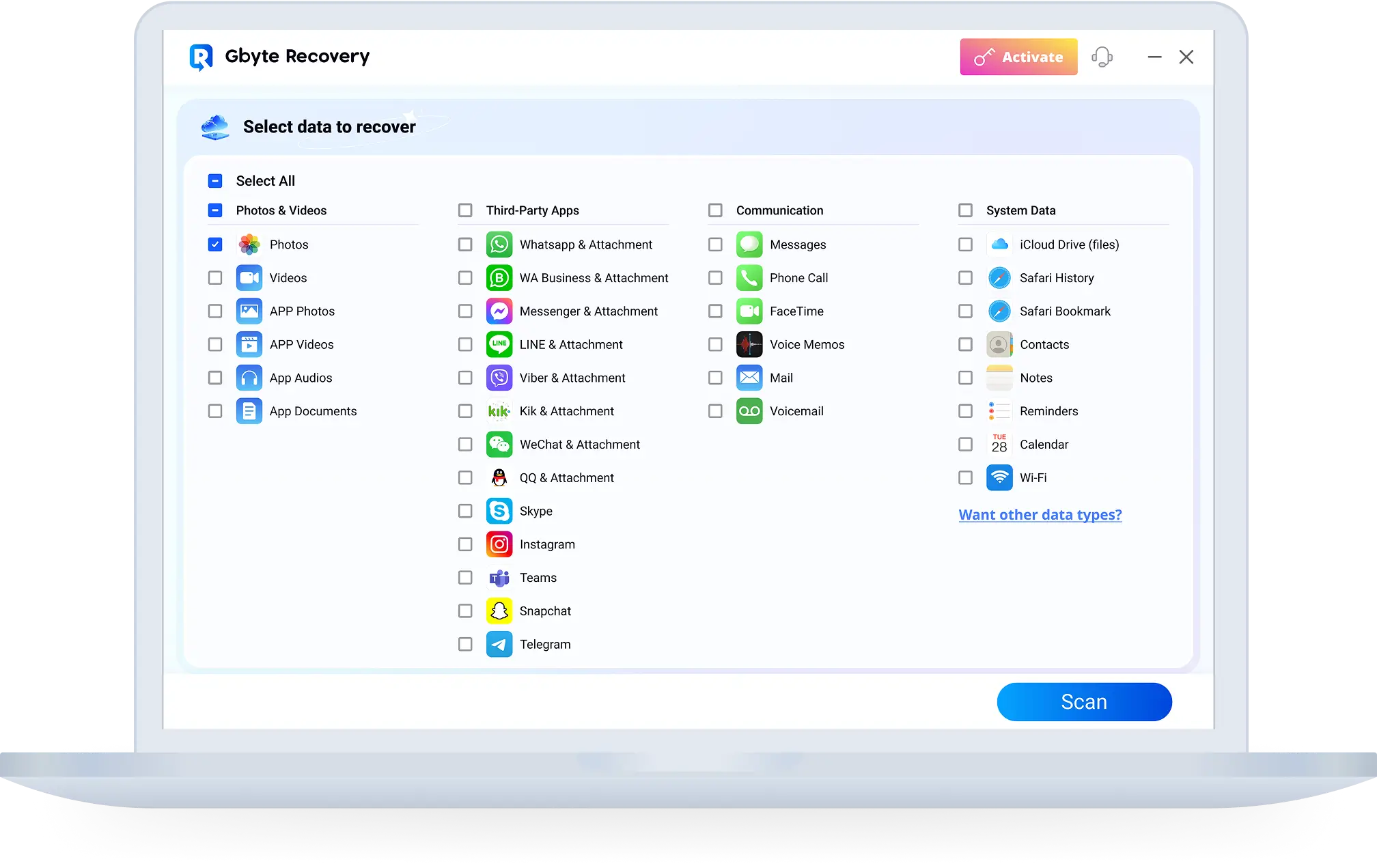
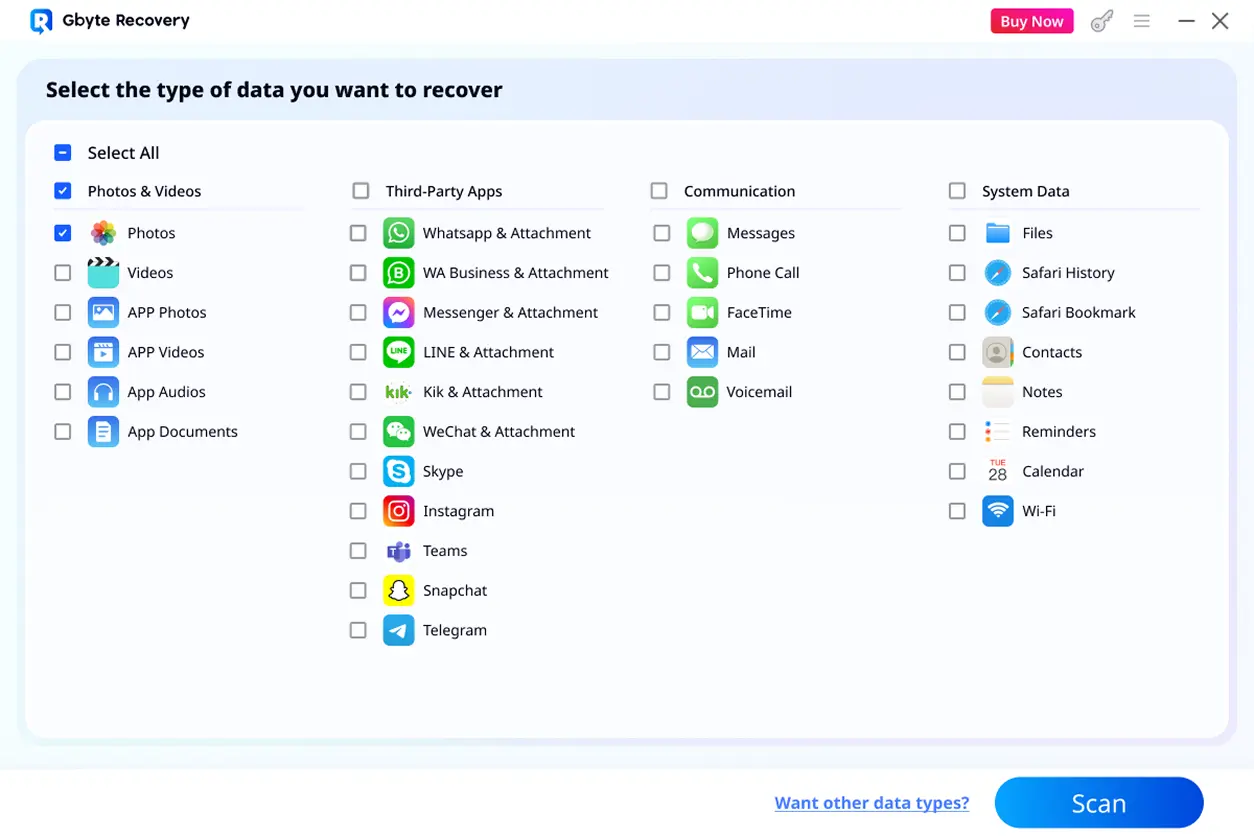
Choose the type of data you want to recover from the list. For example, if you select Photos, Gbyte Recovery will scan and let you restore deleted images.
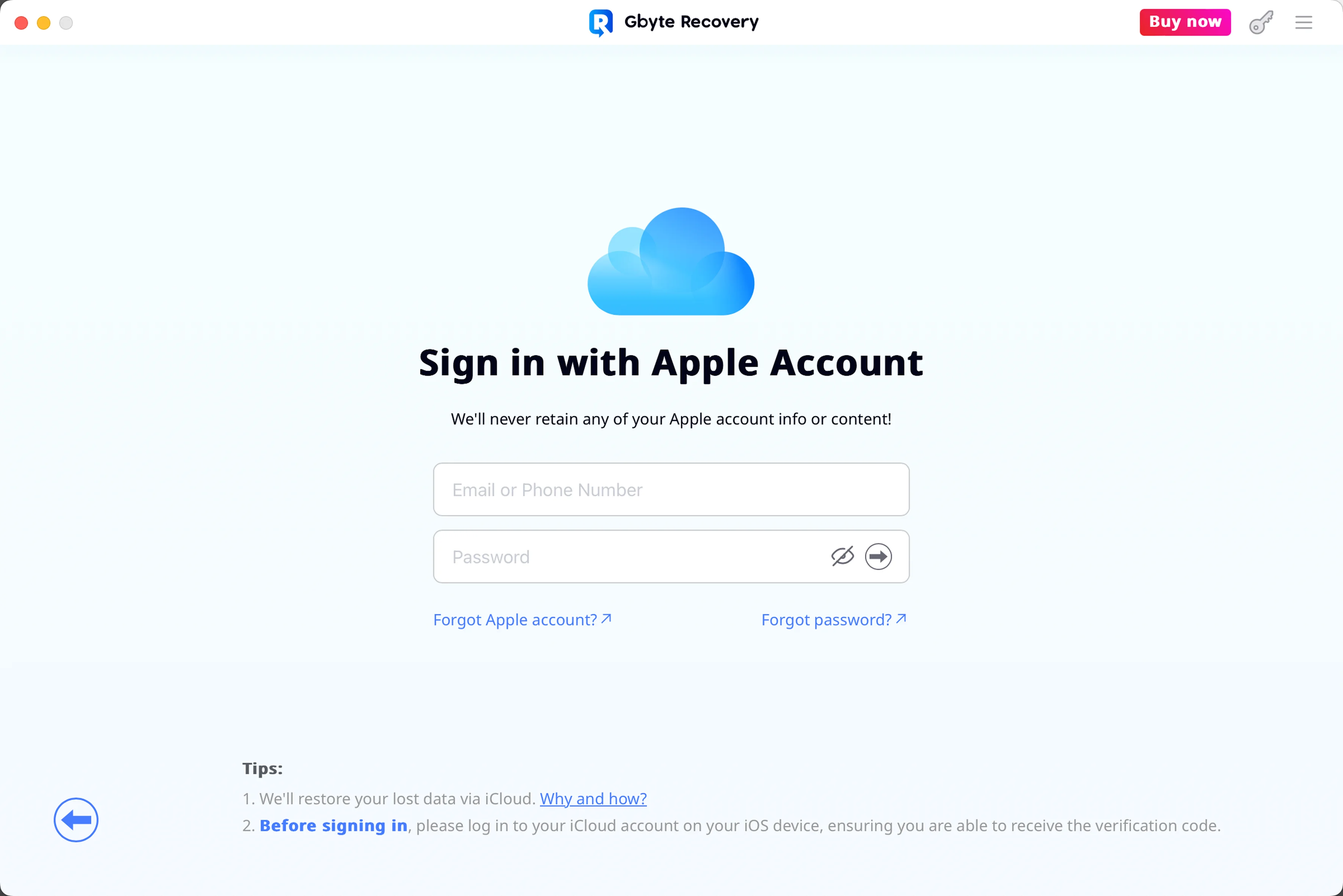
Enter the Apple ID you use on Gbyte Recovery via 2FA. A 6-digit verification code will be sent to your trusted device—enter it to continue.
Congratulations! Gbyte Recovery is now successfully installed on your computer. You're ready to start recovering your deleted data.
Need help signing in with your Apple ID? 1. Forgot your Apple ID? Find it here: https://support.apple.com/en-us/102627 2. Can't remember your password? Reset it anytime: https://iforgot.apple.com/password 3. Need more support from Apple? Visit the Apple ID help center: https://support.apple.com/apple-id 4. Phone not working and can't receive codes? Remove your SIM card and insert it into another iOS device to receive verification codes and SMS messages.
Click "Scan" to let Gbyte Recovery search through your device's storage. The scan time may vary depending on your data size, but it's completely free to run and ensures every recoverable item is detected.
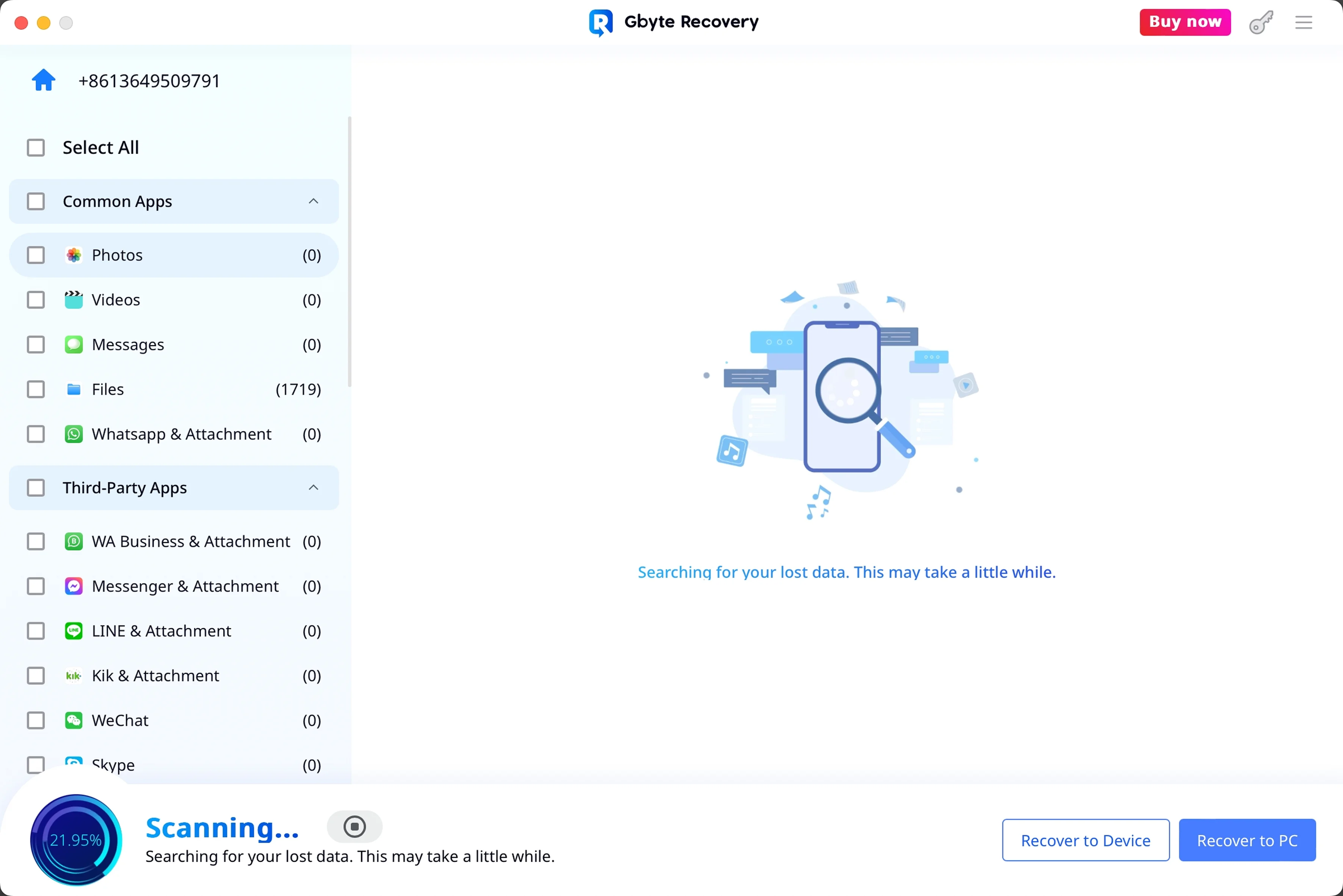
After the scan, you can preview all recoverable Photos before restoring. Select only the files you need and recover them safely without overwriting your existing data.
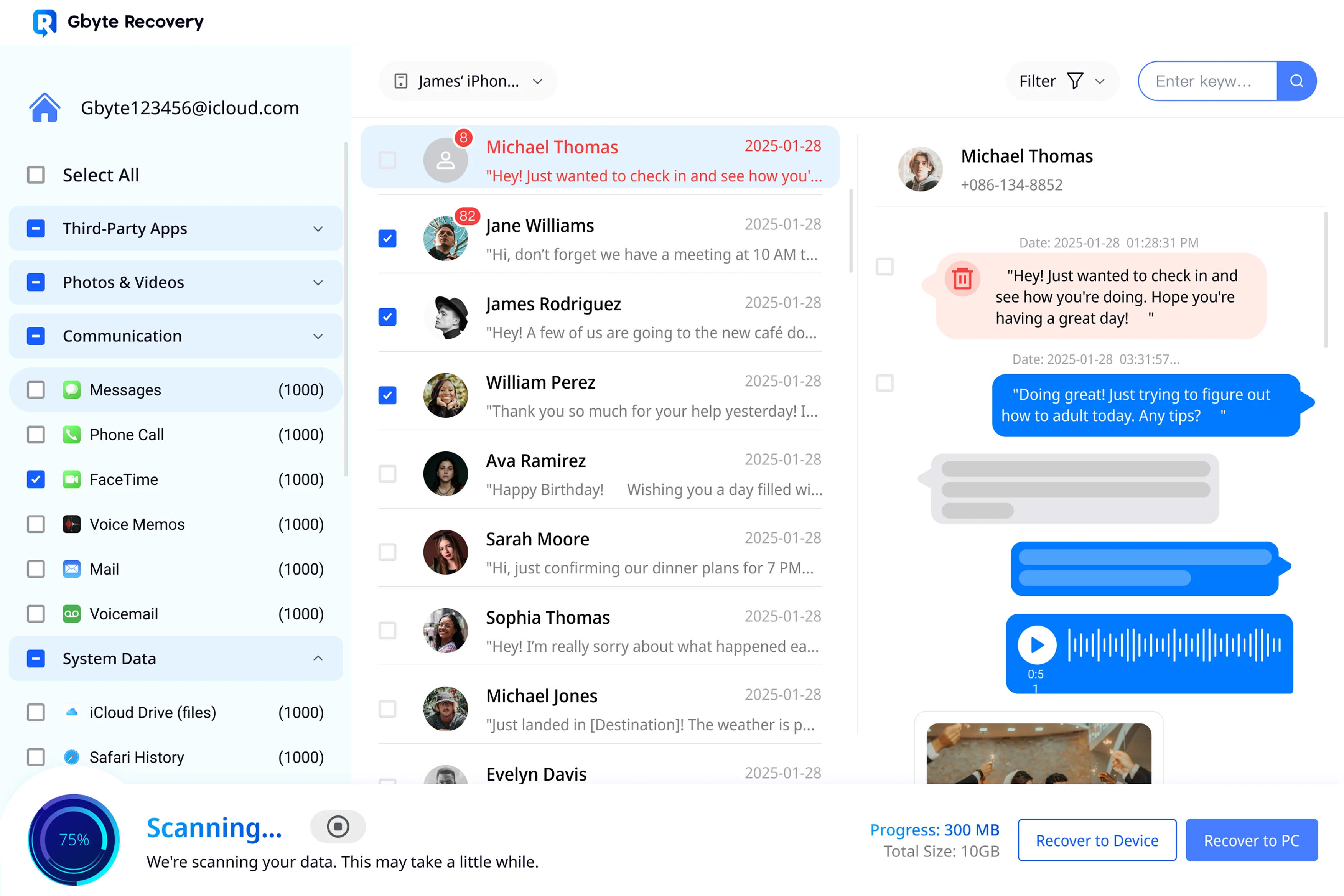
Recover from iCloud Backup (PC Only)
Extract data from iCloud backups when direct device recovery isn't possible. View timestamps and sizes to assess recovery potential.
Recover from iCloud Backup (PC Only)
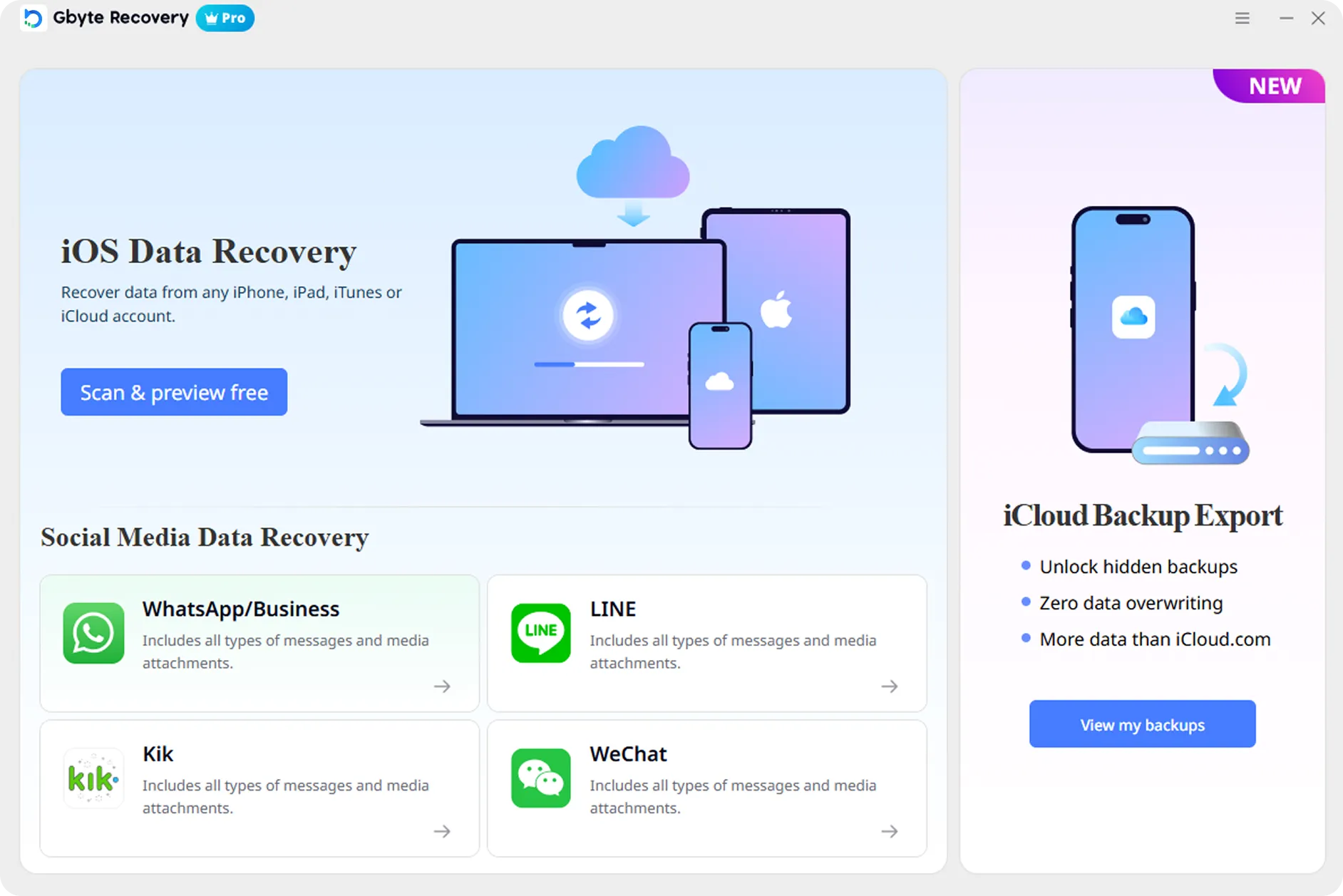
From the Gbyte home screen, click 'View my backups' under iCloud Backup Export. This feature is available on desktop only.
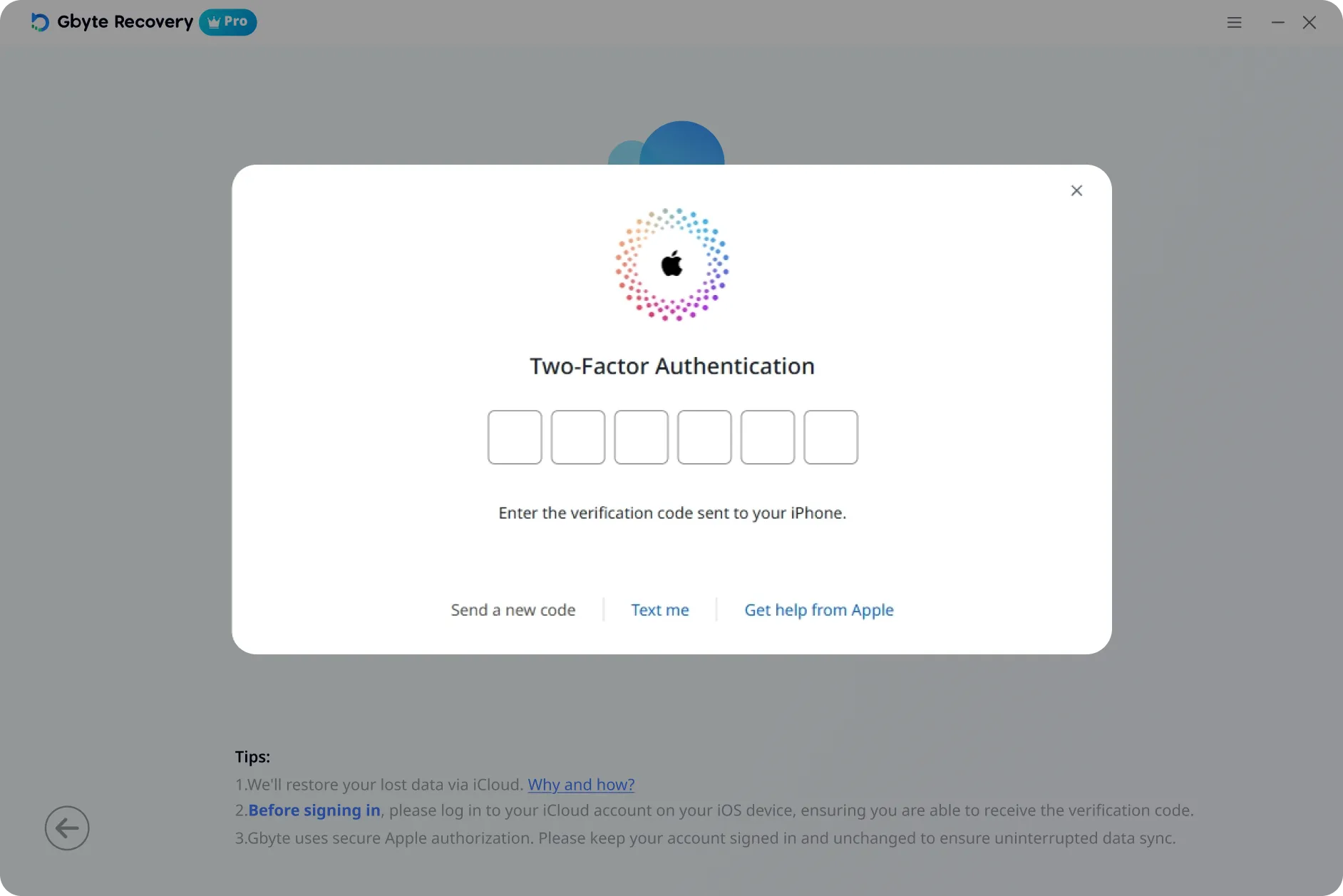
Sign in with your Apple ID. For security, enter the 6-digit verification code sent to your trusted device. Gbyte never stores your credentials — authentication is handled locally.
View all available iCloud backups with device name, date, and file size — completely free. This helps you identify the most relevant backup before deciding to proceed.
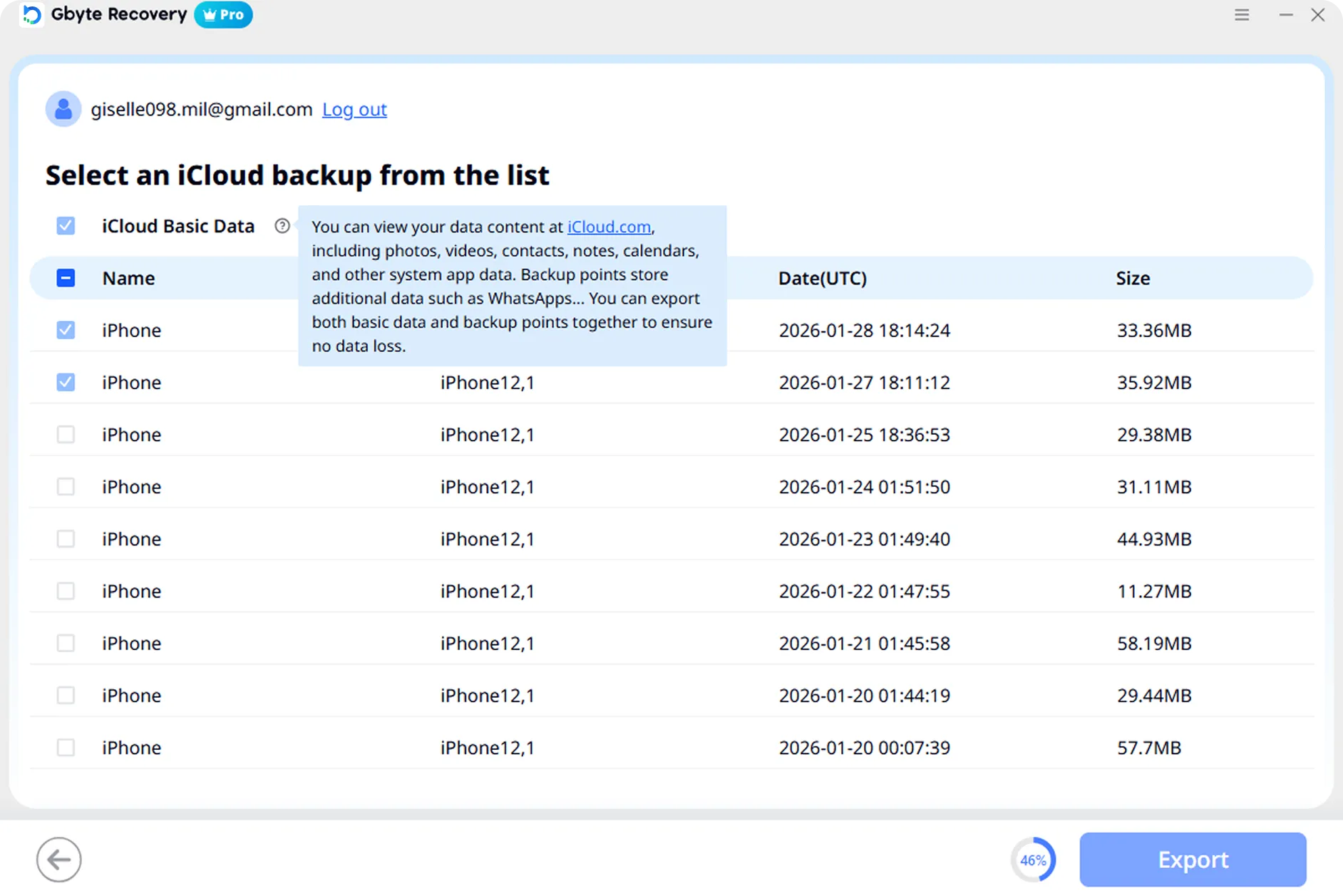
Select the backup(s) you want to extract. The info icon explains what's included: basic iCloud data (photos, contacts, notes) plus app-specific data like WhatsApp chats.
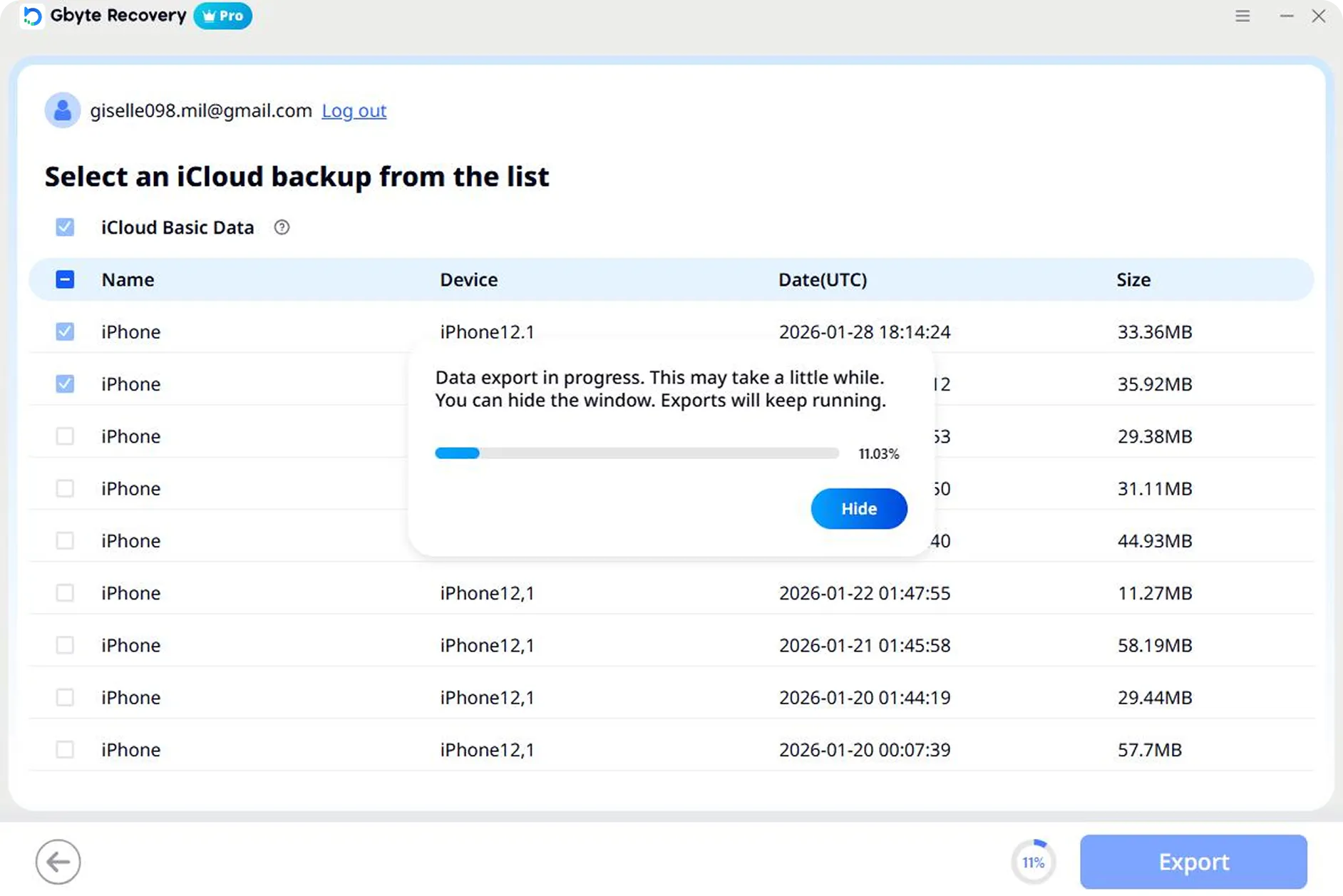
💡 What you'll see: Backup metadata is visible immediately. What requires activation: File-level preview and export
After export completes, you'll see a summary of recovered files. Click 'View' to access your data on your computer.
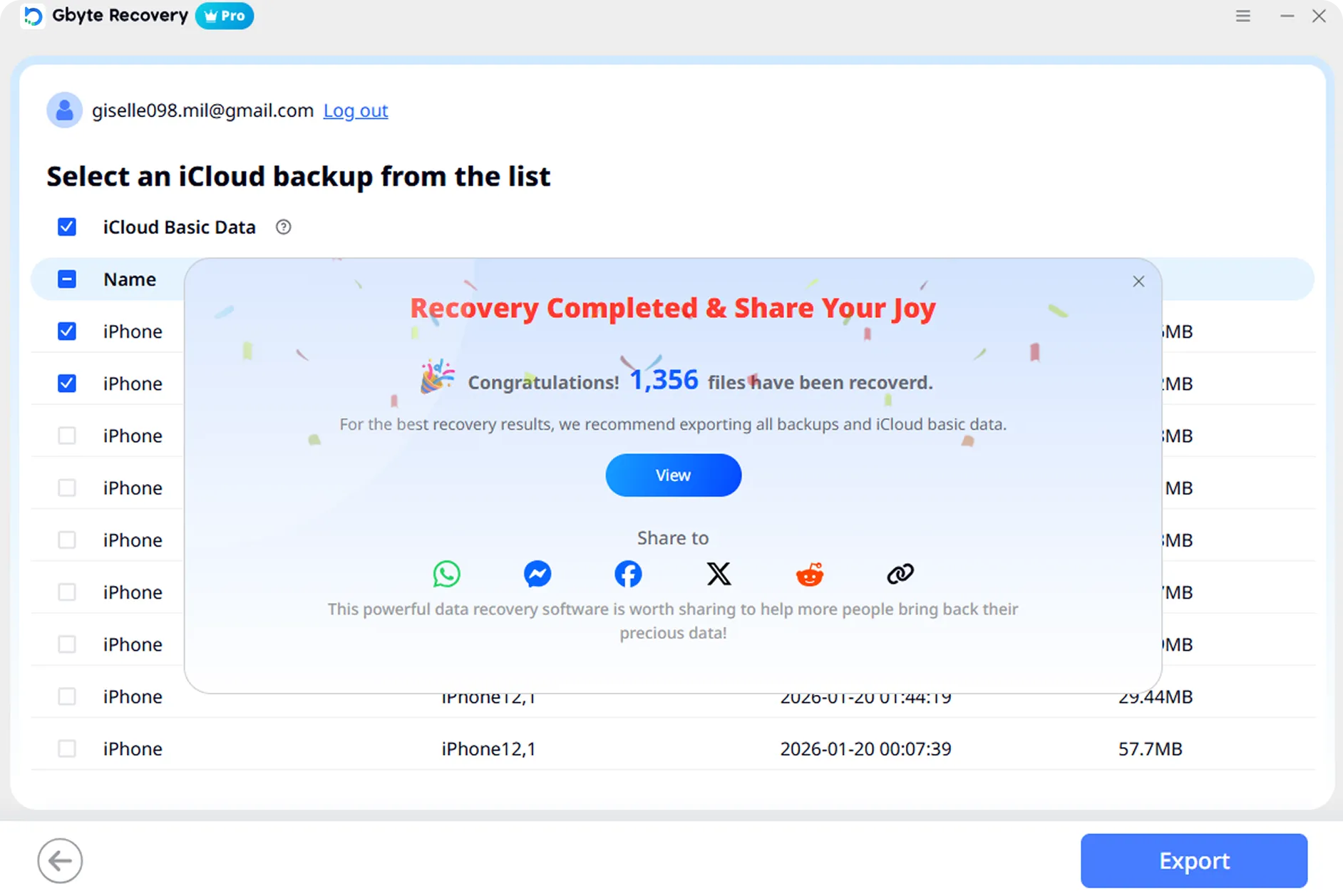
💡 What you'll see: Backup metadata is visible immediately. What requires activation: File-level preview and export
No. Gbyte is 100% jailbreak-free. It uses advanced system-level protocols that do not modify your iOS firmware or void your Apple warranty.
Absolutely safe. Your credentials are processed locally on your device and encrypted during transmission to Apple’s servers. Gbyte never stores or shares your private data.
Windows: Win 7/8/10/11; macOS: 10.15 and later. Supports all iOS versions up to the latest iOS 26.
Instantly. Once payment is confirmed, you will receive an email with your license. Process: Pay → Download → Activate (Total time: <3 mins).
No. Gbyte is 100% clean and certified by major antivirus software (Norton, McAfee). It contains no malware, plugins, or third-party ads.