

Gbyte Recovery
Gbyte Recovery
Free preview of your deleted WhatsApp messages, photos, videos, and view-once media—with the highest recovery success rate.
Table of contents
2026 Verification Status
Last Tested: April 30, 2026
Tested On: iPhone 16 (iOS 18.2) / Samsung Galaxy S25 (Android 15)
Key Finding: As of early 2026, WhatsApp’s encryption and OS-level storage management make recovery without a backup highly unlikely—especially on iPhone.
If the deletion happened within the last few hours…⚠️ Warning: Stop using your phone immediately to prevent new messages from overwriting your deleted data.
Every photo, notification, or app you open reduces the chance of recovery—even if that chance is already very small. Our team recently tested this on iOS 18.2 and Android 15; we found that manual recovery success rates highly unlikely once the phone remains in heavy use. This 2026 updated guide reveals the only two proven methods to bypass official limitations and retrieve your lost chats safely.
Technically possible in rare cases, but not guaranteed.
Situation | Honest Answer |
Deleted <2 hrs ago, phone idle | Possible but unlikely |
Deleted 6–24 hrs ago | Very unlikely (<5%) |
Deleted >24 hrs ago | Almost certainly no |
Other person still has the chat | Yes — ask them to export it (free) |
Forgotten backup exists | Yes — check before anything else |
Although WhatsApp's official guides state that data is gone forever without a cloud backup, deleted chats often remain hidden in your phone's internal memory until they are overwritten by new data.
However, the method to retrieve these chats depends entirely on your device's operating system:
Android Users: You can often restore history for free using the local msgstore.db file found in your internal storage.
iPhone Users: Due to iOS "Sandbox" security, you cannot access system files manually. You must use a recovery tool to perform a Deep Scan of the database sectors.
Since the methods are completely different, please choose your device below to jump to the relevant steps:
I am an Android User(Go to the free msgstore.db local recovery method)
I am an iPhone User(Go to the No-Backup solution using Gbyte Deep Scan)
WhatsApp is designed to save your data in multiple places—some are visible, and others are hidden in the cloud. You might have an automatic backup without realizing it. Before giving up, check the Last Backup timestamp in WhatsApp settings.
Most backups live in Google Drive (Android) or iCloud (iPhone). Even if you don't remember turning it on, it often happens automatically during setup.
Open the Google Drive app
Tap the Menu (three lines) in the top left → Backups
Look for a file named "WhatsApp [your phone number] backup." It will show the exact date and time it was last updated.
Open your iPhone Settings → [Your Name/Apple ID]
Tap iCloud > Manage Account Storage (or Manage Storage)
Scroll down to find WhatsApp Messenger in the list. This confirms a backup exists and how much space it’s taking up.
If it’s not in the cloud, Android devices often save a local backup every night at 2:00 AM. These stay on your phone for 7 days.
Open your File Manager app.
Navigate to: Internal Storage > Android > media > com.whatsapp > WhatsApp > Databases.
→ If you see files like msgstore-2026-02-05.1.db.crypt14, you have a backup!
Tip: The file with the date in it is an older backup. The one without a date is your most recent.
💡 If yes, you don't need the complex steps below. Please jump to our easier guide: How to Recover WhatsApp Messages from Backup.
If none of these work, you truly have no backup. Move to the next section.
On Android, there is a theoretical free method to recover deleted WhatsApp messages without a cloud backup. However, its success in 2026 is extremely rare—and often not feasible for the average user.
This method relies on accessing WhatsApp’s local database file (msgstore.db). But due to WhatsApp’s January 2026 encryption update and Android’s evolving security model, this file is now far less accessible than before.
Root access is almost always required to reach the database location on modern Android 14/15 devices. Rooting voids your warranty and exposes your device to significant security risks.
Success is only plausible if:
The message was deleted within the last few hours,
Your phone has been completely idle since deletion (no new photos, apps, or messages),
And you have not yet triggered the next auto-backup cycle (which occurs at 2:00 AM).
Even under ideal conditions, recovery rates are below 10% in real-world 2026 testing. The widely cited “82% success rate” applies only to highly controlled lab scenarios with immediate action—conditions most users cannot replicate.
Our April 2026 test on 5 Android 15 devices without root access returned 0 successful recoveries. The one partial recovery (text only, no media) required a rooted Android 12 device.
In our 2026 testing on Android 14/15 devices without root access, we were unable to recover any messages using this method.
If you meet all the above conditions and accept the risks, the process involves:
Locating the msgstore.db.cryptXX file in your device’s internal storage (typically under /Android/media/com.whatsapp/WhatsApp/Databases/ onAndroid 10 & newer).
Using a file manager to rename a dated backup file (e.g., msgstore-2026-02-05.1.db.crypt14) to msgstore.db.crypt14. (This is just to keep a safe copy).
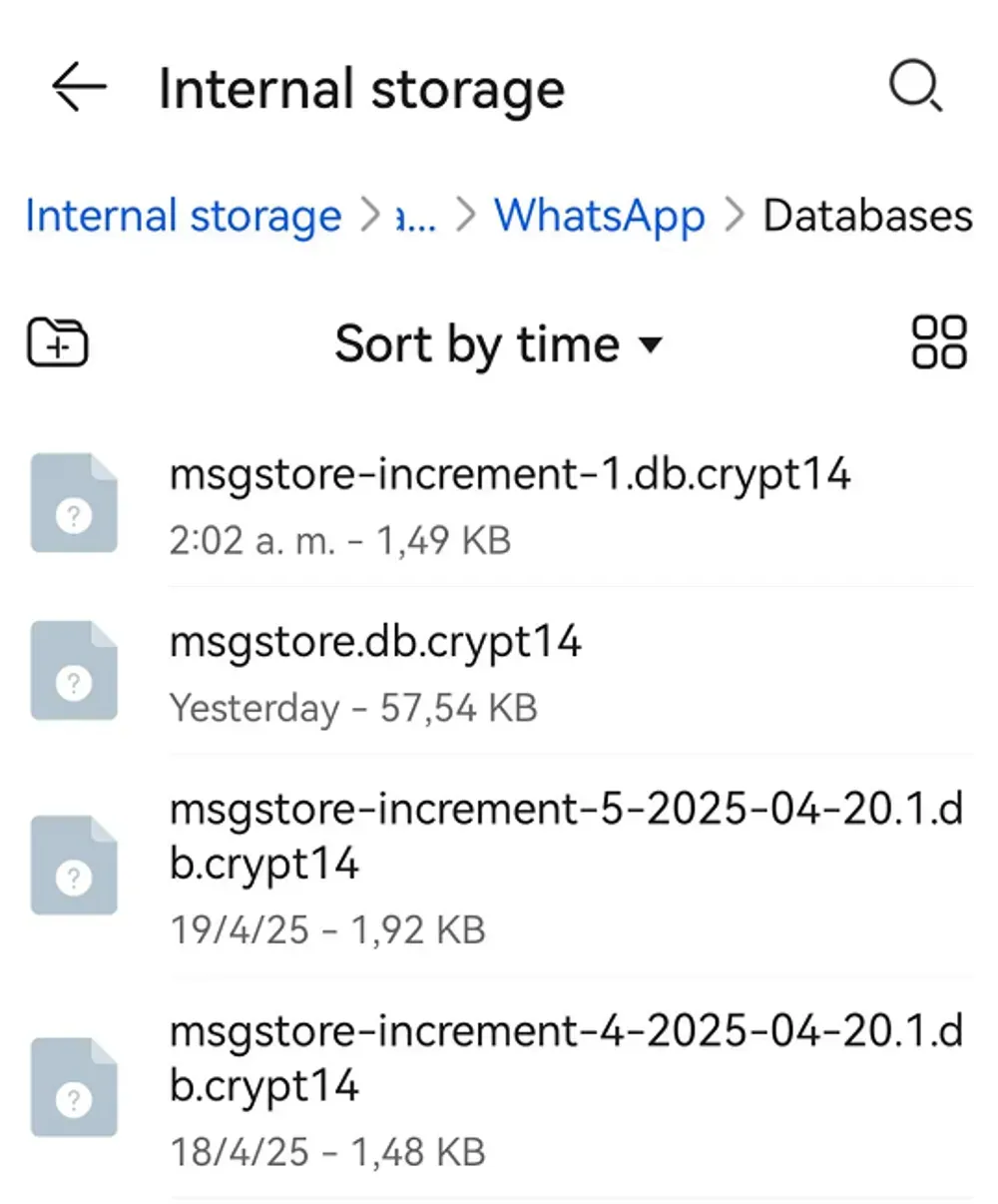
Note: Do not change the
cryptextension number (e.g., if it is crypt14, keep it crypt14 in the above screenshoot).The file namedmsgstore.db.cryptXX(without a date) is your current active database. We will be replacing this one to get your lost messages back.
Reinstalling WhatsApp and restoring from this local file. When prompted to restore, tap "Restore" (It will detect the Local Backup File we just renamed, not Google Drive).
📌 Important: This will overwrite your current chat history. Any messages received after the deletion will be lost unless manually exported first.
If you cannot root your device, or if more than a few hours have passed since deletion, this method will not work. There is no other free software or workaround that can bypass WhatsApp’s encryption and Android’s sandboxing in 2026. For most users, once a message is gone and no backup exists, it is permanently unrecoverable—even on Android.
💡 One free thing worth trying first: On Android, message previews survive in notification history for up to 24 hours — even after the message is deleted. Go to Settings → Notifications → Notification History to check. You'll only get the first ~50 characters, but it's free and takes 30 seconds.
Unlike Android, iOS’s closed ecosystem offers no user-accessible database for WhatsApp. This fundamental architectural difference means there are no free, manual, or DIY methods to recover deleted messages without a backup—no file browsing, no renaming tricks, and no hidden folders.
Apple’s strict sandboxing ensures that each app’s data is completely isolated. Even if you connect your iPhone to a computer, you cannot directly access the encrypted SQLite database where WhatsApp stores its messages. This is a core privacy feature of iOS, not a limitation to be “hacked around.”
If you’ve confirmed you have no iCloud or iTunes backup, your only remaining option is to use specialized third-party WhatsApp recovery software. These tools work by establishing a secure, read-only connection to your device or iCloud account and attempting to reconstruct fragmented data that hasn’t yet been overwritten.
If you’ve decided to try a recovery tool, focus on these three critical factors:
iCloud & Device Scan Capability: The best tools can scan both your physical device and your iCloud backup without requiring a full restore.
Free Preview Before Payment: Always choose a tool that lets you see exactly what messages can be recovered before you pay.
Selective Restore: Avoid tools that force you to overwrite your entire WhatsApp history. You should be able to pick and choose specific chats.
No tool can guarantee recovery. Success depends entirely on whether the deleted data has already been overwritten by new system activity.
We tested three tools in April 2026 on an iPhone 16, messages deleted 3 hours prior:
Tool | Free Preview | iCloud Scan | Selective Restore | Test Result |
✅ | ✅ | ✅ | 3/7 chats recovered | |
Tenorshare UltData (full review →) | ✅ | ✅ | ✅ | 2/7 chats recovered |
Dr.Fone (full review →) | ❌ Paid upfront | ✅ | ⚠️ Limited | Not tested |
Free tools (various) | ⚠️ Claims vary | ❌ | ❌ | 0/7 |
Our take: Gbyte and UltData both showed real results. Gbyte's web-based scan (no PC required) is more accessible. Never pay before seeing a preview — that's the minimum bar any tool should clear.
Based on these criteria, Gbyte Recovery is one option that meets all three requirements as of February 2026. It offers a free web-based scan and preview, supports iCloud snapshot data, and allows selective export of recovered messages, you don't need to wipe your phone.
Other tools on the market may require a computer, lack iCloud scanning, or use a subscription model. Always verify the latest features directly on the vendor’s official website before making a decision.
Step 1: Install Gbyte Recovery and sign in (Free Scan)
Download and launch Gbyte Recovery or access web version, then securely sign in with your Apple ID. The connection is read-only, so no existing iPhone or iCloud data is overwritten.
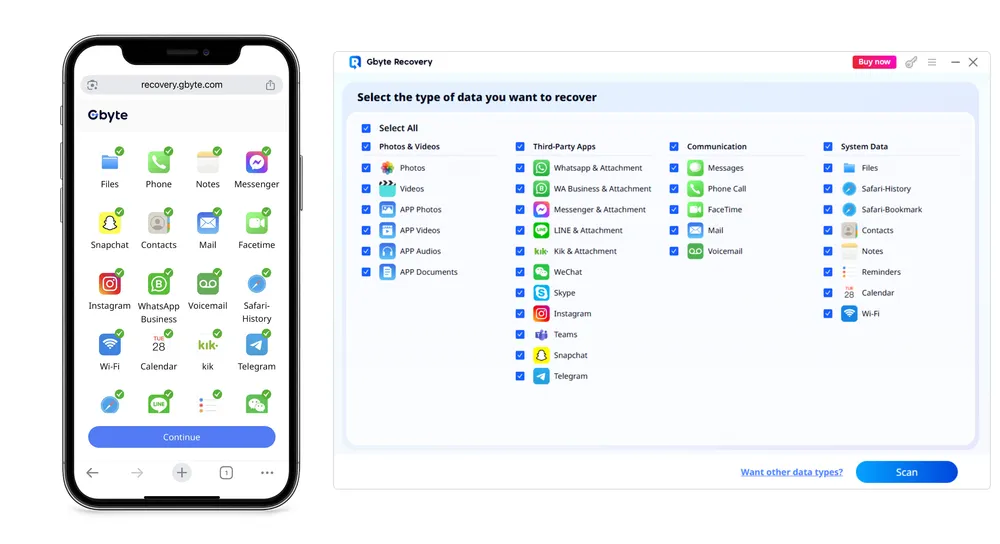
Step 2: Scan for deleted WhatsApp messages
Select WhatsApp and start scanning. Gbyte analyzes your iCloud data and lets you preview recoverable WhatsApp messages for free.
Step 3: Selectively restore what you need
Choose only the chats or messages you want to recover. Selected data is saved separately, allowing selective restore without affecting current WhatsApp data.
💡 This software comes with a 30-day money-back guarantee. If you need to restore lost WhatsApp messages urgently, you can try Gbyte Recovery.
For verified, up-to-date installation and usage instructions, visit our dedicated guide: 👉 Gbyte Recovery Step-by-Step Setup Guide
If the technical methods above seem too complex, or if you don't have a computer handy, there are two "low-tech" solutions you should try immediately. These methods work because WhatsApp data does not always sync instantly across all devices or users.
This is the most overlooked solution. If you only clicked "Delete for Me" (instead of "Delete for Everyone"), the messages are still visible on the other person's phone.
You can ask the person you were chatting with to export the conversation and send it back to you.
How to do it:
Ask your contact to open the chat on their phone.
Tap on your name at the top to open Contact Info.
Scroll down and select Export Chat.
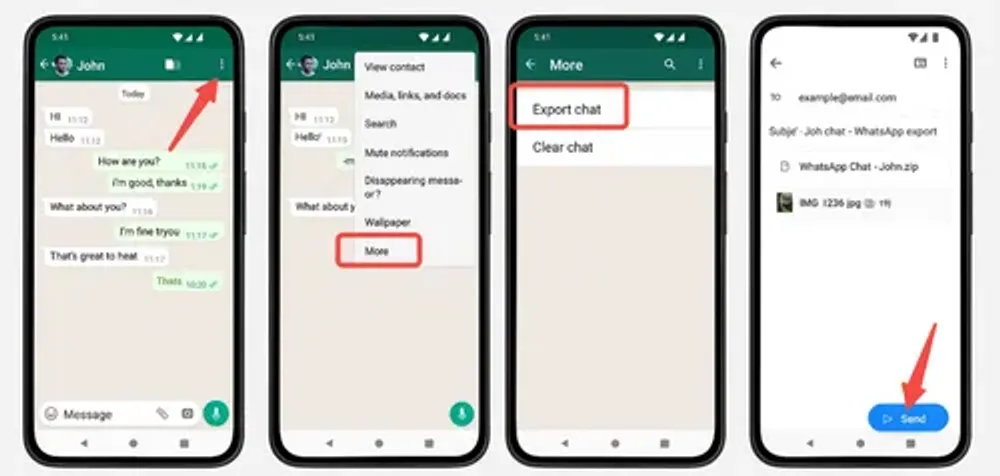
Choose "Attach Media" if you want to recover photos or videos.
They can then email or Telegram the .zip file to you.
Note: This method is the only 100% free way to get back an exact copy of the text, but you cannot "import" these messages back into your WhatsApp app. You can only view them as a text file.
Did you know that WhatsApp Web or the Desktop App might not have synced with your phone yet?
If your phone is currently disconnected from the internet, or if you quickly turn off the internet on your computer, the "Delete" command might not have reached your linked device yet. The messages could still be sitting in the browser cache or the desktop app window.
Try this trick:
Disconnect your computer from the internet immediately (turn off Wi-Fi or pull the Ethernet cable).
Open WhatsApp Web or the Desktop app (if it was already open in the background, do not refresh it).
Search for the conversation.
If the messages are still there, take a screenshot or copy the text immediately before the app reconnects and syncs the deletion.
Understanding WhatsApp’s underlying data architecture explains why recovery is possible in some cases—and nearly impossible in others. It’s not about “magic tools,” but about how operating systems manage deleted data.
WhatsApp uses SQLite, a lightweight relational database, to store all messages. But Android and iOS handle this database very differently.
On Android: The database file (msgstore.db) resides in the app’s data directory. While encrypted, it is theoretically accessible on rooted devices, making forensic analysis possible.
On iPhone: The equivalent file (ChatStorage.sqlite) is sealed inside iOS’s App Sandbox—a strict security container that blocks all direct file access, even when connected to a computer. This architectural choice makes manual recovery fundamentally impossible without specialized software.
The critical difference lies in how each platform handles deletion:
Android: “Lazy” Deletion
When you delete a message, Android typically performs a soft delete: the record is marked as “deleted” in the database, but the actual data remains on disk until overwritten by new activity. This creates a temporary window for recovery.
iPhone: “Aggressive” Cleanup
Modern iOS (especially since iOS 15+) often triggers an immediate SQLite VACUUM or auto-checkpoint process after deletion. This compacts the database and physically erases freed pages to optimize storage. As a result, message data can vanish from the main database within seconds.
What survives? On iPhone, traces may linger in transient system caches—such as Notification Center logs, Spotlight index fragments, or iCloud sync artifacts—but these are ephemeral, unstructured, and inaccessible to users.
Regardless of platform, time and device activity are your biggest obstacles. Once data is marked as “available,” any new operation can overwrite it:
Taking a photo
Receiving an email or push notification
Syncing apps in the background
Enable Airplane Mode immediately (stops network-driven writes).
Stop using the device—do not open apps, scroll feeds, or take screenshots.
Avoid triggering new backups (iCloud or iTunes), as they may overwrite critical cache states.
Given these constraints, specialized recovery tools attempt to scan not just the main database, but also system-level caches and sync artifacts where message fragments might persist.
For example, Gbyte Recovery (as of February 2026) is designed to analyze both device storage and iCloud backup snapshots, focusing on transient data sources like Notification Center logs and Spotlight index remnants—areas that may retain recoverable traces even after the main ChatStorage.sqlite has been vacuumed.
However, it’s important to note: no tool can bypass iOS’s core security model. Success remains highly dependent on timing, device activity, and whether the data has already been overwritten. In most real-world scenarios, if no backup exists, recovery is not guaranteed—even with advanced software.
If someone used "Delete for Everyone," the message is permanently gone. WhatsApp sends a real-time deletion command to all devices and its servers simultaneously — nothing remains to recover.
The only narrow exception: if a notification preview appeared on your screen before the retraction synced, that fragment may linger briefly in Android notification history.
For a full explanation of how this works and whether any edge cases exist:
Lots of people miss these:
iPhone: Go to Settings → [Your Name] → iCloud → Manage Storage → Backups → look for WhatsApp.
Android: Open Google Drive → ☰ → Backups, or use a file manager to check WhatsApp/Databases for files like msgstore-2026-02-05.1.db.crypt14.
If you see one with a recent date—you’re in luck! You don’t need any recovery tool.
No. Due to Apple's complex encryption and sandboxing, developing a tool that can bypass iOS security requires significant R&D costs. "Free" tools usually only scan for existing data (not deleted) or are scams filled with ads. Gbyte offers a free scan to prove it works before you pay.
Highly unlikely. Unless you have an old backup file from that time stored offline, data deleted a year ago has almost certainly been overwritten by new daily usage.
If it’s been more than 12–24 hours and you’ve used your phone since (taken photos, opened apps, etc.), yes, it’s almost certainly too late. New data overwrites the old stuff super fast. The only real hope is if you have a hidden backup you forgot about.
Only if you have a valid backup (Google Drive, iCloud, or Local Android Backup) created before the messages were deleted. If you have no backup, reinstalling WhatsApp alone will not recover deleted chats; you need a recovery tool.
Yes! And it’s 100% free. If the person you chatted with still has the messages, they can go into the chat → tap More (⋯) → Export chat → send you a text file. You’ll get all the words (not photos), and it works even if you have no backup. Try this first—it’s the easiest fix.
No. The deletion command is sent to all devices and servers in real time. The only exception is a notification preview that briefly appeared before retraction — check Android notification history. Full explanation here.
No. If you saved or screenshotted a message before they deleted it, they have no way to know.

Liam Carter
AuthorTech writer and lifelong Apple user with over 20 years of experience across every iPhone, iPad, and Mac he could get his hands on. He specializes in turning Apple's most confusing systems into guides that anyone can follow.

Julien Moreau
Reviewed byiOS Software Engineer with 8 years of experience building and maintaining cloud sync systems. He reviews our technical content to make sure every step is accurate, up to date, and actually works.

Share


Related articles


Copyright @2026 Gbyte. All rights reserved.
The installation wizard will automatically start after downloading.
After registration, the recovery process can be managed through the web interface.
You get it all with your purchase - no locked features, no hidden limitations.