

Gbyte Recovery
Deep scan your iCloud history for free to find 30+ types of deleted data. Recover everything beyond official limits without overwriting your iPhone.
Table of contents
There's nothing worse than realizing a photo you loved is gone—wiped clean from iCloud and even the Recently Deleted folder. For many iPhone users, that moment comes with a sinking question: Can I recover permanently deleted photos from iCloud after 30 days?
Short answer: Yes, recovery is still possible in many cases—but your success depends on three factors:
How long ago the photos were deleted (especially if it's been more than 30 days)
Whether you have an existing iCloud backup or local backup
Which recovery method you choose next (Official vs. Specialized tools)
This guide walks you through every verified option, including Apple's official paths and when specialized tools like Gbyte Recovery are needed to scan hidden data.
[Self-Check]: All methods are tested on iOS 18 / macOS Sequoia. No technical expertise needed.
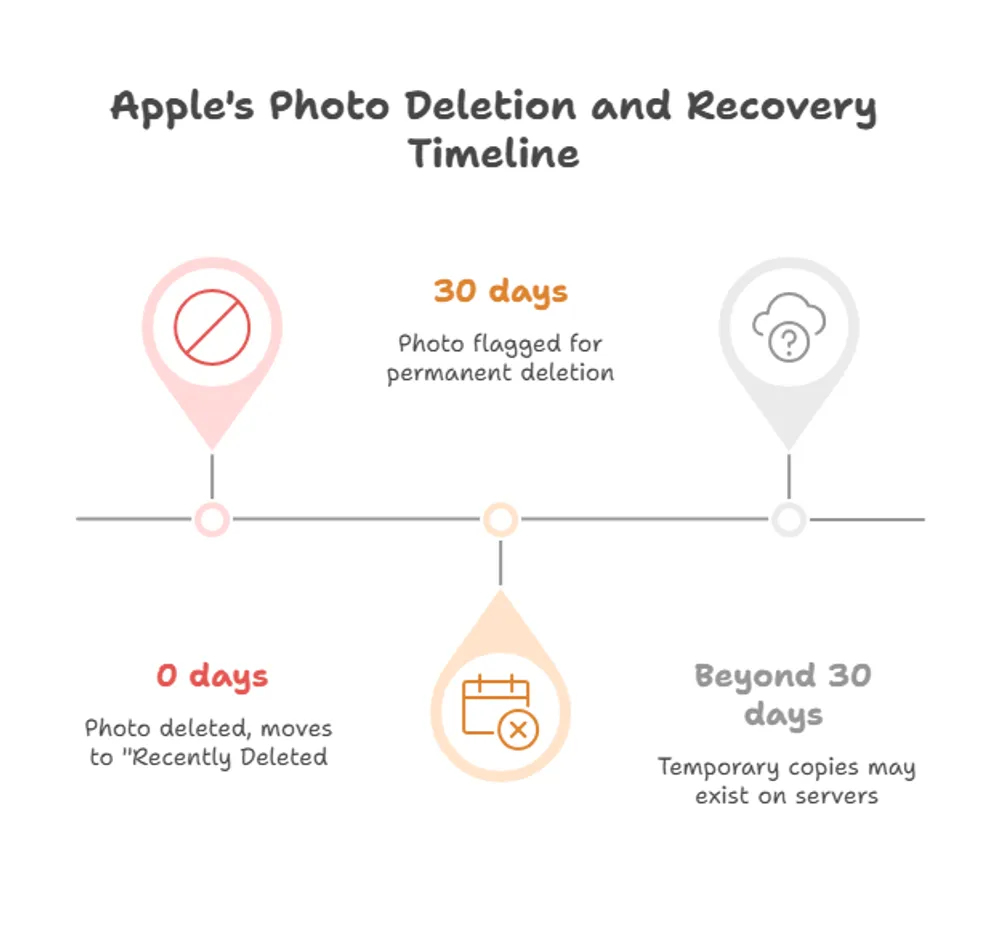
Understanding Apple’s deletion logic is key to choosing the right recovery path. Here is the official timeline:
Recently Deleted Folder (Days 1-30): Photos stay in this "trash" bin. Recovery is 100% guaranteed via a simple restore. You can restore photos from the recently deleted anytime during this window.
The "Permanent" Threshold (After 30 Days): Apple removes the files from your visible library. However, the underlying data may still reside in your iCloud Photo Library's database or an un-synced iCloud Backup.
The "Invisible" Period: Even after 30 days, Apple’s servers may hold "purged" data for a short grace period. Specialized tools can often trigger a re-sync of these hidden fragments by securely accessing your iCloud account.
💡 Pro Tip: The success rate of recovery drops every time you take a new photo, as new data might overwrite the "deleted" space. Sign in to your iCloud account immediately to check if a recent backup contains the missing files before they are gone forever.
If your photos were deleted within the last 30 days, the most reliable official route is through the iCloud web interface. This method is effective because it syncs directly with Apple’s servers, sometimes showing files that haven't refreshed on your iPhone yet.
Visit iCloud.com on any browser and sign in with your Apple ID.
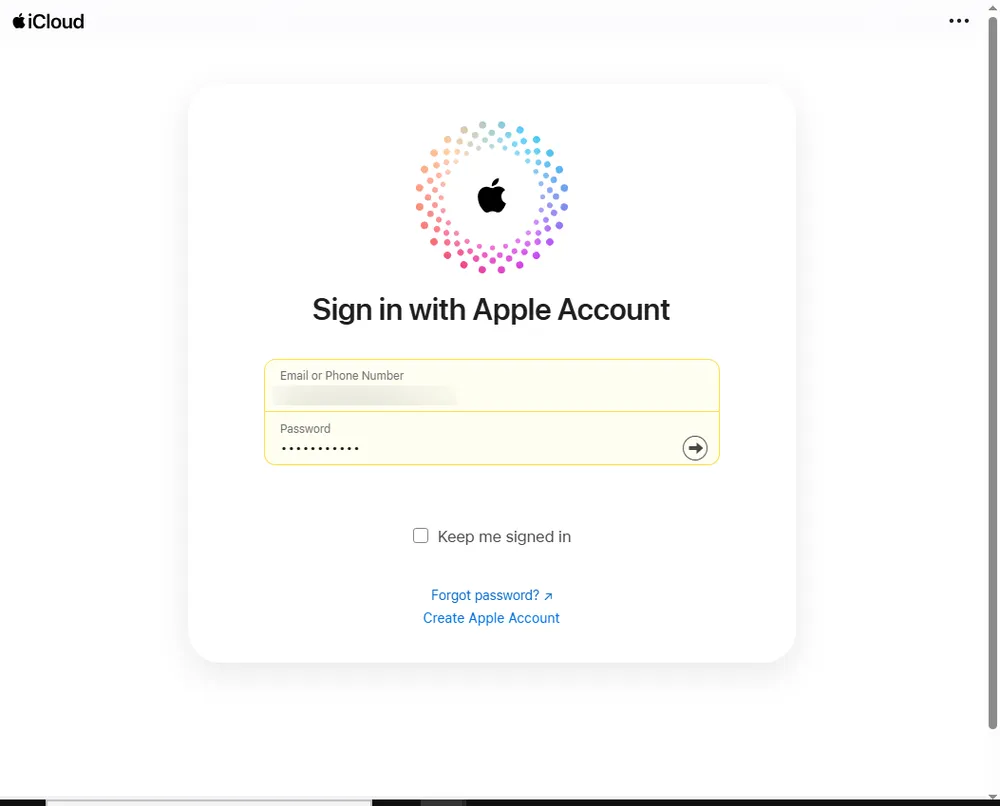
Open the Photos app.
In the sidebar, click Recently Deleted.
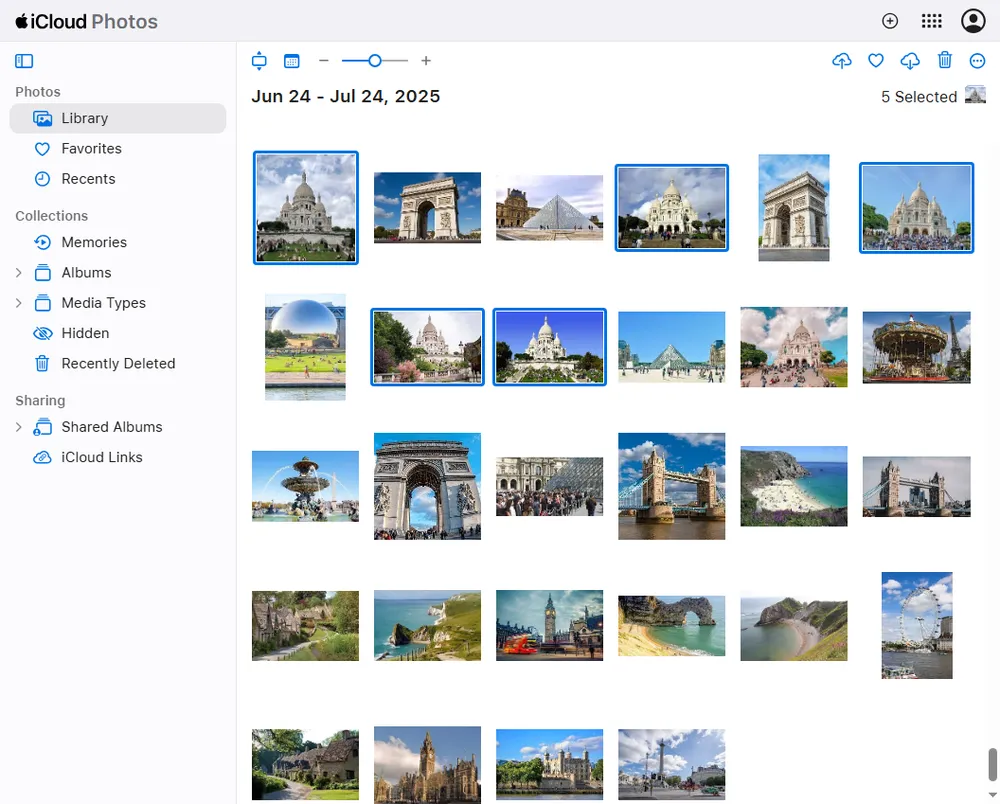
Select the photos from iCloud you want to restore and click Recover.
🔑Important Limitations:
The 30-Day Hard Limit: Once a photo has been in this folder for 30 days, Apple’s system automatically purges it.
Storage Full Issues: If your iCloud storage was full at the time of deletion, some photos might not have been moved to the "Recently Deleted" folder at all.
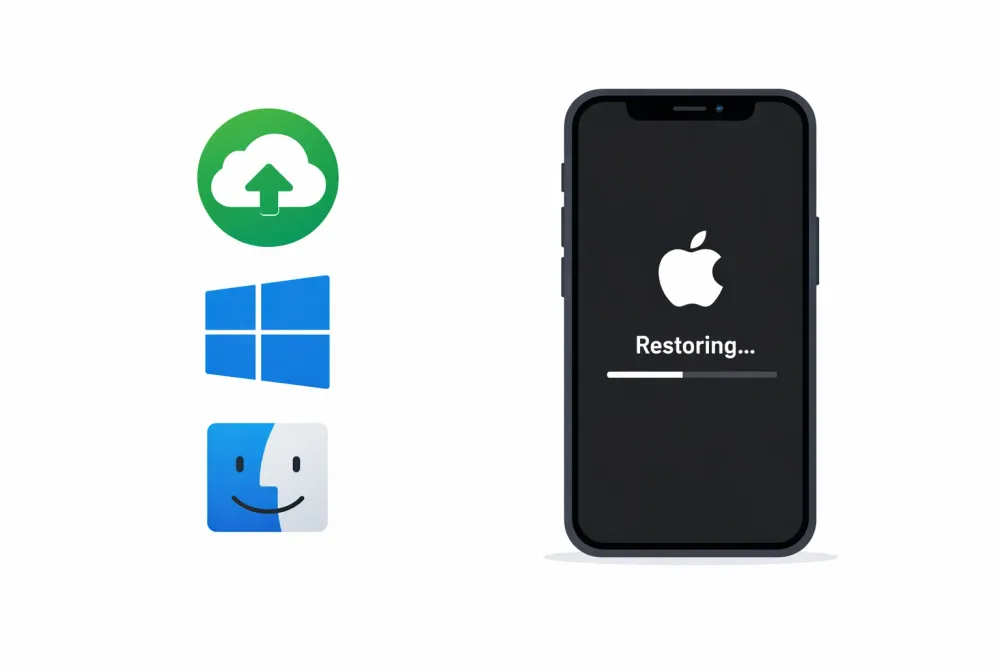
If your photos were deleted more than 30 days ago and aren't on iCloud.com, your computer backup is the next best place to look. If you’ve ever synced your iPhone with iTunes (Windows) or Finder (macOS), a complete snapshot of your library might be sitting on your hard drive.
Connect your iPhone to your computer using a certified USB cable.
Open iTunes (Windows) or Finder (macOS).
Click on your device icon when it appears.
Under the General (or Summary) tab, select Restore Backup.
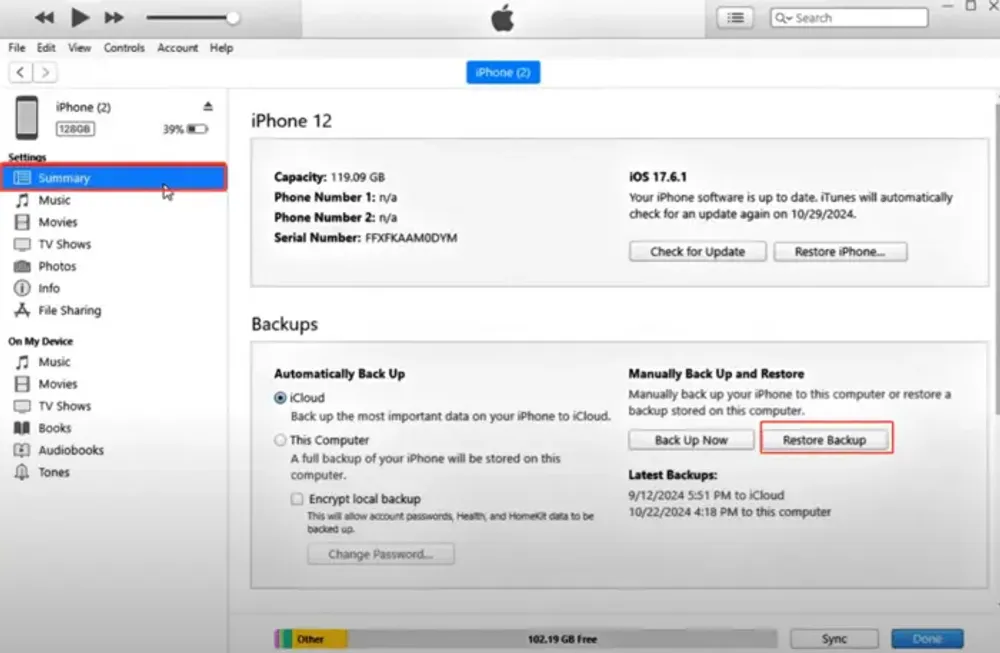
Choose a backup version dated before your photos were permanently deleted.
⚠️ Critical Note: Just like the iCloud backup method, this will overwrite your current iPhone data. Any messages, new photos, or app data created after the backup date will be lost.
For users who only want to retrieve a few specific photos without wiping their entire phone, this is where Gbyte Recovery excels. Instead of a "blind" restore, it allows you to:
Scan & Preview: View the contents of your iTunes/Finder backups without actually restoring them to your phone.
Selective Export: Save only the deleted photos directly to your PC or Mac.
If you need to recover photos deleted more than 30 days ago or want to preview your deleted photos first without the risk of resetting your phone, Gbyte Recovery is the safer, more flexible choice.
As a professional-grade iCloud data recovery tool, it is designed to pull "invisible" data straight from your cloud snapshots. Unlike Apple's official restore which only shows your most recent backup, Gbyte Recovery allows you to access historical iCloud backups and selectively recover only the images you need.
✅ Why choose Gbyte Recovery?
No Reset Needed: Your current iPhone data stays 100% safe. No "Erase All Content" required.
Selective Recovery: Instead of a full 50GB restore, just pick the 5 specific photos you lost.
Historical Access: Reach back into older iCloud backup versions that the iPhone UI hides.
Free Backup Preview: The scanning process is completely free. You can see exactly what is recoverable before making any decisions.
You can choose between the PC version for a deep local scan or the Web App for an instant cloud-based check.
Download & launch: Download Gbyte Recovery on your PC/Mac or access the Web App.
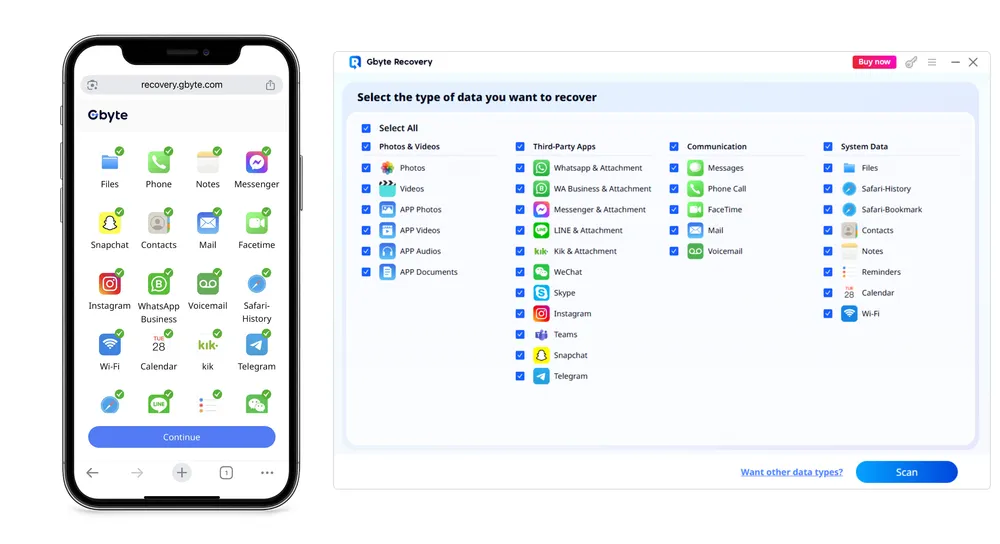
Free scan for Hidden Photos: Sign in to your iCloud account securely. Select "Photos" and start a free scan to find deleted fragments.
Preview & Restore: Browse the found images and click "Recover" to save them directly to your PC or iPhone.
💡 Looking for a detailed walkthrough? Check out our detailed guide advanced tips and troubleshooting.
If you had iCloud Backup enabled before the deletion, you can restore your iPhone to a previous state.
On your iPhone, go to Settings > General > Transfer or Reset iPhone > Erase All Content and Settings.
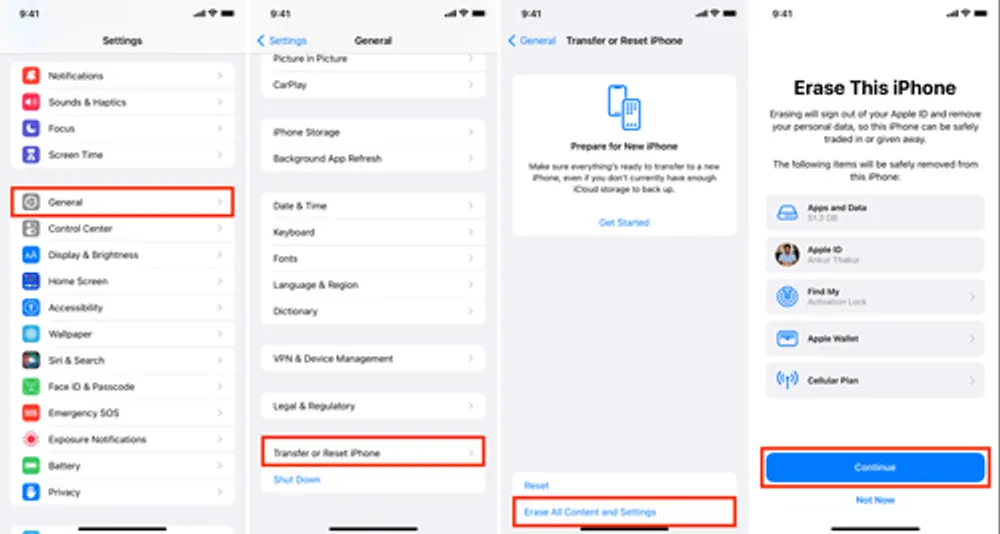
Restart the device and follow the setup prompts.
When asked, select Restore from iCloud Backup.
Sign in with your Apple ID and pick a backup created before the photos were deleted.
⚠️ Warning: This method erases your iPhone before restoring data. If you don’t want a full reset, Gbyte Recovery offers a safer alternative.
For critical cases, you can request assistance directly from Apple. While this isn’t guaranteed, Apple sometimes helps retrieve files recently removed from its servers.
Visit Apple Support.
Explain that you need iCloud photo recovery after permanent deletion.
Provide your Apple ID and the approximate deletion date.
Wait for Apple’s engineering team to check if recovery is possible.
This works best if the deletion happened very recently.
Method | Difficulty | Data Overwrite Risk | Recovery Rate | Rating |
|---|---|---|---|---|
iCloud Recently Deleted | Easy | None | ⭐⭐⭐ | ⭐⭐⭐ |
iTunes/Finder Backup | Medium | High | ⭐⭐⭐⭐ | ⭐⭐⭐⭐ |
Apple Support (Data Recovery) | Hard | None | ⭐⭐ | ⭐⭐ |
Gbyte Recovery App | Easy | None | ⭐⭐⭐⭐⭐ | ⭐⭐⭐⭐⭐ |
iCloud Device Backup | Medium | High | ⭐⭐⭐ | ⭐⭐⭐⭐ |
So, how to recover permanently deleted photos from iCloud?
If it’s within 30 days: check the Recently Deleted folder on iCloud.com.
If you have a backup: restore via iTunes, Finder, or iCloud device backup.
If no backup exists: use a permanently deleted photos recovery app like Gbyte Recovery, which gives you the best chance of retrieving files safely.
While iCloud has limits, third-party tools bridge the gap, making permanently deleted photo recovery possible even when it feels hopeless.

Liam Carter
AuthorTech writer and lifelong Apple user with over 20 years of experience across every iPhone, iPad, and Mac he could get his hands on. He specializes in turning Apple's most confusing systems into guides that anyone can follow.

Julien Moreau
Reviewed byiOS Software Engineer with 8 years of experience building and maintaining cloud sync systems. He reviews our technical content to make sure every step is accurate, up to date, and actually works.
Gbyte Recovery
Don't wait until your data is gone forever! Try Gbyte iOS Recovery for free—scan first!
100% secure. Your data always stays private.
Share


Related articles


Subscribe Our Newsletter
For exclusive tutorials, product updates & phone tips, protect your data and prevent loss!
You can unsubscribe from our newsletter at any time by clicking the "Unsubscribe"link at the bottom of our emails.


Copyright @2026 Gbyte. All rights reserved.
The installation wizard will automatically start after downloading.
After registration, the recovery process can be managed through the web interface.
You get it all with your purchase - no locked features, no hidden limitations.