

Gbyte Recovery
Free scan and selective preview of 25+ data types like messages, photos, and WhatsApp. No data overwritten — recover only what you need.
Table of contents
Accidentally deleted a video from your iPhone—and it’s gone even from “Recently Deleted”? Don’t worry. Even without backup, you can still recover permanently deleted videos on iPhone, sometimes even for free. This guide shows you how to get back videos you permanently deleted, including what works after 30 days.
Recovery Strategy: Your best chance is finding a copy saved elsewhere.
The Best Free "No-Backup" Method: Check web versions of Cloud services (iCloud.com, Google Photos) or your chat history in apps like WhatsApp and Messenger.
The Official Path: Restore from an iCloud or iTunes/Finder backup (Note: This will erase your current phone data).
The Best Alternative: Use a tool like Gbyte Recovery to recover specific videos from all historical iPhone snapshots and 30+ apps in one click.
The Recovery Trap: Be aware that scanning an iPhone’s internal storage no longer works due to Apple’s exclusive disk encryption.
Yes, it’s possible.
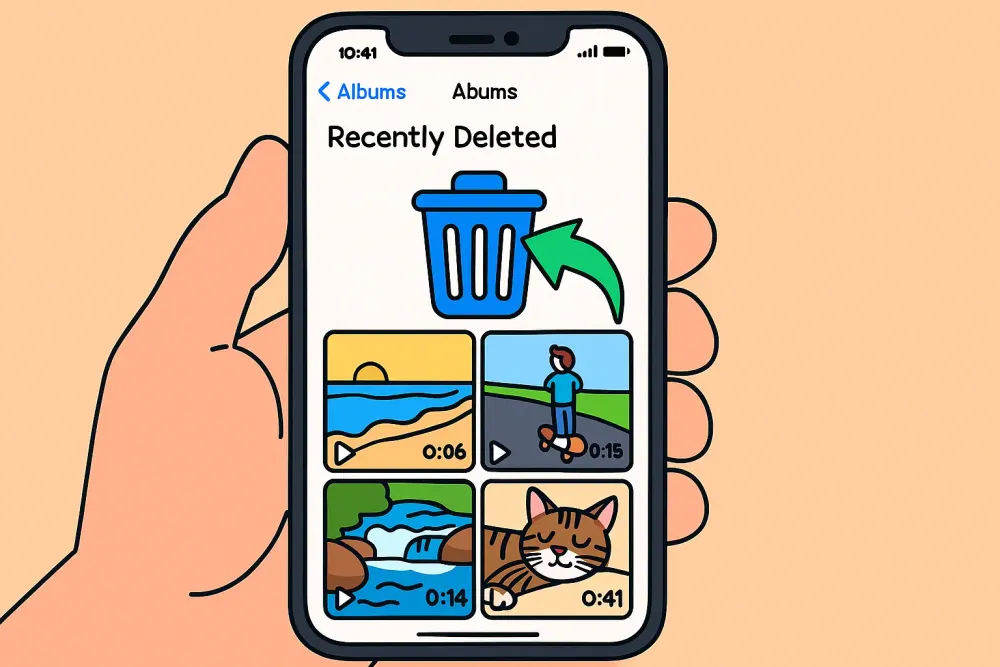
Permanently deleted videos are those that have been cleared from the Recently Deleted folder or have stayed there longer than 30 days. Apple officially claims these files are unrecoverable once deleted from the trash. However, there are still a few workarounds and methods you can try to get them back.
Unlike standard iPhone videos recovery, we must look for copies that were saved elsewhere (such as cloud services or local backups) before they disappeared from your phone.
Some guides claim that scanning your iPhone’s internal storage is a reliable method. However, this hasn’t worked for years due to Apple’s disk encryption. Android might allow this, but the iPhone does not.Instead of trying to “hack” the iPhone’s storage, focus on these proven ways to find your missing videos.
It is always worthwhile to check the web version of iCloud. If your iPhone was offline or “iCloud Photos” was toggled off at the moment of deletion, your video might still exist in its original state on the iCloud.
Step 1. Go to iCloud.com/photos on a computer or tablet.
Step 2. Log in with your Apple ID.
Step 3. Manually scroll through your timeline to look for the missing video.
Step 4. Don’t forget to check the Recently Deleted folder on the website specifically, as it sometimes differs from your phone’s local trash.
If you have ever used other apps for storage or automatic syncing, your video might be waiting there in original quality. Log in to these services and search your “Camera Roll” or “Uploads” folders:
Google Photos / Google Drive
OneDrive / Dropbox
Amazon Photos
Think about whether you ever shared the video with someone else. Even if it’s gone from your phone, a copy likely exists in the "Media" or "Attachments" section of your apps. This can be a genuine life saver for recovering permanently deleted videos when you don't have a backup.
Messaging Apps: Check your chat history in WhatsApp, Telegram, or Messenger. These apps often save a compressed (but viewable) copy of the video.
Social Media: Did you post it as a "Close Friends" story or a private post on Instagram or Facebook? You may be able to download the file back from your archives.
✨ If you can't find your video in Google Photos or social apps, it simply means the file isn't part of your phone's current state. You need a tool that can travel back in time - like Gbyte Reovery to scan historical layers and retrieve data from past versions of your device's memory.
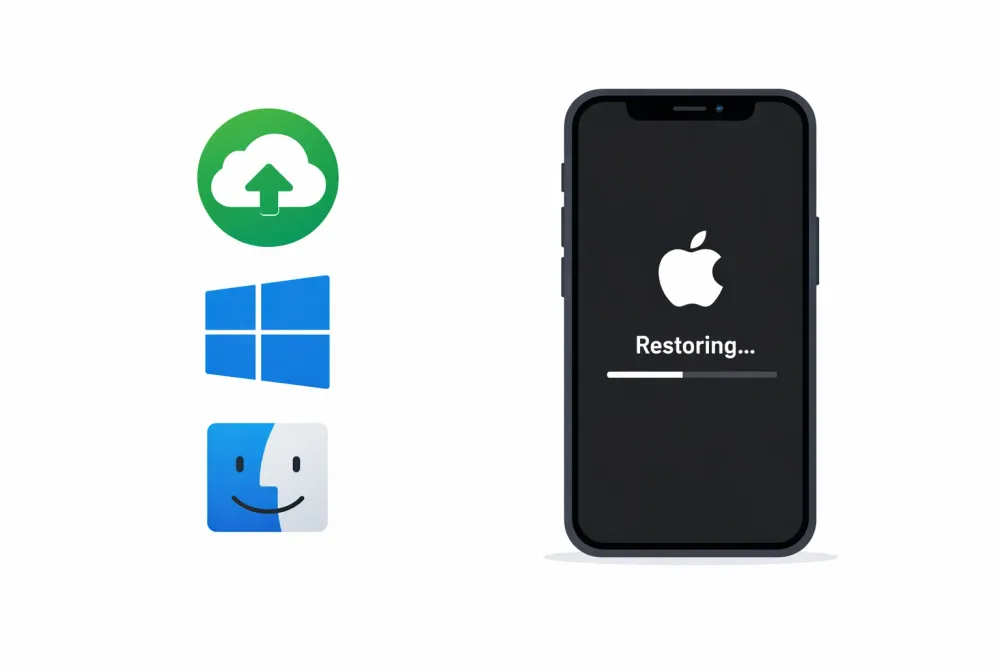
If you have iCloud Backup enabled, a previous backup may still contain your lost videos. This method recovers your permanently deleted videos by restoring your iPhone to a “previous state” before the videos were deleted.
How to Check for Backups:
Step 1. On your iPhone, go to Settings > [Your Name] > iCloud > iCloud Backup.
Step 2. Check the "Last Backup" date and ensure "iCloud Backup" is toggled on.
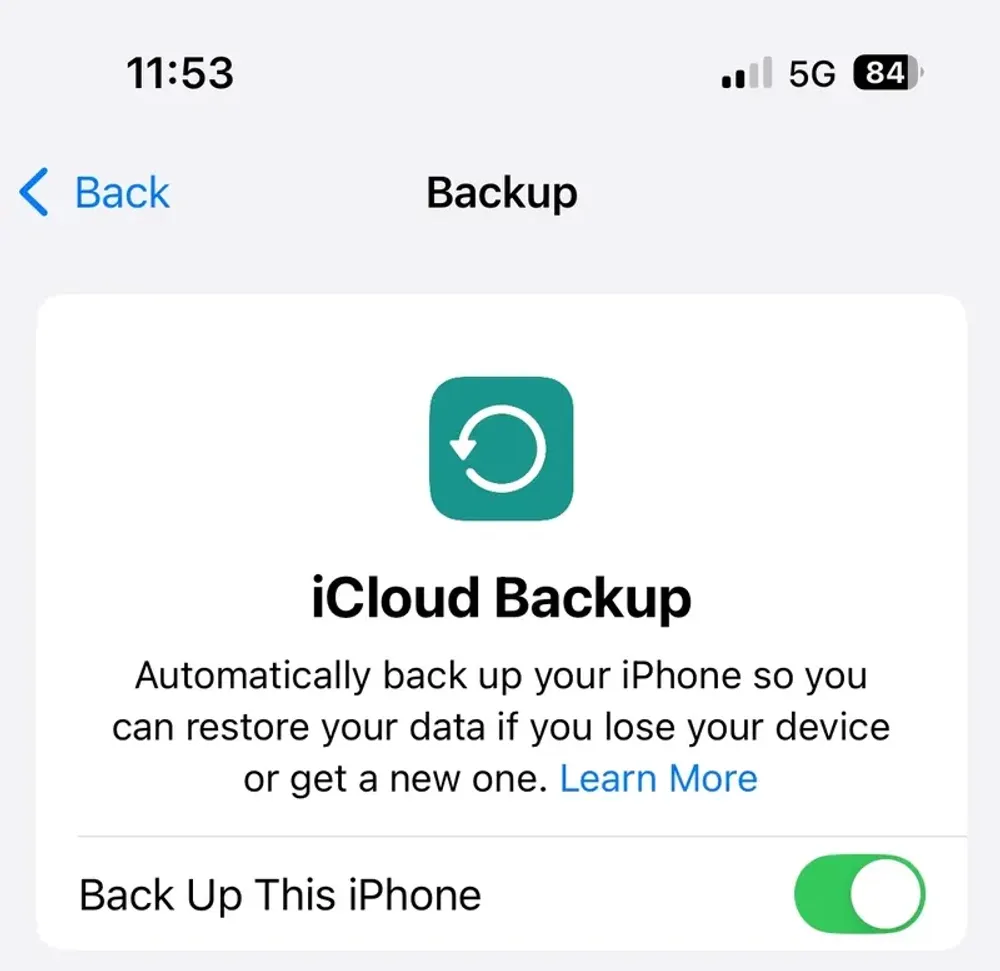
How to Restore (Warning: This will erase your current iPhone data!):
Step 1. First, ensure you have a suitable backup containing your lost video.
Note: It can be difficult to know exactly what is inside an iCloud backup just by looking at the date. While Apple usually shows the latest backup, more restore points may appear during the setup process.
Step 2. Go to Settings > General > Transfer or Reset iPhone > Erase All Content and Settings. (Make sure you know your Apple ID password).
Step 3. Once your iPhone restarts and reaches the "Apps & Data" screen, choose "Restore from iCloud Backup."
Step 4. Sign in with your Apple ID and select the most relevant backup from the list to recover permanently deleted video.

Pros

Cons
For those who regularly back up their iPhone to a computer, an iTunes (for Windows PC) or Finder (for Mac running macOS Catalina or later) backup could hold your lost video. This method recovers your permanently deleted videos by reverting your iPhone to a previous "snapshot."
How to Check for Available Backups:
Step 1. Connect your iPhone to the computer you normally sync with.
Step 2. Open iTunes (Windows) or Finder (Mac).
Step 3. In iTunes, go to Edit > Preferences > Devices to see a list of device backups. In Finder, click on your iPhone under Locations, then go to the General tab and click "Manage Backups."
How to Restore (Warning: This will also erase your current iPhone data!):
Step 1. Connect your iPhone to the computer with the backup.
Step 2. Open iTunes/Finder and select your device when it appears.
Step 3. In the Summary (iTunes) or General (Finder) tab, click "Restore Backup..."
Step 4. Choose the most relevant backup from the dropdown list and click "Restore."
Pros
Cons
While iCloud and iTunes restores are useful, they often fall short because they require a “perfect” backup and carry a high risk of overwriting your current data. A professional tool like Gbyte Recovery offers a much safer, more flexible method. It uses digital-forensics-grade technology simplified for personal use to scan deeper into your iPhone’s history.
Why Choose Gbyte iOS Recovery?
True "Time Machine" Access: Access all historical iPhone snapshots of your device to find videos from months ago, bypassing the standard 30-day "Recently Deleted" limit.
Recover from 30+ Apps in One Click: It doesn't just scan your Photos app. Gbyte searches for deleted videos within Messages, WhatsApp, Messenger, and more in a single session.
Safe and Secure: Operates in a read-only mode, won't modify or damage any existing data on your iPhone. Your privacy is also protected.
Instant Mobile Scan: You can check if your videos are recoverable right away on your iPhone—no complex setup or computer required.
See results free: Preview your permanently deleted videos for free before recovery.
How to Recover Permanently Deleted Videos from iPhone Using Gybte iOS Recovery (Step-by-Step):
Step 1. Visit Gbyte iOS Recovery to free download onto your computer.
No computer nearby? You can also initiate a free scan directly on your mobile device.
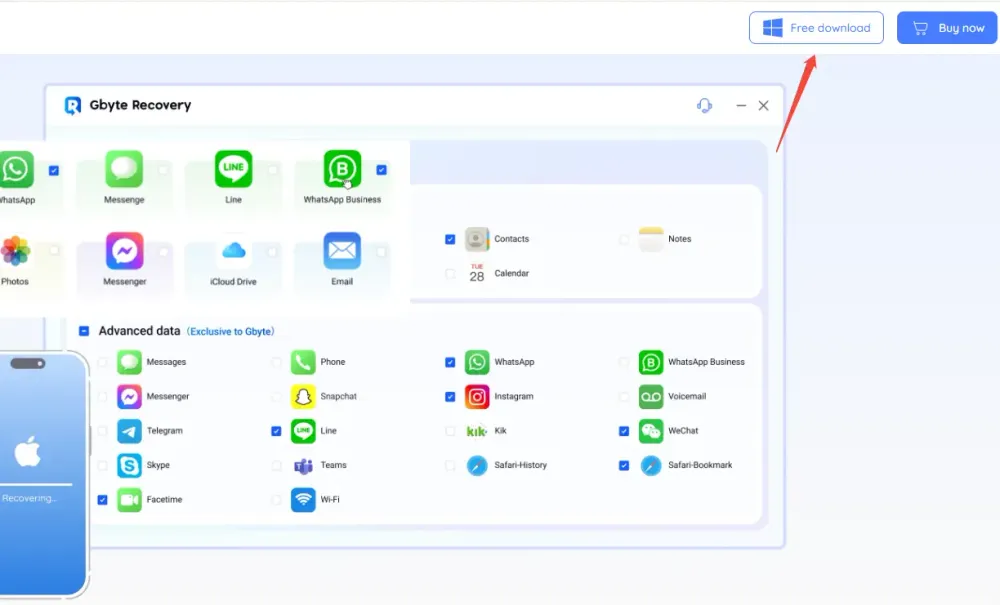
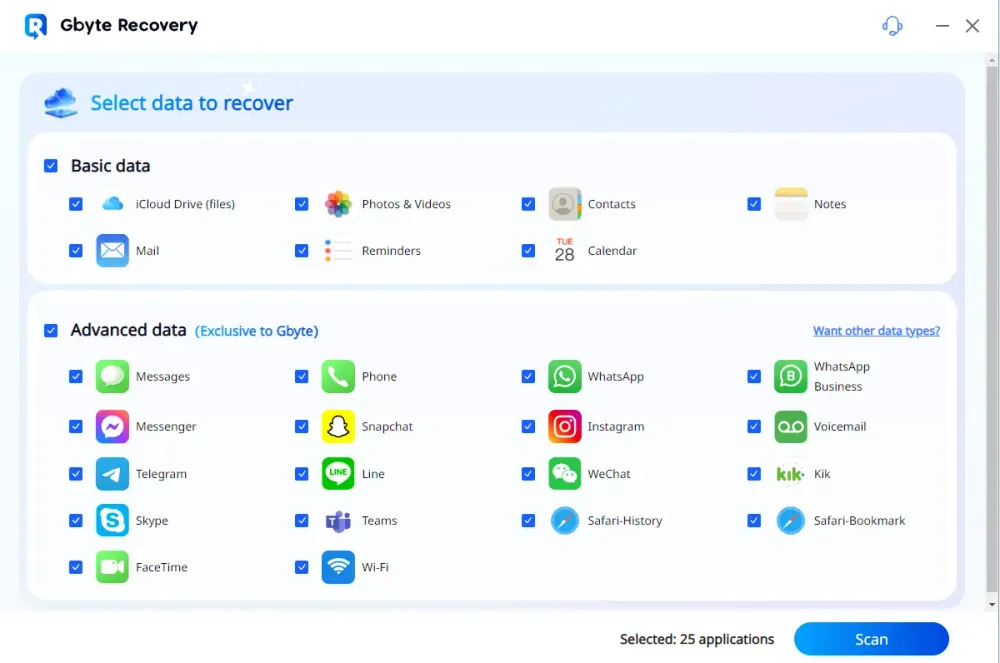
Step 2. Choose "Videos & Photos" to scan specifically for these file types. Click "Scan."
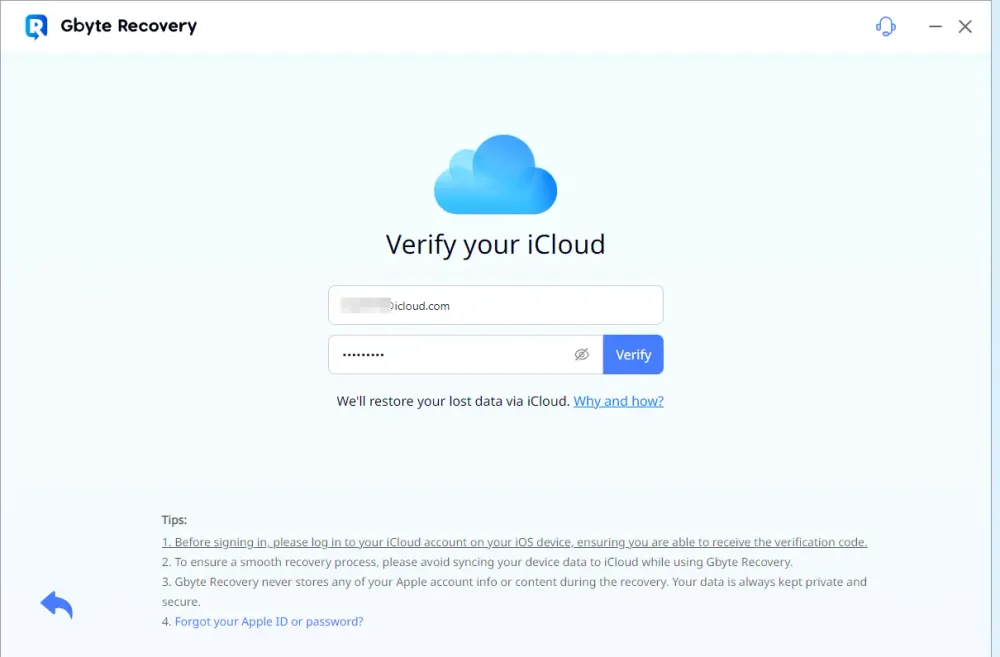
Step 3. Launch the software and connect your iPhone to your computer by entering your icloud account and password.
Step 4. The software will begin a deep scan of your iPhone's storage. This process may take some time, depending on the amount of data on your device.
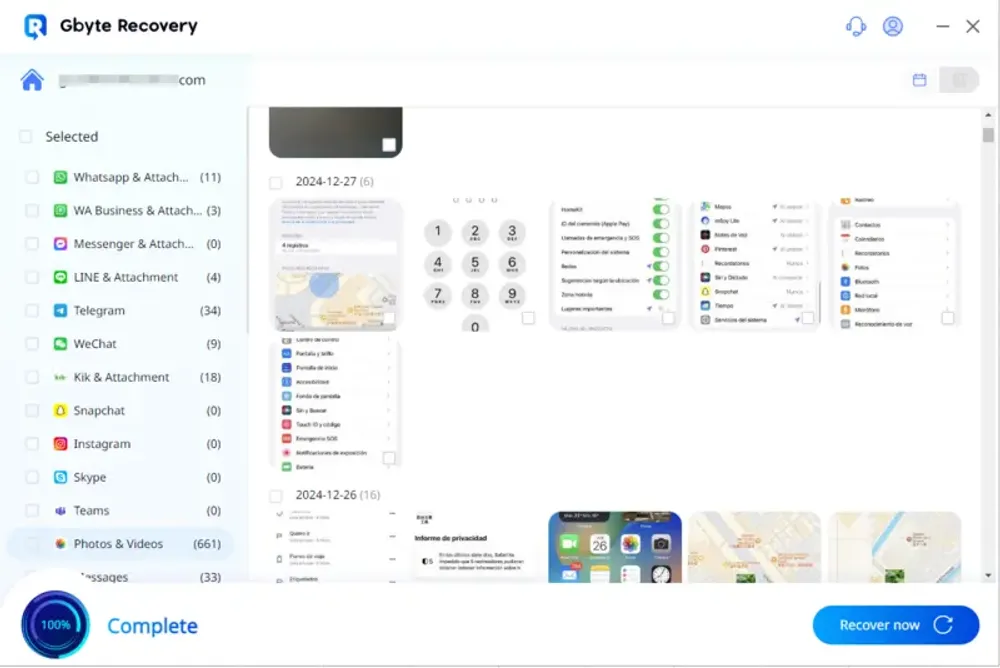
Step 5. Once the scan is complete, you'll see a list of recoverable videos. You can preview them to identify the ones you need.
Step 6. Select the videos you wish to recover permanently deleted video, then click the "Recover" button and choose a safe location on your computer to save them. Avoid saving them directly back to your iPhone to prevent overwriting.
Before you spend hours trying different methods, it is important to understand the technical reality of how iPhone data works.
As mentioned earlier, many tools claim they can scan your iPhone's hardware to find deleted files. The truth is: this is almost impossible on modern iPhones. Because of Apple's advanced file-based encryption, once a file is removed from the system's index and the "Recently Deleted" folder, the encryption key for that specific file is destroyed. Without that key, the data remains scrambled and unreadable, even if it’s physically still on the chip.
When users realize a video is gone, their first thought is usually: "It’s still in iCloud, right?" If you rely on iCloud, you need to understand two critical facts:
iCloud is a Mirror, not a Backup: If "iCloud Photos" is turned on, any photo you delete on your iPhone is instantly deleted from iCloud as well. It is a sync service, not a separate storage vault.
The "No-Duplicate" Rule: To save iCloud space, Apple does not include your photos and videos in a full "iCloud Backup" if "iCloud Photos" is already enabled. This means you cannot "restore" them from a backup with iCloud Photos enabled.
While technology has come a long way, the best recovery strategy is prevention. To keep your videos safe, consider these habits:
Regular Computer Backups: Use iTunes or Finder to create a full "snapshot" of your phone once a month. This is the only way to have a version of your data that iCloud can't touch or delete.
Use Third-Party Cloud Services: Services like Google Photos offer a different syncing logic. They can be set to keep a copy even if you delete the original from your iPhone's local storage.
Understand iCloud's Role: Remember that iCloud is designed to keep your devices up-to-date, not to act as a version control solution. It ensures you have the same files everywhere, but it won't protect you from accidental deletions.
Choosing the right approach to recover permanently deleted videos depends on how and when your video was lost. This table helps clarify which method might be your best bet for permanently deleted video recovery.
Method | 👍 Pros | 👎 Cons | 💡 Best For |
Cloud Service & Chat History |
|
| Users who don’t have a recent backup to restore from. |
iCloud Backup |
|
| Restoring an older iPhone state if you have a very recent, comprehensive iCloud backup and don't mind data loss. |
iTunes/Finder Backup |
|
| Restoring an older iPhone state if you have a very recent, comprehensive iTunes/Finder backup and don't mind data loss. |
Professional Recovery Tool (Gbyte iOS Recovery) |
|
| When free methods fail, for truly "permanently deleted" videos, or when you have no relevant backup. |
Yes, the methods for recovering permanently deleted videos from an iPad are essentially the same as for an iPhone. This is because both devices run on Apple's iOS/iPadOS operating system and utilize similar data storage and deletion mechanisms.
Yes, the "Recently Deleted" album only holds them for 30 days. However, professional permanently deleted video recovery software like Gbyte iOS Recovery can often retrieve videos even after 30 days, as long as the data hasn't been overwritten by new information on your iPhone's storage.
If there is no backup, your best chance is to look for “hidden” copies. First, check your social media history (WhatsApp, Messenger) and other cloud services (Google Photos, Dropbox) for shared versions. If that fails, a professional recovery tool like Gbyte Recovery can help by deep scanning for historical snapshots of Photos and third-party apps.
Yes, reputable software like Gbyte iOS Recovery is safe to use. It operates in a read-only mode, meaning it won't alter or damage your existing iPhone data during the recovery process. Your privacy is also protected.
In most cases, yes. If the video data hasn't been corrupted or partially overwritten, professional software can often recover it in its original quality.
Yes, Gbyte iOS Recovery can be a potential solution even if your iPhone is physically damaged, depending on the extent of the damage.
Gbyte offers capabilities to recover data from iCloud accounts without needing a physical connection to the device, which is crucial if your iPhone is severely damaged or unresponsive.
Gbyte Recovery
Don't wait until your data is gone forever! Try Gbyte iOS Recovery for free—scan first!
100% secure. Your data always stays private.
Share


Related articles
The installation wizard will automatically start after downloading.
After registration, the recovery process can be managed through the web interface.
You get it all with your purchase - no locked features, no hidden limitations.