

Gbyte Recovery
Free scan and preview of your iCloud backup content. Selectively extract messages, contacts, and more from any historical backup point.
Table of contents
Can I view my iMessages on iCloud.com?" It’s a common question with a frustrating answer: Apple does not allow you to read your messages directly on the iCloud website. > However, that doesn't mean your messages are inaccessible. Whether you want to view them on a PC, recover deleted conversations, or simply sync them across devices, there are proven workarounds.
This 2026 guide covers 4 effective ways to view and extract your iCloud messages, even when the official web interface fails you.
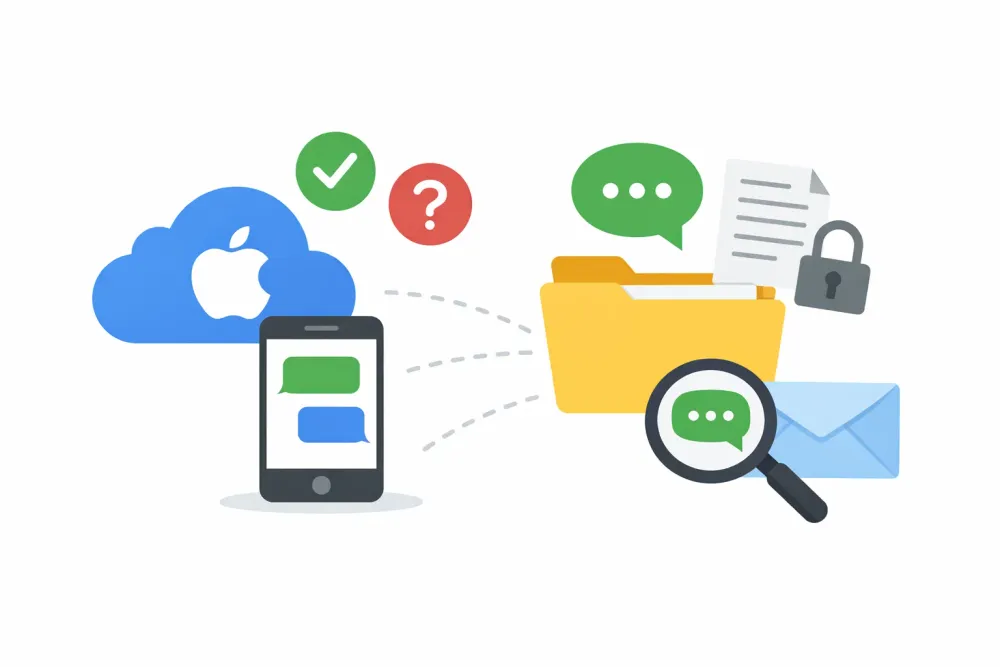
No, you cannot view text messages or iMessages directly on www.icloud.com in any browser. While iCloud syncs your messages across Apple devices (iPhone, iPad, Mac), Apple does not store message content in a readable format on their website for privacy and security reasons.
To View on Windows/PC: Use a specialized tool like Gbyte Recovery to sync and preview.
To View on Mac: Use the built-in Messages app (requires Apple ID sync).
To Restore Deleted Texts: You must use an iCloud Backup extractor or a full device restore.
Tested on: iOS 18 & Windows 11 (March 2026).
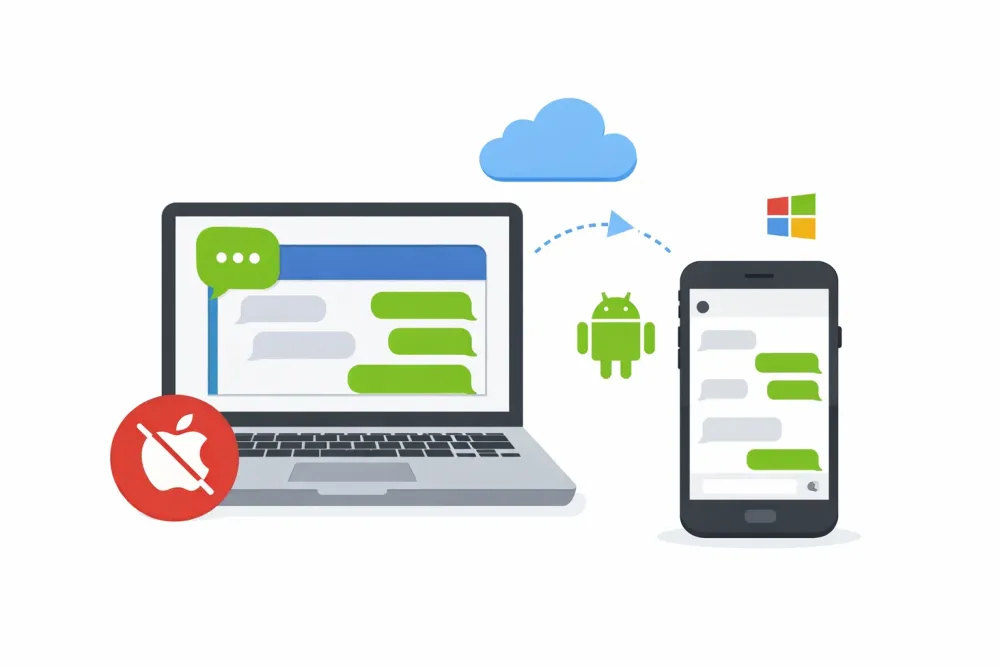
Since Apple doesn't offer a web-based viewer, Gbyte Recovery acts as the bridge. It’s the most effective way for Windows users or those who lost their iPhone to access their cloud-stored conversations.
High-Value Intent: Best for recovering deleted messages and viewing texts without a Mac.
Why it's the #1 Choice:
No iPhone Required: Access your database even if your phone is broken or lost.
Secure iCloud Login: Uses end-to-end encryption to sync your message fragments safely.
Preview First: Unlike official restores, you can read the messages for free before deciding to export them.
Gbyte Recovery offers two professional modes to view your messages without a full device reset.
This mode is designed to "deep dive" into your iCloud snapshots. It doesn't just show what’s there—it identifies what's missing.
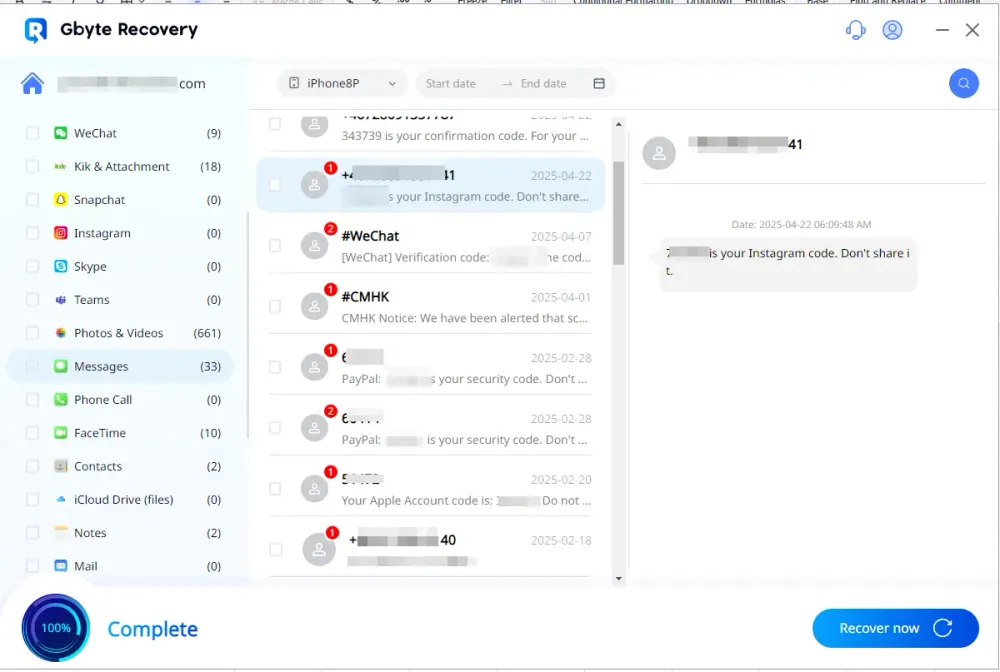
Feature: Automatically compares multiple backups to find disappearing threads.
Visual Aid: Deleted messages are highlighted in red, making them instantly recognizable.
Zero Risk: No data is overwritten on your iPhone. It’s a 100% "Read-Only" process.
Need to see what was on your phone six months ago? This mode lets you browse every available backup point in your iCloud history.
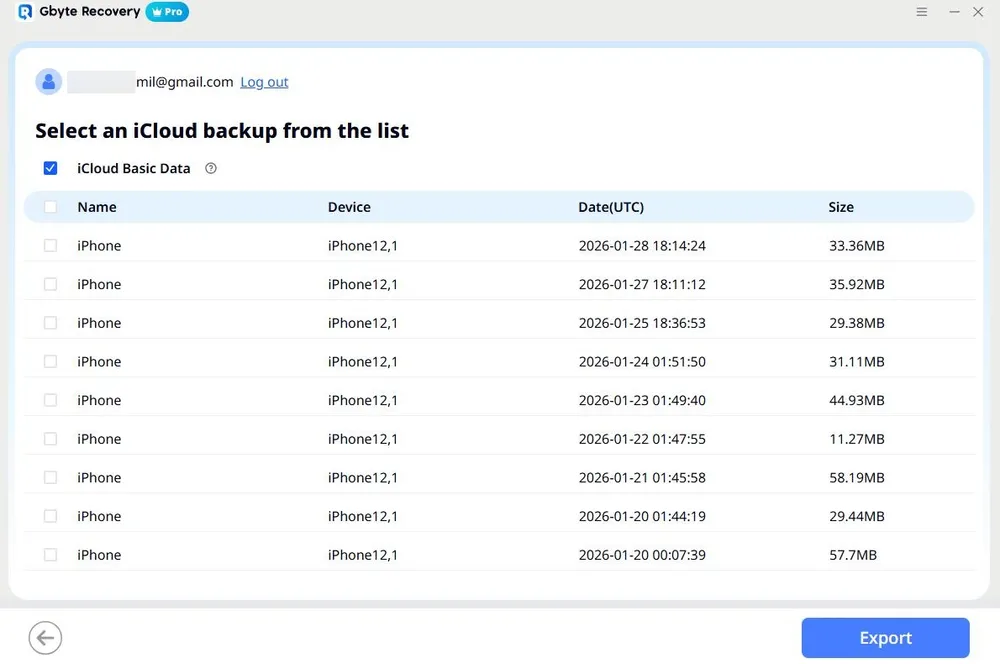
Feature: View all available backup snapshots associated with your Apple ID.
Flexibility: Export specific conversations as PDF or HTML for legal or personal records without restoring the device.
You can start a Free Scan directly in your mobile browser or use the PC version for a deeper analysis.
Select Data Type: Launch and select "Messages" (or any other data type) to begin.
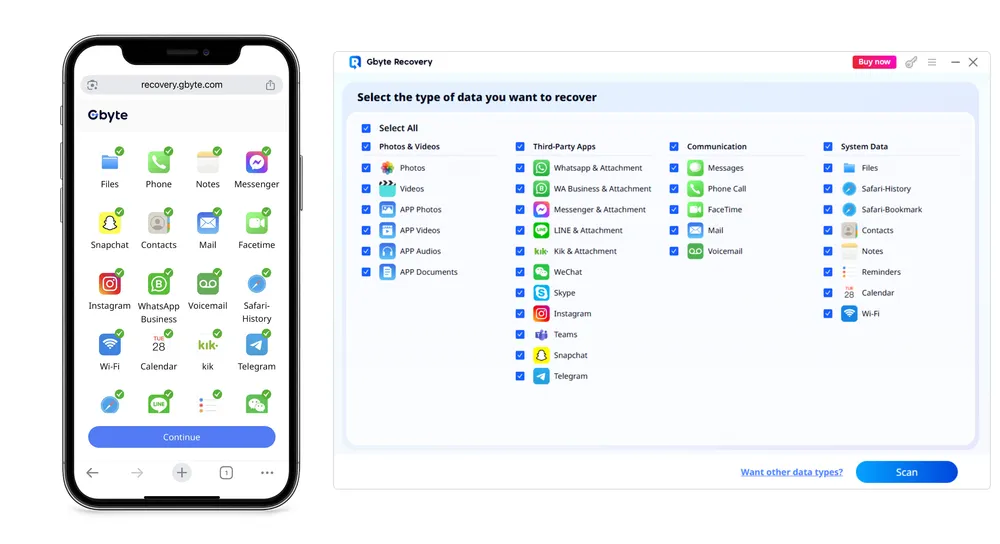
Secure iCloud Login: Sign in with your Apple ID.
Note: 2FA (Two-Factor Authentication) is required for your security. Gbyte uses end-to-end encryption and never stores your credentials.
Run Free Scan: Click "Scan". The tool will analyze your iCloud backup fragments without affecting your current device data.
Preview & Identify: Browse your messages on-screen. Deleted items will be clearly marked in red.
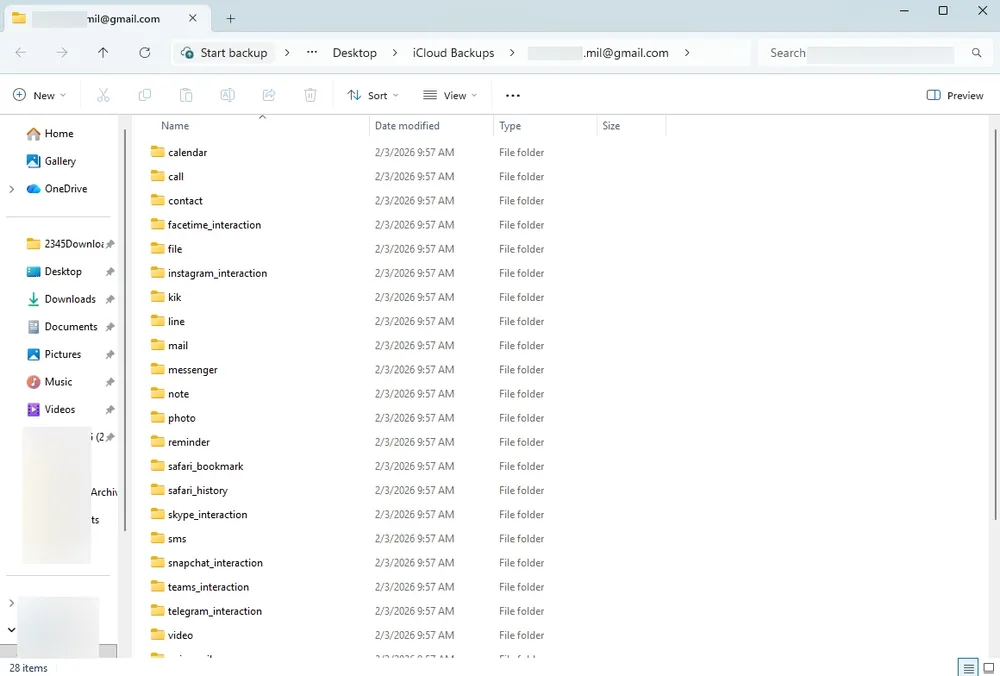
Selective Export: Choose the specific conversations you want to keep and click "Recover" to save them to your PC or mobile.
If you have your device in hand, ensure "Messages in iCloud" is active. This is the foundation for all other viewing methods.
Best for: Current iPhone users who just want to enable syncing
Go to Settings Open your device’s Settings app and tap on your Apple ID (your name) at the top.
Check iCloud Settings Tap iCloud > Show All, and ensure Messages is toggled ON.
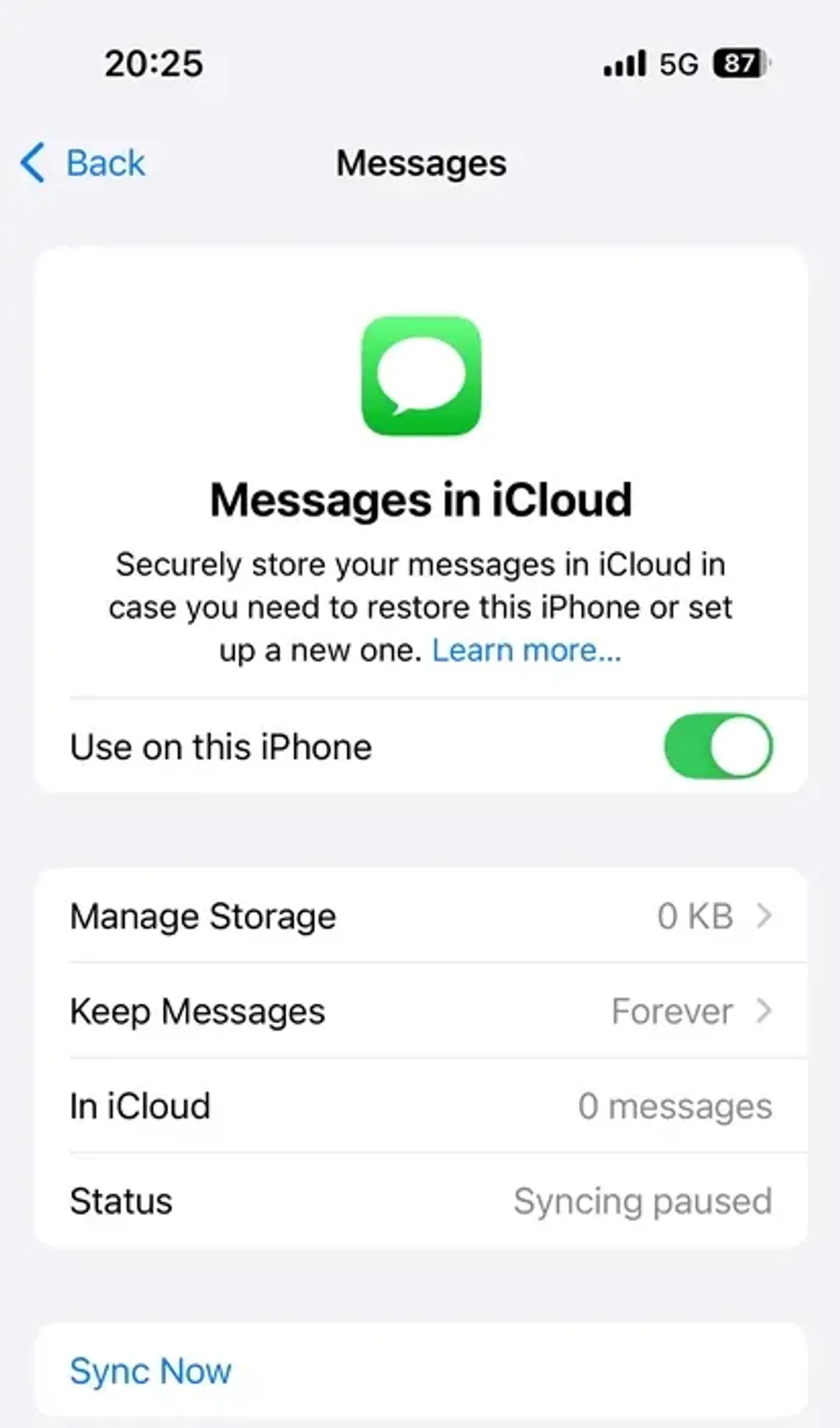
Open the Messages App Once syncing is enabled, all your iMessage and SMS texts are stored in iCloud and available in the Messages app across your Apple devices. You don’t need to restore or back up anything manually.
This method works well if you still have access to your device and just want to make sure your conversations are safely synced.
Note: This only syncs current messages; it won't help you view messages from an old backup without a full reset.
Mac users have another simple way to view their synced iCloud messages—using the built-in Messages app on macOS. All conversations sync in real-time. However, this only works while your iPhone is active and won't recover deleted messages.
Launch the Messages App From the Dock or Launchpad, open the Messages application.
Sign In with Your Apple ID If you haven’t already, go to Messages > Settings (or Preferences) > iMessage and sign in using the same Apple ID that’s used on your iPhone.
Enable iCloud Messages In the iMessage settings tab, check “Enable Messages in iCloud.” This syncs all messages from your iPhone or iPad to your Mac.
Once set up, you’ll see the full message history—including past conversations and media attachments—as long as they’ve been stored in iCloud.
Pro Tip: Ensure you are signed into the same Apple ID in Messages > Settings > iMessage. This is the only "Official" way to see messages on a computer, but it requires owning Apple hardware.
We mention this for completeness, but we do not recommend it for casual viewing because it requires a Full Factory Reset.
Best for: Nobody—this method is destructive and outdated
⚠️ Warning: This method requires completely erasing your iPhone and restoring it to a previous backup state. You'll lose:
All current data not in that backup
Apps and settings configured since backup
1-3 hours waiting for restore to complete
Better Alternative: Use Method 1 to extract the messages from the backup instead of overwriting your entire phone.
Go to Settings > General > Transfer or Reset iPhone Tap Erase All Content and Settings to begin the reset process.
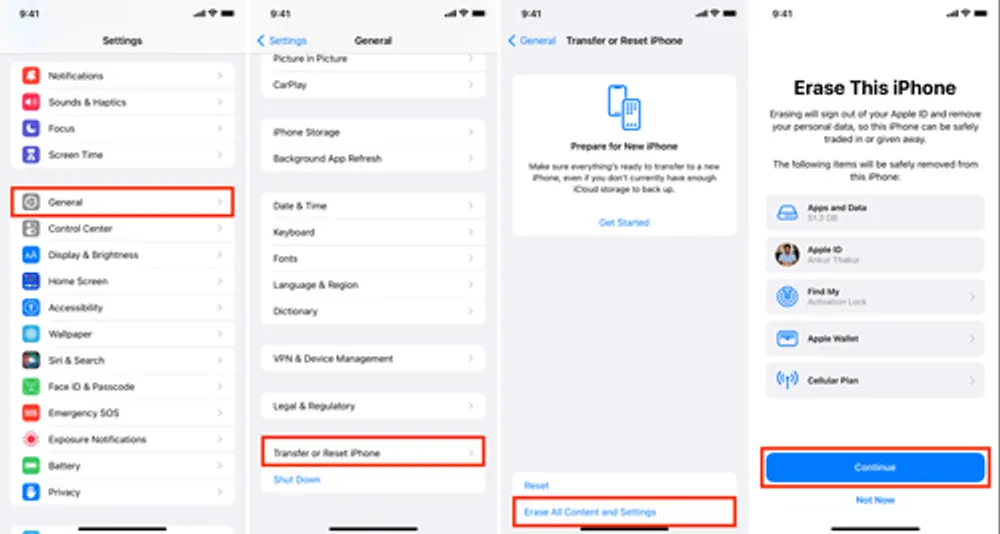
Restart and Choose Restore from iCloud Backup. After your phone resets, follow the setup prompts and select Restore from iCloud Backup.
Sign in and choose a Backup. Use your Apple ID to sign in and select the backup that contains your messages.
This method is time-consuming and can result in the loss of your current data unless you've backed it up separately. Therefore, it’s not ideal for casual viewing—it’s more of a last resort.
For Instant Viewing (Web/PC): is the only way to read messages on a browser or Windows.
For Daily Sync: Stick with the official Apple Messages app on iOS or macOS.
For Deleted Texts: A deep scan via a recovery tool is your best bet to find fragments Apple's UI won't show.
A: No. Apple does not provide web access to Messages—only Photos, Mail, Notes, Calendar, and Contacts are available via browser.
A: Yes. The software is read-only (cannot modify your iCloud data), uses secure Apple authentication, and has been independently verified by security researchers. Your Apple ID credentials are never stored.
A: No. Gbyte Recovery only reads data from iCloud backups—it cannot delete or modify anything in your iCloud account or on your devices.
A: Possibly. If those messages were included in an iCloud backup created before deletion, Gbyte Recovery can extract them. Check your backup dates in Settings → Apple ID → iCloud → Manage Storage → Backups.
A: No. All methods in this guide work with standard, non-jailbroken devices.
So, how to view messages on iCloud depends largely on what kind of access you have:
If you have Apple devices, turn on “Messages in iCloud” for seamless syncing across your iPhone, iPad, and Mac.
Suppose you’re on a PC or lost access to your Apple device. In that case, a tool like Gbyte Recovery can give you full visibility into your iCloud messages—without needing to perform a factory reset.
And unfortunately, you can’t yet view messages at the iCloud website through a browser, but fingers crossed, Apple makes this available in the future.
If you're looking for a safe, flexible way to view and recover iCloud messages, Gbyte Recovery is one of the most effective options out there—especially when Apple’s tools fall short.

Jason Kim
AuthorJason Kim holds a degree in Information Systems and has contributed to multiple patented technologies in cloud storage and mobile data management. His work centers on building scalable systems that make data storage, backup, and recovery more reliable.
Gbyte Recovery
Don't wait until your data is gone forever! Try Gbyte iOS Recovery for free—scan first!
100% secure. Your data always stays private.
Share


Related articles


Subscribe Our Newsletter
For exclusive tutorials, product updates & phone tips, protect your data and prevent loss!
You can unsubscribe from our newsletter at any time by clicking the "Unsubscribe"link at the bottom of our emails.


Copyright @2026 Gbyte. All rights reserved.
The installation wizard will automatically start after downloading.
After registration, the recovery process can be managed through the web interface.
You get it all with your purchase - no locked features, no hidden limitations.