

Gbyte Recovery
Free scan and preview of your iCloud backup content. Selectively extract messages, contacts, and more from any historical backup point.
Table of contents
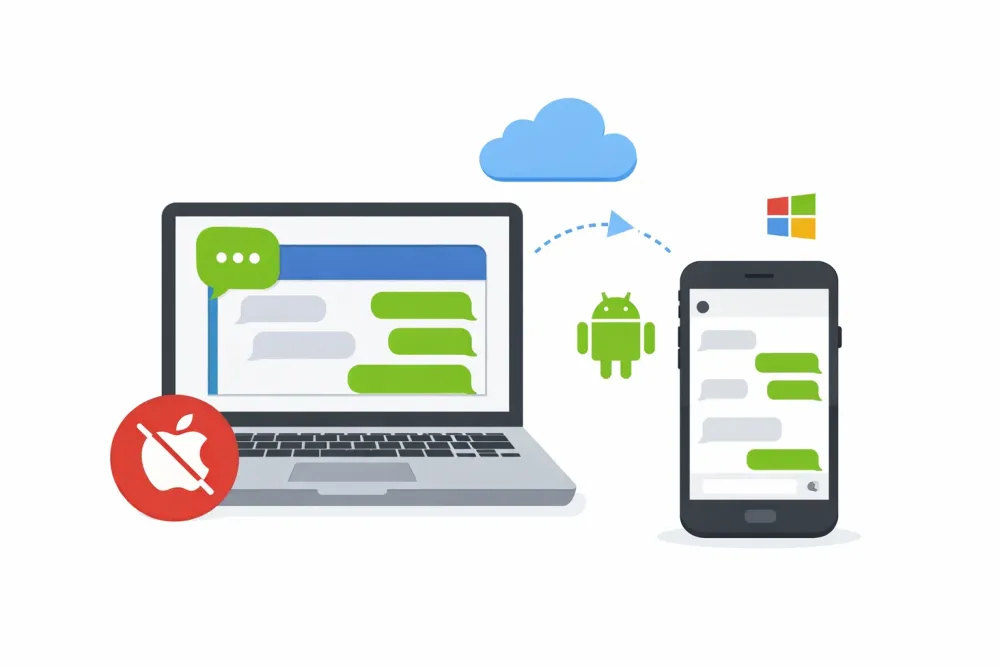
Messages in iCloud are easy to view on Apple devices because of the sync feature. But Windows PC users, who usually rely on iCloud.com to access their data, are out of luck when they want to view messages.
That’s why we’ve tested every method to find what actually works. With this guide, you can access your iPhone message from your PC, even if you don’t have your device nearby.
Most PC users are disappointed when they log into iCloud.com and find that the Messages icon is missing. You can see your Photos, Notes, and Mail, but your texts are nowhere to be found.
Even so, your messages are still stored in iCloud—Apple just keeps them hidden. The main reason is privacy and security. Unlike your Photos or Mail, Apple uses “end-to-end encryption” for your messages. This means the data is locked with a key that only your trusted Apple devices (like your iPhone or Mac) have.
Since there is no official way to view them on PC, Gbyte fills the gap. It helps Windows users by extracting iCloud messages, attachments, and even WhatsApp messages for easy viewing. Currently, it is the only practical tool that lets you see the messages stored inside your iCloud account.
A Windows PC or Mac
Gbyte Recovery Software [Download here]
Apple ID and password
💡 Tip for Mac Users: While you can use iCloud Sync to view messages, Gbyte is a better choice if you need to see your full history, including older or deleted messages.
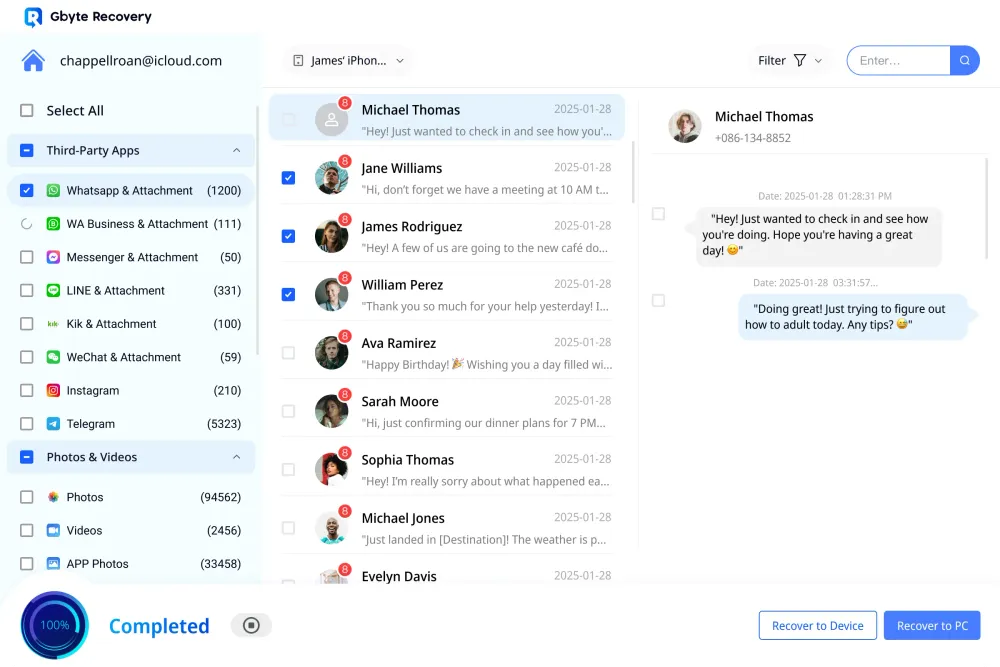
✅ Full Message Visibility: View your entire iCloud message history, including both SMS and iMessages.
✅ Seamless Media Previews: Browse photos and videos in-line with your chats, mirroring the iPhone experience.
✅ Time-Machine Access: Extract and compare messages from any historical iCloud backup—so you can recover messages from months, or even years ago.
✅ No iPhone Needed: Access your data even if your device is lost, broken, or has been factory reset.
✅ Export for Safekeeping: Save your messages including timestamps as PDF or HTML files for legal evidence or personal archives.
Step 1. Download and install Gbyte Recovery on your PC.
Step 2. Launch the app and select "Messages" as the data type to scan. Note: You can also start a free scan on a mobile device.
Step 3. Sign in with your Apple ID. (You may need to enter a two-factor authentication code).
Step 4. Wait for the scan to complete, then preview all messages—deleted items are clearly marked in red.
Step 5. Select and recover the conversations you need (optional).
💡 Gbyte Recovery scans your entire iCloud history in one go. You can also recover WhatsApp, Instagram DMs, photos, and more in the same session.
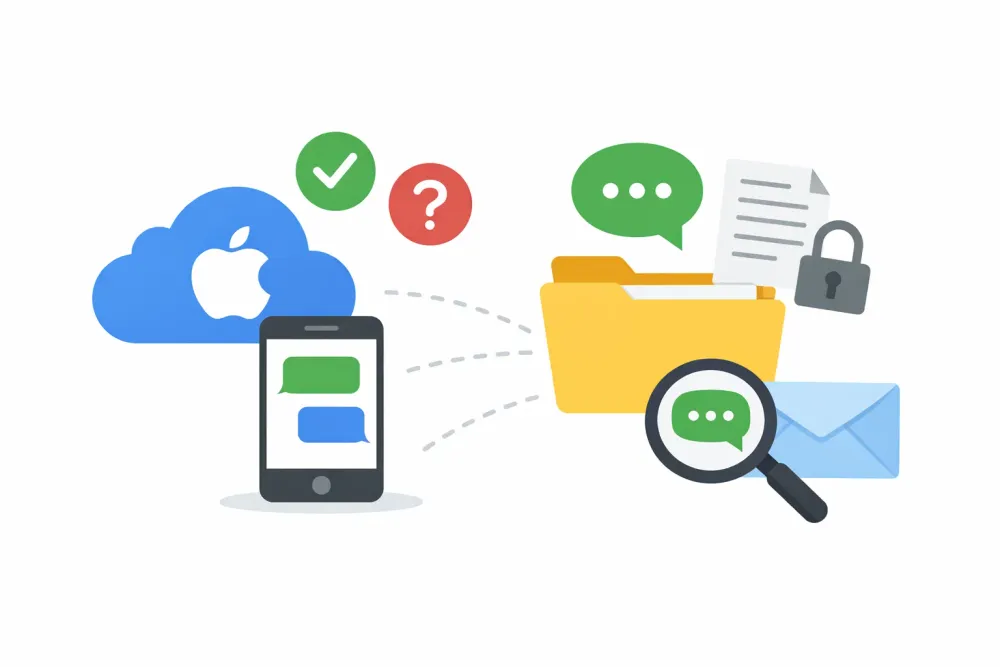
If you did not enable “Messages in iCloud,” your texts may still be saved inside your iCloud Backup. This is a full snapshot of your iPhone stored on Apple’s servers. Even if you don’t have your phone, you can still view these messages on a PC by accessing that backup file.
Since backup files are encrypted, you have two ways to see what’s inside:
Restore the full backup: You can download the backup file to an iPhone/iPad and view the messages. However, this method requires a factory reset, which wipes your current data first and overwrite the device with that backup.
Extract the messages: You can pull the messages directly from the backup file. This requires a specific tool, like Gbyte iCloud Backup Extractor, which saves you from having to reset your phone.
💡 Tip: An iCloud backup is a “goldmine” of data. It often contains more than just your current texts; you can often find older conversations, deleted messages, and attachments that are no longer on your phone.
Many people confuse these two features, but they are not the same. It is important to know the difference so you know where your messages are stored in the cloud.
Messages in iCloud | Messages in iCloud Backup | |
Purpose | Real-time sync across Apple devices | Full device snapshot for restoration (messages is a part of device backup) |
How to Enable | Settings > Your name > iCloud > Messages > "Use on This iPhone" | Turn off "Messages in iCloud" + enable iCloud Backup |
How to Restore | Sign in to a new iPhone with your Apple ID and turn on Messages in iCloud | During iPhone setup, choose "Restore from iCloud Backup." |
Tied to Device? | Yes—but synced across all devices using same Apple ID | Yes—only reflects the state of one iPhone at backup time |
Upload Frequency | Continuous (when iPhone is online) | Only during full iCloud Backup (requires Wi-Fi, power, lock) |
Includes Deleted Messages? | ❌ No—deletion syncs instantly | ✅ Yes— via Gbyte Recovery |
Accessible on PC? | ❌ Not via Apple; ✅ via tools like Gbyte | ❌ Not officially; ✅ via Gbyte |
Note: If you enable Messages in iCloud, your texts will no longer be part of your iCloud backup.
If you own a Mac, viewing your messages on your desktop is much easier than it is on a Windows PC. This is because Apple builds its computers to work perfectly with the iPhone.
Step 1. Open the Messages app on your Mac.
Step 2. Go to Settings (or Preferences) in the top menu.
Step 3. Click on the iMessage tab. Make sure you’re signed in with the Apple ID matches the one used on your iPhone. When these settings match, iMessages will sync automatically between your iPhone and Mac.
Step 4. To view SMS and MMS messages on your Mac, go to iPhone Settings > Apps > messages > Text Message Forwarding, In the list of devices, turn on your Mac.
💡 Tip: Viewing iCloud messages from another iPhone or iPad is just as easy. You simply need to log in with the same Apple ID and turn on “Messages in iCloud.” You can find the toggle under: Settings > [Your Name] > iCloud > Show All > Messages.
There are a few other methods you can try to view messages from PC depending on your specific needs.
Some mobile carriers (like Verizon or AT&T) allow you to log in to their website and view your SMS text messages.
The Catch: This usually only works for standard green-bubble texts (SMS). You won’t be able to see blue-bubble iMessages or any media attachments through this method.
If you are trying to view a child's messages for safety reasons, you can set up Apple’s Parental Controls.
How it works: By setting up a "Family Sharing" group, parents can monitor who their children are talking to. However, this is meant for safety management, not for downloading or exporting your own personal message history.
If your messages are not stored in iCloud, they are only saved locally on your iPhone. In this case, you can use a tool like iMazing to scan your phone directly.
How it works: You connect your iPhone to your PC with a USB cable. The software creates a local backup on your computer and lets you browse through your messages. This is a great backup option if you prefer not to use the cloud.
If you are using Gbyte and things aren't looking quite right, don't worry. Here are the most common reasons why and how to fix them:
If you encounter any issues while trying to view your messages, here are the most common solutions:
Messages aren't in the cloud: You might not have "Messages in iCloud" turned on. If this is the case, your texts are stored locally on your iPhone, not in your iCloud account.
If the feature is on but you still see nothing, try these steps and scan again:
On your iPhone, Go to Settings > [Your name] > iCloud > Saved to iCloud > Messages in iCloud and turn it OFF.
Turn on iCloud Backup and tap Back Up Now.
Wait for the backup to finish completely.
Run the Gbyte scan again.
Gbyte Recovery is a powerful extraction tool, but it does not support real-time messaging.
If you need to send and receive messages in real-time on your PC, please refer to: How to Rend & Send iPhone Messages on PC
The short answer is: Not without your permission.
Because of Apple’s strong encryption, no software can “magically” see your messages. To access your iCloud data, someone would need:
Your Apple ID and Password: They must have your login credentials.
Your Trusted Device: Even with your password, they would need your physical iPhone/Mac/SIM to get the Two-Factor Authentication (2FA) code.
As long as you keep your password safe and don’t share your verification codes, your iCloud messages remain private.
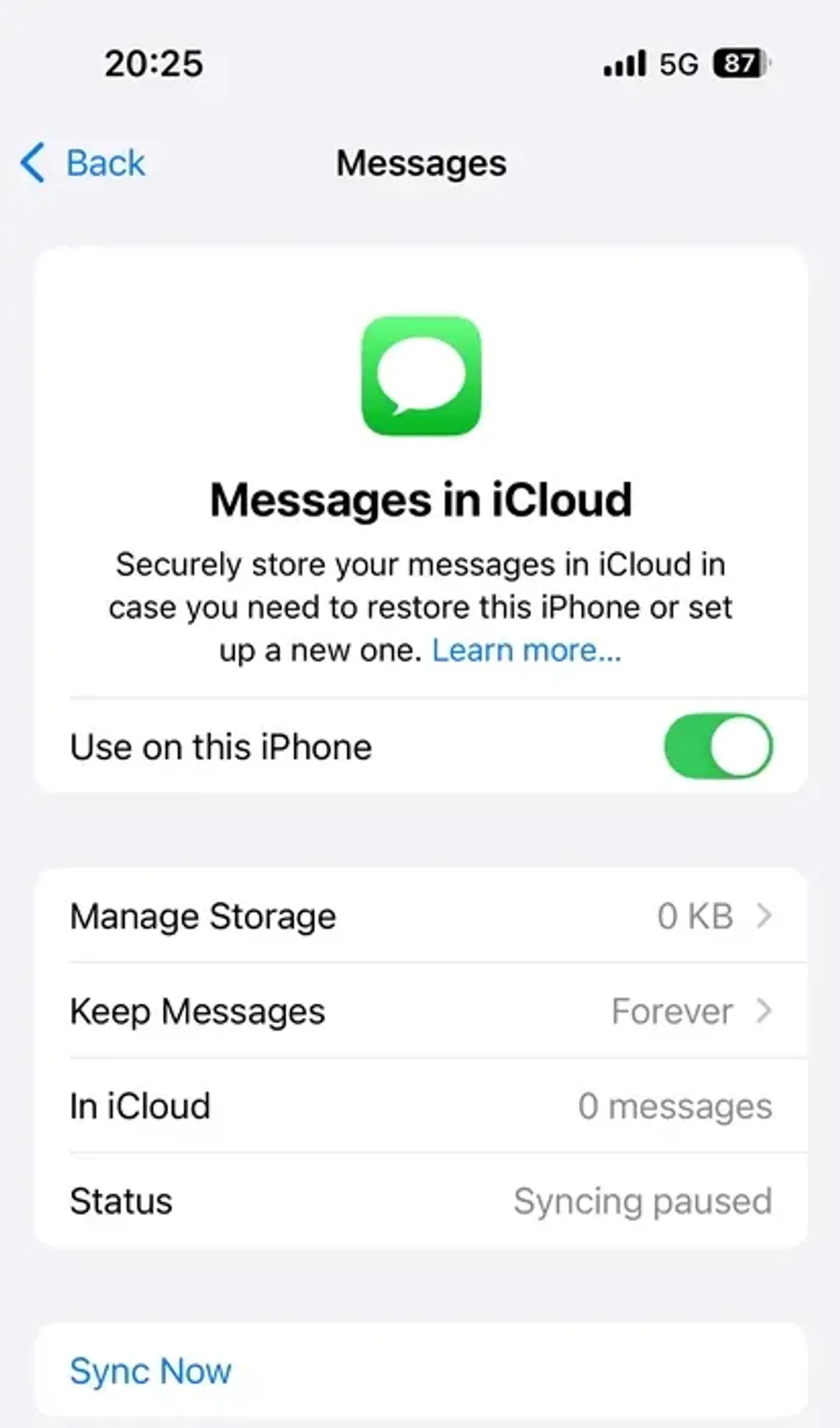
Go to Settings > [Your Name] > iCloud > Messages.
If enabled, messages sync in real time. And you can see your last sync time under Status, and number of messages on iCloud under In iCloud.
If your phone was offline for days, some messages won't be in iCloud yet. You can tap "Sync Now" to force an immediate upload
You can access Photos, Mail, Contacts, Calendars, Notes, and Files—but not Messages, unless you use a third-party tool like Gbyte Recovery.
You don’t need an iPhone nearby to access your messages. Whether your device is lost, broken, or just out of reach, tools like Gbyte Recovery let you view and recover your full iCloud message history—including deleted texts—directly from your PC. Apple may lock messages behind its ecosystem, but your data is still within reach.

Liam Carter
AuthorTech writer and lifelong Apple user with over 20 years of experience across every iPhone, iPad, and Mac he could get his hands on. He specializes in turning Apple's most confusing systems into guides that anyone can follow.

Julien Moreau
Reviewed byiOS Software Engineer with 8 years of experience building and maintaining cloud sync systems. He reviews our technical content to make sure every step is accurate, up to date, and actually works.
Gbyte Recovery
Don't wait until your data is gone forever! Try Gbyte iOS Recovery for free—scan first!
100% secure. Your data always stays private.
Share


Related articles


Subscribe Our Newsletter
For exclusive tutorials, product updates & phone tips, protect your data and prevent loss!
You can unsubscribe from our newsletter at any time by clicking the "Unsubscribe"link at the bottom of our emails.


Copyright @2026 Gbyte. All rights reserved.
The installation wizard will automatically start after downloading.
After registration, the recovery process can be managed through the web interface.
You get it all with your purchase - no locked features, no hidden limitations.