

Gbyte Unlock

Gbyte Unlock
Safely remove any iPhone/iPad screen lock in a few clicks.
Table of contents
If you've entered the wrong passcode too many times, your iPhone will lock you out and eventually show a "Forgot Passcode?" or "Erase iPhone" option right on the lock screen. This is Apple's official, built-in way to remove a forgotten passcode — no computer, no iTunes, no third-party tool required. You just need an internet connection and the Apple Account password that's signed in on the device.
This guide walks through exactly how it works, what you need before starting, the full step-by-step process, and the most common issues people run into.
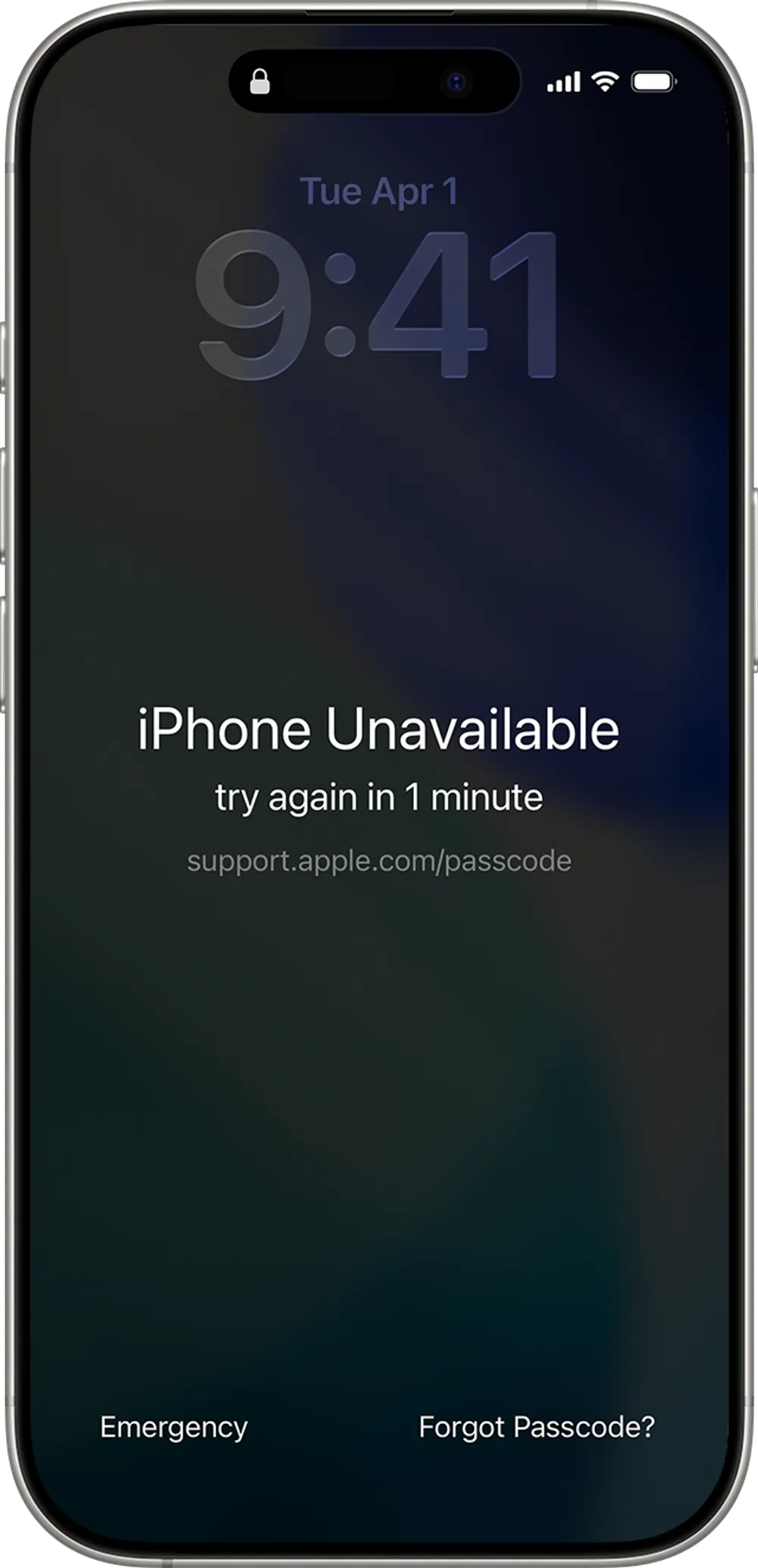
When you enter the wrong passcode repeatedly, your iPhone enters Security Lockout — a temporary lockout period that gets longer each time you fail. Once you're connected to Wi-Fi or cellular data, the lock screen will show a recovery option in the bottom corner.
The exact wording depends on your iOS version:
iOS Version | Button Text |
iOS 17 and later | "Forgot Passcode?" |
iOS 15.2 – iOS 16 | "Erase iPhone" |
Earlier than iOS 15.2 | Not available — no on-device reset option |
Both lead to the same outcome: the device signs out of your Apple Account, erases all data and settings, and removes the passcode along with it. Under the hood, this is Apple verifying your identity through your Apple Account password rather than the device passcode, then performing a factory reset.
Before attempting this method, make sure:
Your iPhone is running iOS 15.2 or later (check under Settings > General > About if you can still access it, or just try the steps below — the option simply won't appear on older versions)
Your iPhone is connected to Wi-Fi or a cellular network
You remember the Apple Account (Apple ID) password signed in on the device — this is required to sign out and proceed
You do not restart or force-restart the device during this process, as it can interrupt the lockout timer and delay the option from appearing
Ideally, you have a recent backup (iCloud or computer) so you can restore your data afterward — this method erases everything
If you don't remember your Apple Account password, this method won't work — you'd need to reset your Apple ID password first from another device, or use a computer-based method (Recovery Mode / DFU) instead.
Step 1: Trigger the Security Lockout screen
Enter the wrong passcode repeatedly on the lock screen. After several incorrect attempts, iOS will start adding waiting periods between tries, and the screen will display "iPhone Unavailable" with a countdown timer.
Step 2: Tap "Forgot Passcode?" (or "Erase iPhone") and confirm the reset
Once the option appears at the bottom of the screen, tap it. On iOS 17+, this opens a "Security Lockout" confirmation screen. At this point, check which options you see:
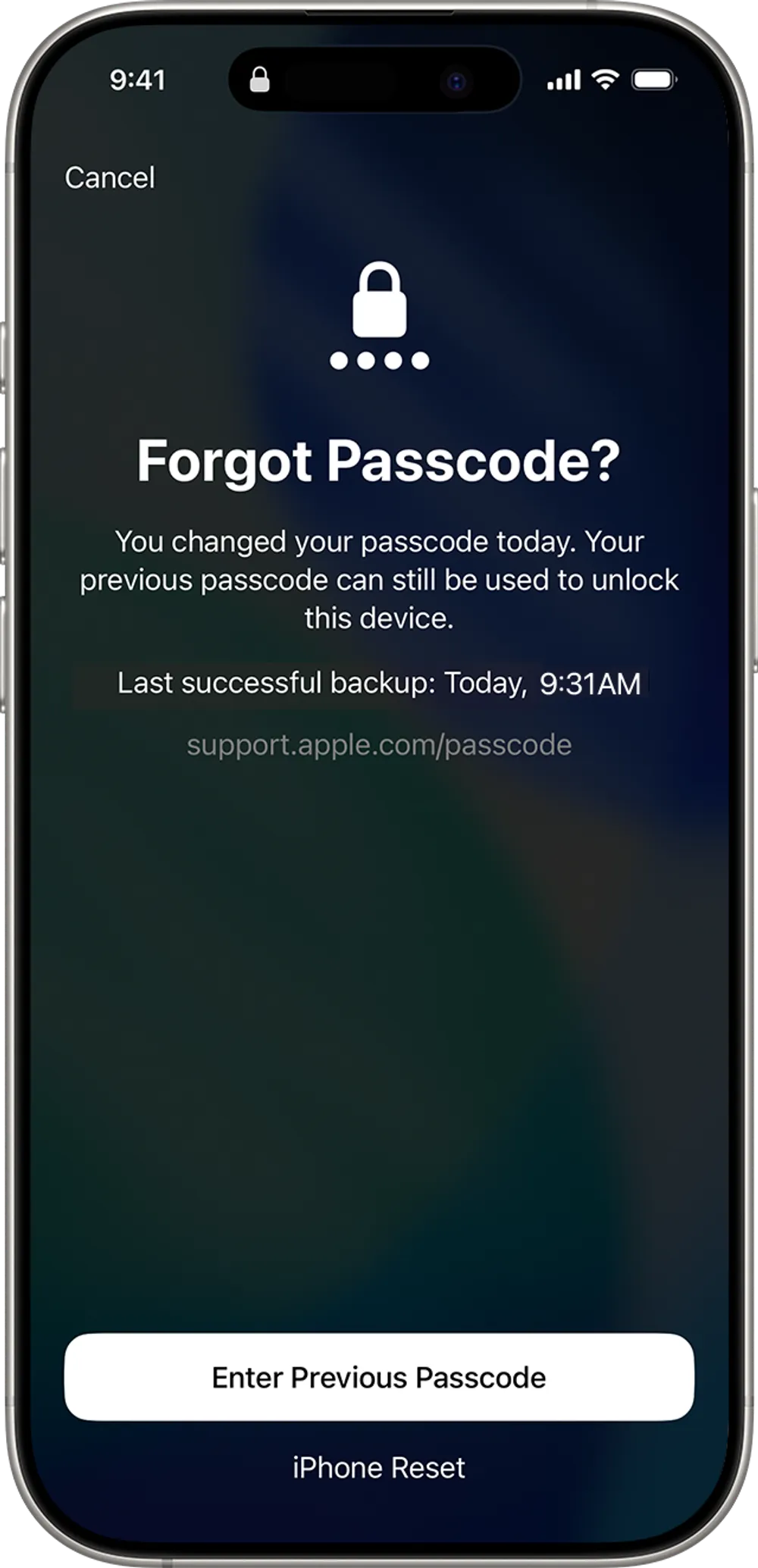
If you see "Enter Previous Passcode" — this means Apple has detected you changed your passcode within the last 72 hours. Tap it and enter your old passcode (the one you were using before the change). If it's accepted, your iPhone unlocks immediately with no data loss, and you'll be prompted to set a new passcode right away. This option only appears on iOS 17 or later, and only within that 72-hour window after a passcode change — if your passcode hasn't been changed recently, this option won't show up at all.
If you don't see that option (or it doesn't work) — tap "iPhone Reset" to continue with the erase process covered in this guide. On iOS 15.2–16, tapping "Erase iPhone" moves you straight to this same path.
Step 3: Sign Out of Your Apple Account and Confirm the Erase
You'll be asked to enter the password for the Apple Account signed in on the device — this signs the device out of your account, which is required before an erase can proceed. Once entered, tap "Erase iPhone" to confirm (you may need to tap it a second time to verify, and on iOS 17+ you may also be asked whether to keep or delete your eSIM). The device then begins erasing all data, settings, and the forgotten passcode.
Step 4: Set up your iPhone again
Once the erase finishes, the device restarts into the standard setup screen, the same as a brand-new iPhone. From here you can either set it up as new or restore from an iCloud or computer backup, and set a new passcode.
The total time depends mostly on how long the Security Lockout timer runs before the option appears — this can range from a few minutes to over an hour if you've triggered multiple lockout periods. Once the option is available, the actual reset process is quick:
Signing out of your Apple Account and confirming the erase: a few minutes
Erasing the device: typically 5–15 minutes, depending on how much data is stored
Initial setup afterward: a few minutes if setting up as new, longer if restoring from a backup
Plan for anywhere from 15 minutes to over an hour in total, mostly waiting out the lockout timer rather than the erase itself.
This is a full erase, not a simple passcode removal:
All apps, photos, messages, and settings on the device are permanently deleted
The device is returned to factory-default state
If you have an iCloud or computer backup, you can restore your data during setup after the erase completes
If Find My iPhone was enabled and Activation Lock is on, you'll still need your Apple Account credentials to activate the device again after the reset — since you're signing out and back in with the same account, this is normally seamless as long as you remember your password
If you have no backup, any data since your last backup will be lost. There's no way to remove just the passcode while keeping your data through this method — the erase is intentional and unavoidable.
Question | Forgot Passcode / Erase iPhone | Find My Erase | |
Do you see a reset option on the lock screen? | ✅ Yes | ❌ Not required | ❌ No |
Can you access the iPhone directly? | ✅ Yes | ❌ No | ❌ No |
Do you remember your Apple Account password? | ✅ Required | Optional during restore | ✅ Required |
Do you need a computer? | ❌ No | ✅ Yes | ❌ No |
Does it erase the iPhone? | ✅ Yes | ✅ Yes | ✅ Yes |
The main difference between these methods is where the recovery process starts. Forgot Passcode / Erase iPhone starts directly from the locked device, Recovery Mode starts through a computer, and Find My Erase works remotely through your Apple Account.
No matter which official method you choose, the iPhone will be erased and the forgotten passcode will be removed. The right option depends on what access you still have — the iPhone itself, a computer, or your Apple Account.
The Forgot Passcode? or Erase iPhone option is not available in every situation. If you cannot complete the reset process, the next step depends on why the option is unavailable.
Problem | Next Step |
The "Forgot Passcode?" or "Erase iPhone" option does not appear | Use Recovery Mode restore with a computer |
You cannot verify your Apple Account | Recover your Apple Account access before trying again |
Your iPhone cannot connect to Wi-Fi or cellular data | Use Recovery Mode restore with a computer |
Your iPhone is stuck or cannot start normally | Try Recovery Mode or DFU Mode restore |
If Apple’s built-in recovery options do not solve your situation, you can explore other computer-based unlock solutions. The available options may vary depending on your device condition and recovery path.
Forgot Passcode Option Not Showing Up
Usually means the device isn't connected to Wi-Fi/cellular, or the iOS version is older than 15.2. Double-check network connection and try again after the lockout timer expires.
Wrong Apple Account Password Locking You Out
Entering the wrong Apple Account password repeatedly will trigger its own separate lockout on the Apple Account itself, unrelated to the device passcode lockout. If you're not sure of your Apple Account password, reset it from another device or apple.com/account before attempting this again.
Restarting the Device Mid-Process
Restarting can reset the Security Lockout timer, sometimes making the option take longer to reappear. Avoid powering off or force-restarting while waiting.
Poor or Unstable Network Connection
The Apple Account verification step requires an active connection; a weak signal can cause the process to stall or fail partway through.
Forgetting the Apple Account Password Entirely
This method has no workaround for that scenario. In that case, Recovery Mode restore via computer is the next option, though it carries the same data-erase outcome.
Forgot Passcode? and Erase iPhone provide the most straightforward way to remove a forgotten iPhone passcode using Apple’s built-in recovery process. For users who can access this option, it offers a simple way to reset the device without connecting to a computer.
However, this is only one of the available recovery methods. Other situations may require different approaches, and knowing the differences between these methods can help you choose the right solution for your iPhone.
No. The process requires an active Wi-Fi or cellular connection because Apple needs to verify your Apple Account before allowing the erase. Without a network connection, the "Forgot Passcode?" or "Erase iPhone" option will not appear.
No. You must enter the correct Apple Account password signed in on the iPhone to authorize the erase. If you forgot it, recover your Apple Account access first before continuing.
The waiting period increases after repeated incorrect passcode attempts. It may start with short delays and eventually extend to an hour or longer. The "Forgot Passcode?" or "Erase iPhone" option usually appears after the device enters Security Lockout.
Yes. This process performs a full erase and removes all data, settings, and the forgotten passcode. If you have an iCloud or computer backup, you can restore your data during setup afterward.
Only in one specific situation. If you are using iOS 17 or later and changed your passcode within the last 72 hours, you may be able to use "Enter Previous Passcode" to regain access without erasing the device. Otherwise, removing a forgotten passcode requires an erase.
 Add Gbyte as a preferred source on Google
Share


Related articles


Copyright ©2026 Gbyte. All rights reserved. Gbyte’s software is not developed by or affiliated with Apple Inc.
The installation wizard will automatically start after downloading.
After registration, the recovery process can be managed through the web interface.
You get it all with your purchase - no locked features, no hidden limitations.