

Gbyte Recovery
Gbyte Recovery
Free scan and selective preview of 25+ data types like messages, photos, and WhatsApp. No data overwritten — recover only what you need.
Table of contents
Open your iPhone Calendar and find everything missing? If your iPhone calendar events disappeared, especially after updating to the latest iOS 26, this usually means a sync error, account conflict, or accidental deletion. In most cases, the events are not permanently gone—they are just "invisible" to the system.
The key is acting fast. Every new photo you take or message you send could overwrite the space where your lost events are hidden. This guide helps you identify the right recovery path for iOS 26 and below before it’s too late.
Calendar events are just one type of data that can go missing. If you're dealing with multiple types of lost data, start with our complete iPhone data recovery guide to understand all your recovery options
Note: If you suspect a sync issue, [Sign in to iCloud.com] first to see if your events exist in the cloud. If they aren't there, proceed with the methods below.
Recovery Method | Success Rate | Data Risk | Preview Events? | Time Cost | Best For... |
Basic Settings Fix | Low (~30%) | None | ❌ | 5 mins | Sync or "Sync All" issues |
iCloud Web Check | Medium | None | ✅ | 2 mins | Verified cloud data |
iCloud/iTunes Restore | Mid-High | High (Wipe Data) | ❌ | 1-3 hours | Total device rollback |
GByte Recovery | High | None (Safe) | ✅ | ~10 mins | Deleted/No Backup |
If your calendar events disappeared due to a sync error, system glitch, or accidental deletion, the fastest way to know whether they’re still recoverable is to run a free scan.
👉 [Free Scan with Gbyte Recovery] You can preview recoverable calendar events before restoring anything. Don’t wait — new data may overwrite lost events and reduce recovery chances.
If your iPhone calendar events disappeared suddenly, start with these manual checks. These steps resolve sync-related glitches for about 30% of users without needing third-party software.
⚠️ Important Before You Start The following fixes only work if your calendar events are still stored on your device or in the cloud.
If events were permanently deleted or no valid iCloud backup exists, these methods won’t work. To avoid wasting time, you can first run a free scan with Gbyte Recovery to check whether your missing calendar events are still recoverable.
⏱ Takes 2 minutes | Success rate: Medium
Sometimes events aren't missing—they're just hidden. In iOS 26, interface changes might have toggled off certain accounts.
Steps:
Open the Calendar app.
Tap Calendars at the bottom.
Make sure ALL calendars are selected (iCloud, Gmail, Outlook, Exchange).
Tap Done and wait a few seconds.
If your events reappear, they were never deleted — just hidden from view.
❌ If nothing shows up: The events may not be a display issue. Move on to the next check.
⏱ Takes 3 minutes | Success rate: Medium
This is the most effective way to trigger a fresh handshake between your iPhone and Apple’s servers.
Steps:
Open Settings > [Your Name] > iCloud.
Tap Show All under "Apps Using iCloud."
Toggle Calendars OFF. Select "Keep on My iPhone" if prompted.
💡Crucial Step: [Log in to your iCloud Dashboard] on a browser to verify if the events appear there. If they do, toggle Calendars back ON on your iPhone.
Wait 1-2 minutes for the "Merging" process to finish.
❌ If this doesn’t work: The issue may go deeper than sync — continue below.
⏱ Takes 1 minute | Often overlooked
By default, iOS may only sync events from the last few months to save storage.
Steps:
Go to Settings > Calendar.
Tap Sync.
Select All Events instead of a limited time range.
If your calendar was set to sync only recent events, older entries may have disappeared.
💡 Note: If this was set to "1 Month Back," your older history will instantly reappear after this change.
❌ Still missing? The events may no longer be available through normal sync.
⏱ Takes 5 minutes | Use with caution
If there is an account credential error (common after changing passwords), your calendar will stop updating.
Steps:
Go to Settings > [Your Name] > iCloud.
Toggle Calendars OFF.
Restart your iPhone.
Toggle Calendars ON again.
⚠️ Note: This does not recover deleted data — it only refreshes syncing.
❌ If events don’t return: They may have been deleted or overwritten.
⏱ 5–10 minutes | ⚠️ High risk
If your phone is blank, the only way to know if your data is "permanently deleted" or "just stuck" is to check the source.
Action Required: Visit [iCloud.com/calendar] and sign in.
Scenario A: If events are visible online but not on your phone, the issue is your iPhone's hardware/sync settings.
Scenario B: If events are missing online, they have been deleted. You must move to Part 2 immediately to recover them from the database "Hidden Layer."
Steps:
Visit icloud.com on a computer.
Sign in with your Apple ID.
Open Calendar.
Click the gear icon > Advanced > Restore Calendars.
Choose a restore point and confirm.
For a more detailed walkthrough of all calendar restoration methods, including step-by-step screenshots and troubleshooting tips, see our comprehensive guide on how to restore calendar on iPhone.
⚠️ Critical Warning: This restores your entire calendar to an earlier state and may remove recent events.
❌ If no restore point exists or data loss is unacceptable: Do not proceed. Use a safer recovery method instead.
If your events are missing from both your device and the standard iCloud sync, they often still exist in Apple's Hidden Cloud Snapshots. These are point-in-time database states that GByte Recovery can access even after the events have been "deleted" from your active view.
Unlike iCloud’s "nuclear option" (which wipes your current phone), Gbyte Recovery pinpointed the exact missing entries in your device's SQLite database.
100% Data Safety: Recover only the missing appointments. Your current photos, messages, and settings remain untouched.
Industry-Leading Success Rate: While iCloud restore works ~40% of the time, GByte’s deep-scan technology achieves a 98% recovery rate for recently deleted events.
See It Before You Buy: Our "Scan & Preview" technology ensures you don't pay a cent unless you actually see your lost meetings in the preview list.
In iOS 26, your calendar data is tied to your Cloud Identity. Without a secure login to fetch the snapshot, most tools can only see corrupted fragments on the physical phone. By signing in, you unlock the high-success recovery path that standard settings cannot reach.
👉 [Access Your iCloud Snapshots Now] — Don't let your schedule be purged from the cloud servers forever.
⭐ User Success Story:
"I accidentally deleted my entire surgery schedule for next month. iCloud had no backup. GByte scanned my phone and found all 12 appointments in less than 5 minutes. A lifesaver!" — Sarah J., Medical Assistant
Unlike iCloud's hours-long full restore, GByte Recovery works in minutes:
Step 1: Download or Launch the Web version
Install GByte Recovery on your computer (Windows/Mac) or run it on your mobile directly.
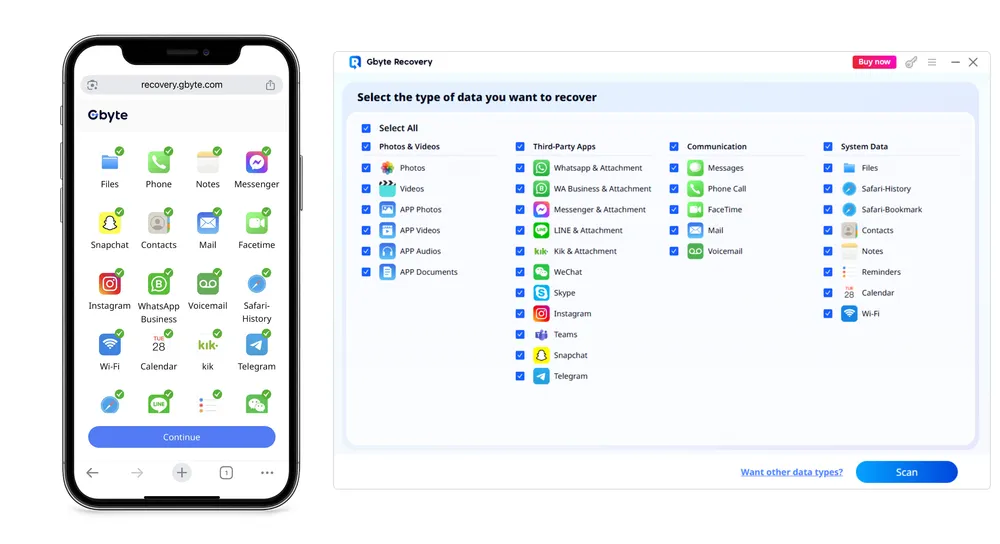
Step 2: Scan Your iPhone for Missing Calendar Events (Free)
Select Calendar and Sign in to your iCloud Account to authorize the tool to fetch your encrypted cloud snapshots.
Our 2026 security protocol ensures your credentials are never stored—they are used solely to generate a one-time access token for the snapshot database.
The scan safely checks your device and backups for missing calendar events without changing or overwriting any existing data — this step is completely risk-free.
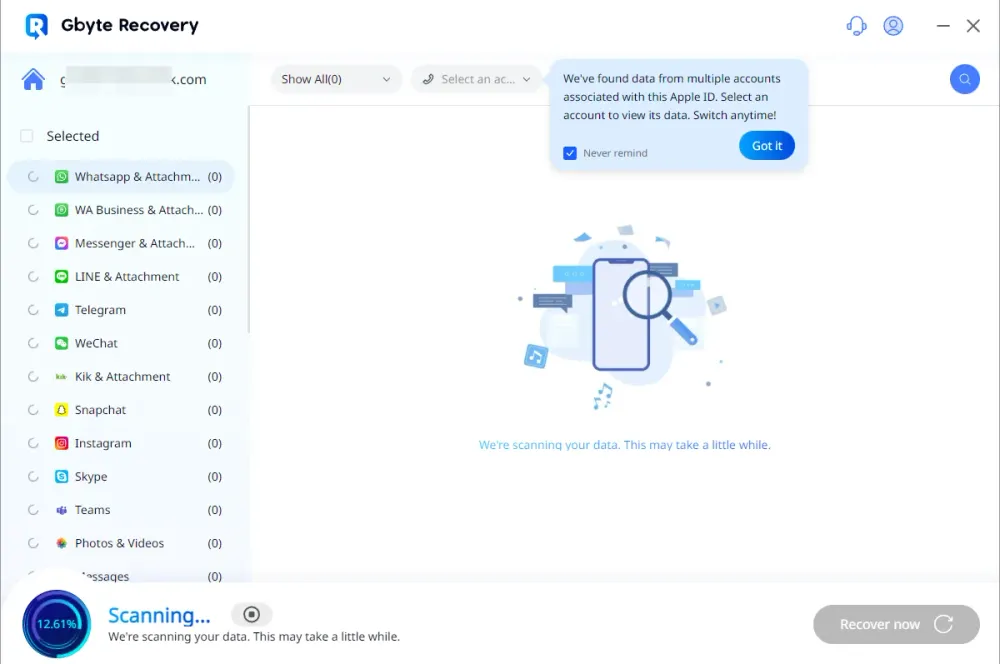
Before committing to any recovery, you can browse every recoverable event—including full titles, locations, and time-stamps—in a clear, organized list.
Confirm First: Check exactly which meetings or appointments are salvageable.
No Blind Restoration: You only pay if the specific events you need are visible in the preview.
Step 3: Recover Only What You Need (When You’re Ready)
If you see the events you want, upgrade and recover only the selected calendar entries back to your iPhone or export them to your computer.
No full device restore, no data loss, and no risk to your current photos, messages, or apps.
If you’re wondering why your iPhone calendar events disappeared in the first place, you’re not alone. In most cases, missing events are caused by sync issues, account changes, or system-level glitches — not permanent data loss.
Here are the most common reasons users lose calendar events on iPhone:
Common Causes of Missing Calendar Events
iCloud Sync Issues: Changes in iCloud settings or account conflicts can hide events without deleting them.
iOS Updates: After major updates like iOS 17 or 18, calendar databases may temporarily fail to load.
Account Removal: Removing Google, Outlook, or Exchange accounts also removes associated calendars.
Accidental Deletion: Bulk deletes or unintended taps happen more often than you think.
Calendar Database Errors: The app may fail to display events even though data still exists on the device.
The important takeaway? In many of these scenarios, calendar data is still recoverable — especially if you act before new data overwrites it.
Restoring from an iCloud backup sounds simple, but it comes with serious trade-offs.
When you restore a backup, your entire iPhone reverts to an earlier state. That means:
Data created after the backup is erased
Photos, messages, and app data may be lost
The restore process can take hours
That’s why many users choose recovery methods that let them preview and restore only calendar events, without overwriting existing data.
When your iPhone calendar missing emergency strikes, you have three options:
Try the free fixes above (10 minutes, 30% success rate)
Risk the iCloud full restore (hours of work, lose recent data)
Use GByte Recovery for selective, risk-free recovery (10 minutes, highest success rate)
Why GByte Recovery is the smart choice:
✅ Free scan and preview—see what's recoverable before paying a cent
✅ Selective recovery—get back only what you need
✅ 30-day money-back guarantee—completely risk-free
✅ Fast results—minutes, not hours
✅ No data overwriting—your current information stays safe
Your calendar events aren't just dates and times—they're your commitments, your schedule, your life organization. Don't gamble with an all-or-nothing iCloud restore when you can preview exactly what's recoverable and choose precisely what to restore.
Yes. Gbyte Recovery uses the same iCloud Snapshot technology to find deleted texts. [Sign in to iCloud] via the tool to scan and preview your messages instantly.
iOS 26 often triggers sync "blind spots." Check Settings > Calendar > Sync > All Events first. If still blank, use Gbyte to fetch your pre-update iCloud Snapshot.
Yes. Gbyte scans the "Hidden Layer" of your device and cloud history. As long as you can [log in to your Apple ID], we can usually retrieve events that haven't been overwritten.
Your data is safe. Reinstall Apple Calendar from the App Store, then [log in to iCloud] in Settings to re-sync. If data is still missing, use Gbyte's deep scan. How to recover a calendar linked to a deleted Gmail account?
You can use a local iTunes/Finder backup, but it will wipe your current phone data. For a safer way, use Gbyte to extract only the calendar events from the backup file.
Usually a sync error. Go to Settings > Mail > Accounts, re-verify your Gmail credentials, and ensure "Calendars" is toggled ON.

Share


Related articles


Copyright @2026 Gbyte. All rights reserved.
The installation wizard will automatically start after downloading.
After registration, the recovery process can be managed through the web interface.
You get it all with your purchase - no locked features, no hidden limitations.