

Gbyte Recovery
Gbyte Recovery
Free scan and selective preview of 25+ data types like messages, photos, and WhatsApp. No data overwritten — recover only what you need.
Table of contents
Quick Answer: You may be able to recover deleted app data on iPhone by reinstalling the app, signing back into the same account, restoring an older iCloud or computer backup, checking another iPhone, or using recovery software with available backup data. The right method depends on where the app stored its data and whether a copy still exists.
Deleting an app does not mean every copy of its data disappears at the same time. Some data may remain in the app's account or cloud service, while other data may only exist in an iCloud Backup, computer backup, or another device.
Before choosing a recovery method, find out where your app data was stored.
Where your app data was stored | What happens after deleting the app | Can reinstalling restore it? | What to try |
App account / cloud service | The data may remain on the service | ✔️Sometimes | Reinstall the app and sign in |
iCloud Backup | A copy may remain in an older backup | ❌ Not by itself | Restore the backup or recover supported data from it |
Computer backup | A copy may remain in an older local backup | ❌ Not by itself | Check the backup created before deletion |
iCloud-synced data | Data may remain available through its iCloud service | ✔️ Often | Check the relevant iCloud service |
Another iPhone | The original data may still be on that device | ❌ Not by itself | Check the old iPhone |
Only on the deleted app/device | The local copy may have been removed | ❌ Usually not | Look for another surviving copy |
Completely deleted with no surviving copy | No accessible copy remains | ❌No | Recovery may not be possible |
The important distinction is between deleting an app and losing every copy of its data. Apple also distinguishes information stored through iCloud services from app data included in an iCloud Backup, so an iCloud Backup is not a complete copy of everything stored on your iPhone.
Start here because it does not change the rest of your iPhone.
Download the app again from the App Store and sign in with the same account you used before. Some apps keep messages, files, game progress, or other information on their own servers, so the data can return after you sign in.
If your data comes back, you do not need to restore an iPhone backup.
If the app opens but your old data is missing, check its settings for options such as cloud sync, backup, restore, or account recovery. The exact options vary by app.
Offloading an app is different from deleting it.
When you offload an app, iPhone removes the app itself but keeps its documents and data. Reinstalling the app can therefore bring you back to the data that remained on the device.
If you chose Delete App, however, the app's local data may have been removed with it.
An iCloud Backup can contain app data from before you deleted the app.
Apple says iCloud Backup includes what iCloud Backup includes, including data from third-party social, gaming, and messaging apps. Information that already syncs to iCloud is handled separately rather than simply being duplicated in the device backup.
Gbyte Data Insight:
Among accounts with a full set of backup snapshots, 78.52% had recoverable data. For accounts with only a single backup version, the figure was 71.72%. These figures describe the presence of recoverable data in Gbyte's observed accounts, not a guaranteed recovery rate for an individual device.
The most important detail is the backup date.
A backup created after you deleted the app or its data may not contain the version you want. Look for a backup from before the deletion.
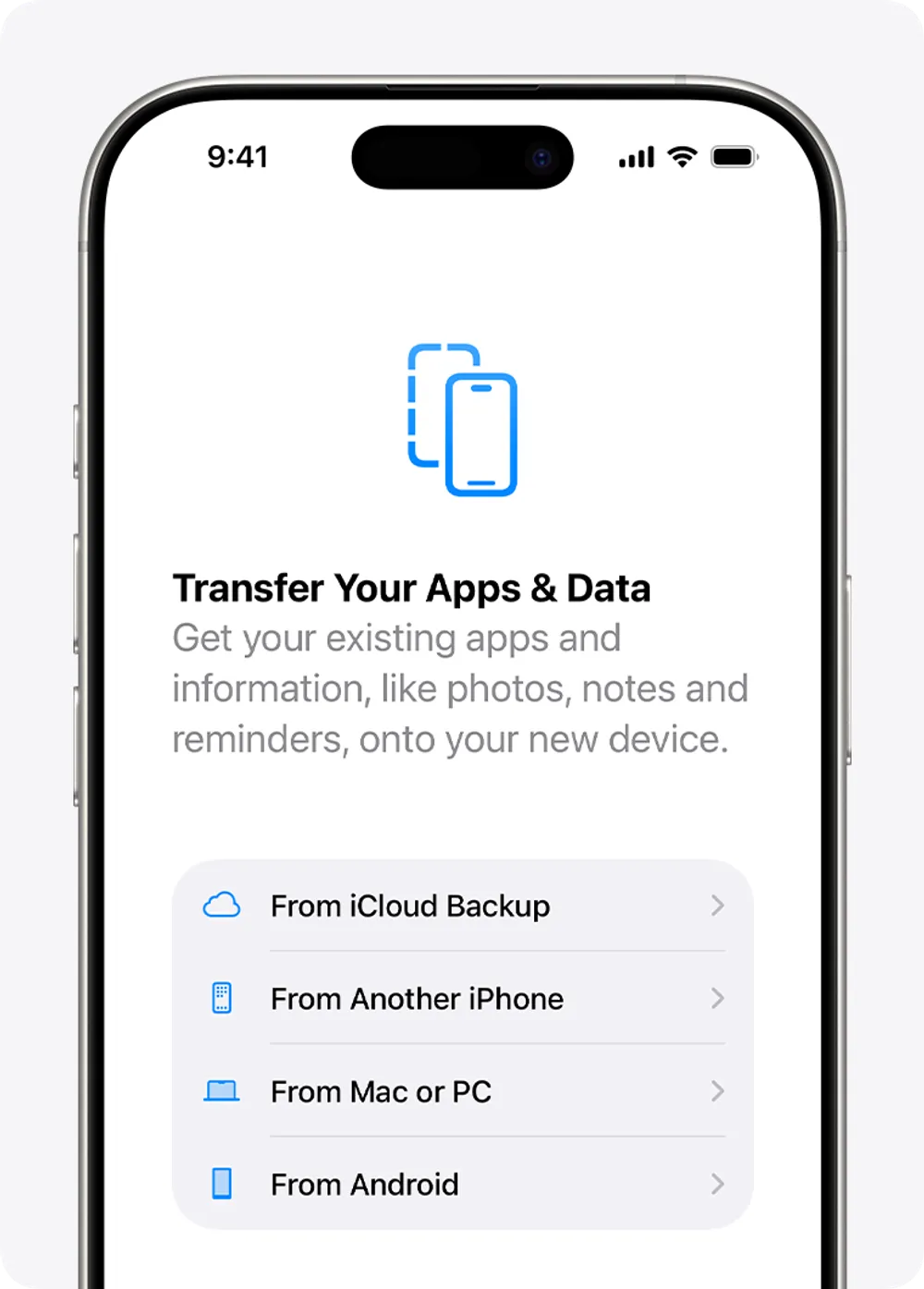
Check the backup date and make sure it is old enough to contain the missing data.
Save any current iPhone data you do not want to lose.
Erase the iPhone if it is already set up.
During setup, choose Restore from iCloud Backup.
Select the relevant backup and complete the restore.
This is a full-device restore, not a one-app recovery.
If your current iPhone contains newer photos, messages, files, or other data that you need to keep, restoring an older backup can create another problem: you are moving the device back to an earlier state.
That is why users who only need a few items from an older backup may want a selective recovery option instead.
An older Mac or Windows backup can also contain app data from before the deletion.
This is particularly useful if you regularly connected your iPhone to a computer and created local backups.
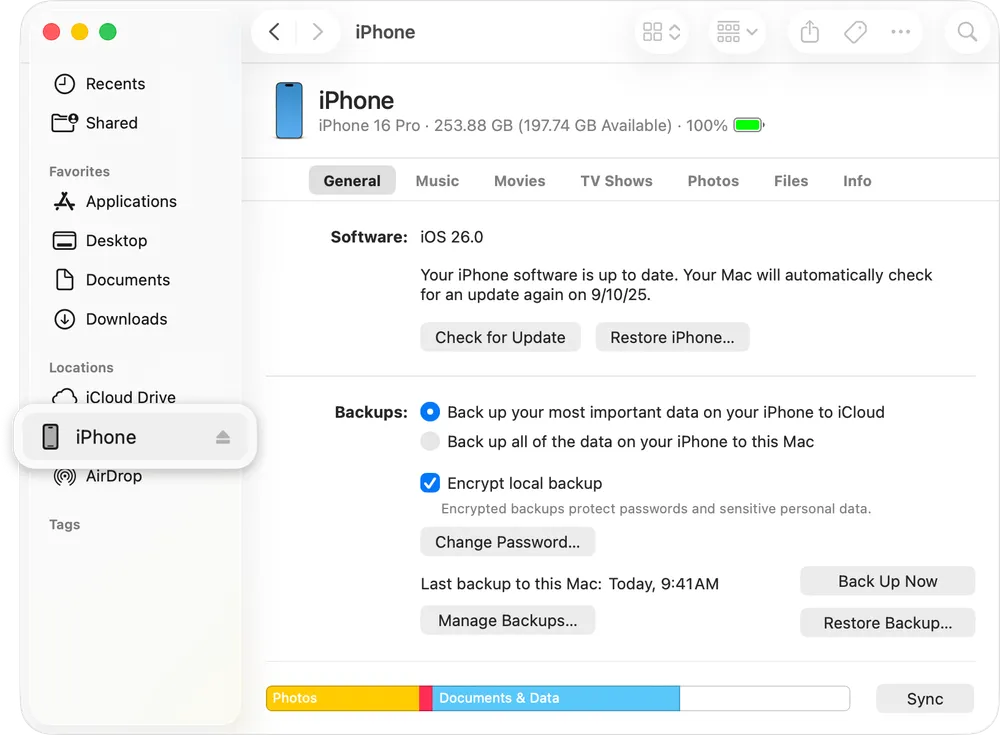
Connect your iPhone to the computer used for the backup.
Open Finder on a Mac or Apple Devices on Windows.
Locate the available iPhone backups.
Check their dates.
Identify a backup created before the app data disappeared.
Restore the appropriate backup if it contains what you need.
Like an iCloud Backup, a computer backup is intended to restore the device to an earlier state. It is not designed to pull out one app's data while leaving everything else on your current iPhone untouched.
This is where the recovery method matters most.
Suppose you have a backup from two weeks ago, but your iPhone has received hundreds of new photos and messages since then. You only want the missing app data. Restoring the entire backup may be more than you want to do.
Before restoring anything, check these possible sources:
The app's account: Your data may still be stored online.
The app's cloud service: Some apps sync data separately from iCloud Backup.
Another iPhone: An older device may still contain the original data.
A computer backup: An older local backup may contain the missing data.
An exported copy: Look through your computer, cloud storage, email, or other places where you may have saved the data.
If you have an available backup but only need specific supported data, selective recovery can be more practical than replacing your entire current iPhone with an older backup.
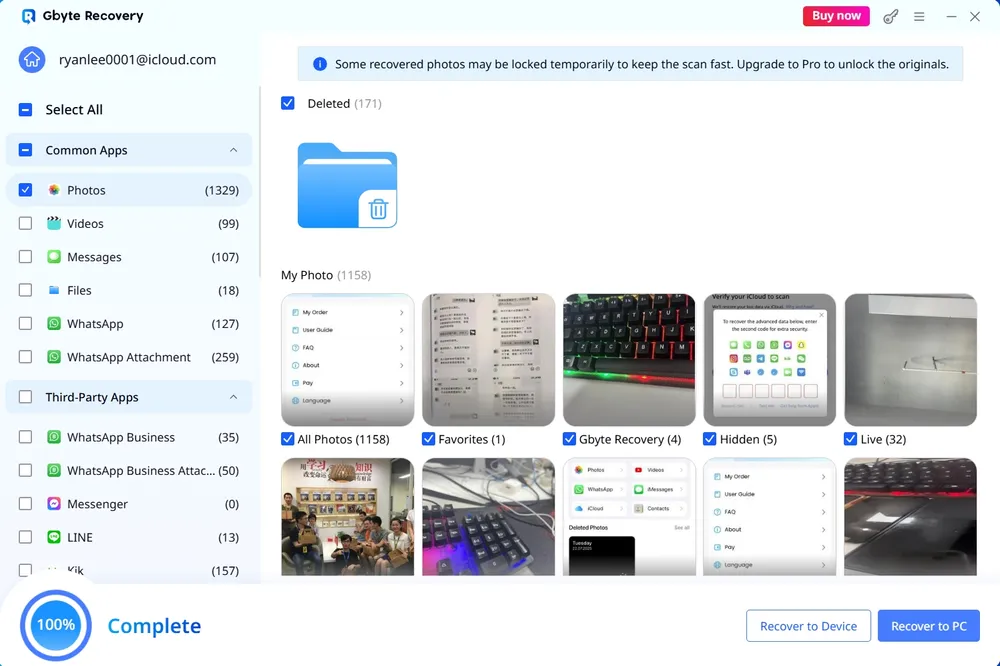
Gbyte Recovery is useful when you have an available supported data source but only need specific data instead of restoring the entire backup. The workflow lets you scan, preview, select, and recover supported data.
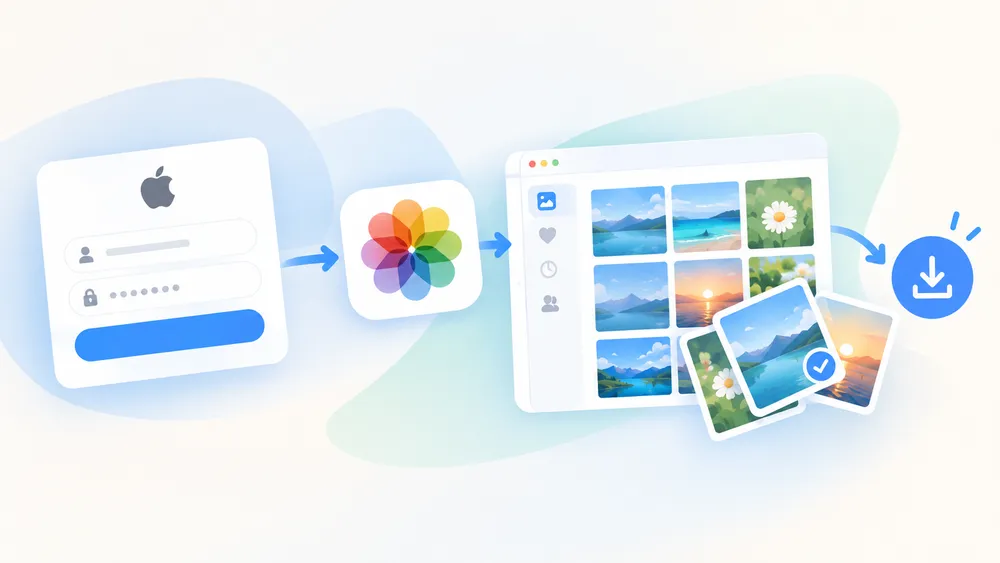
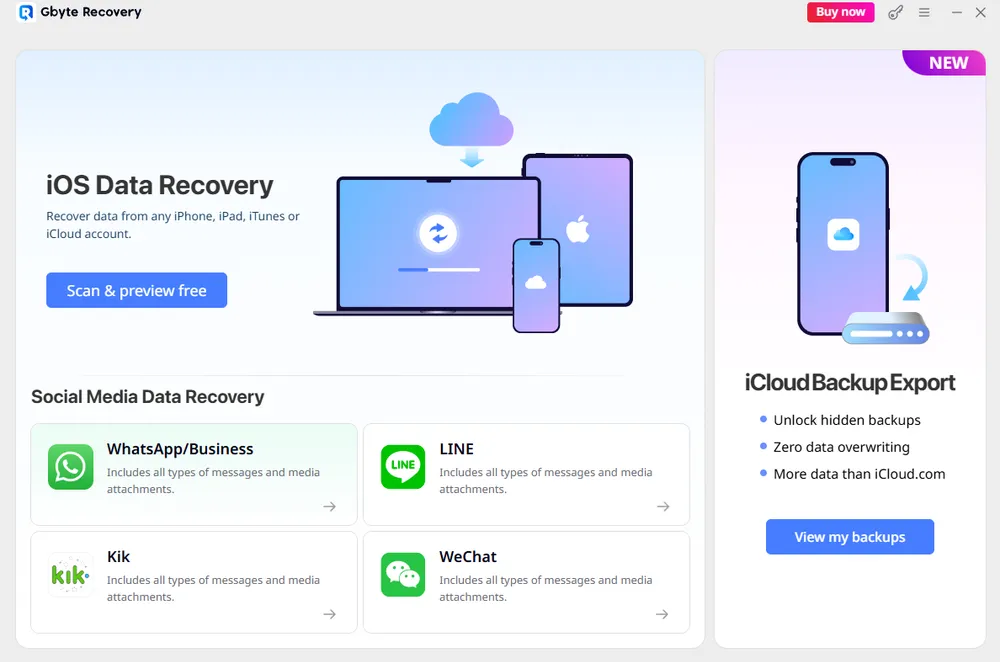
Open Gbyte Recovery and choose iOS Data Recovery.
Select the relevant data type or supported app data you want to check.
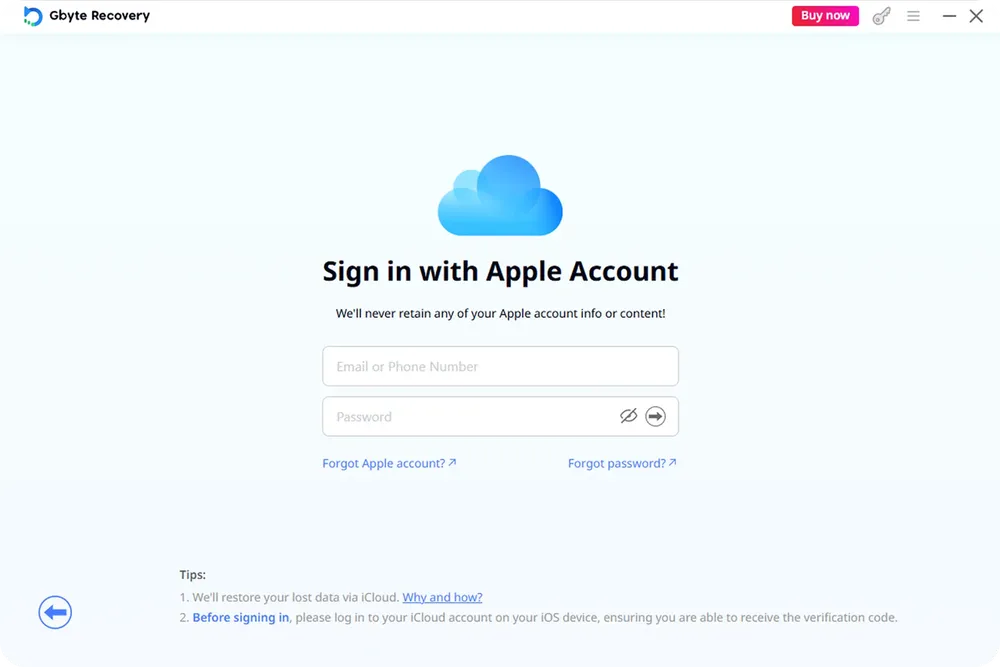
Sign in with the Apple Account associated with the available data.
Gbyte does not bypass Apple Account authentication. You need to provide the account credentials required to access the relevant data.
Start the scan and let Gbyte analyze the available data.
Once the results are ready, preview them before recovering anything. This lets you check whether the data you are looking for is actually available.
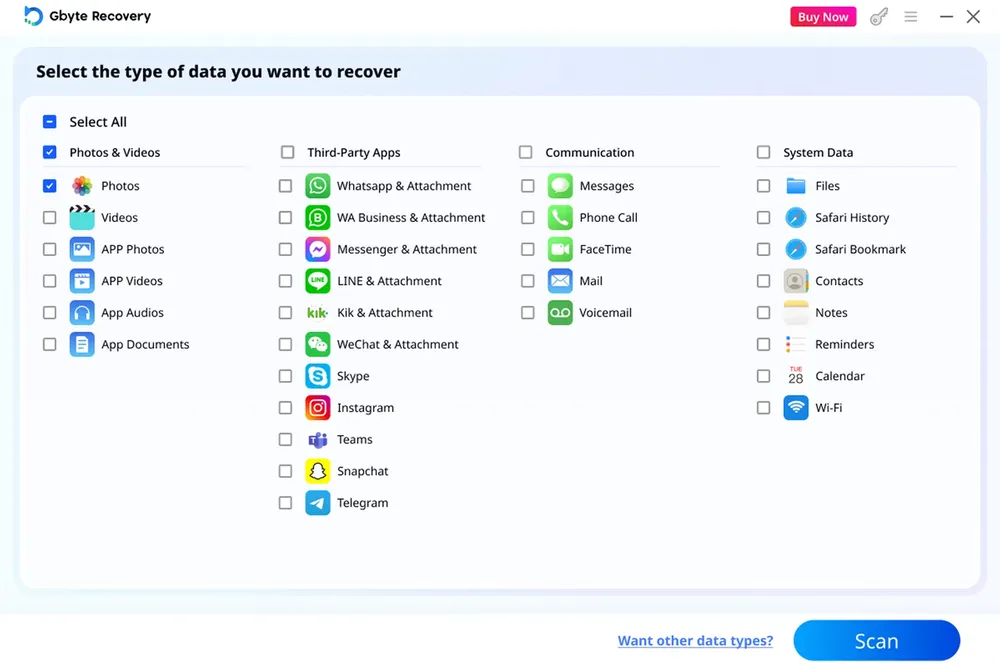
Select the supported data you want and start the recovery process.
This is different from restoring an entire iCloud or computer backup to the iPhone. You can work with the specific supported data you need instead of replacing the current contents of your device.
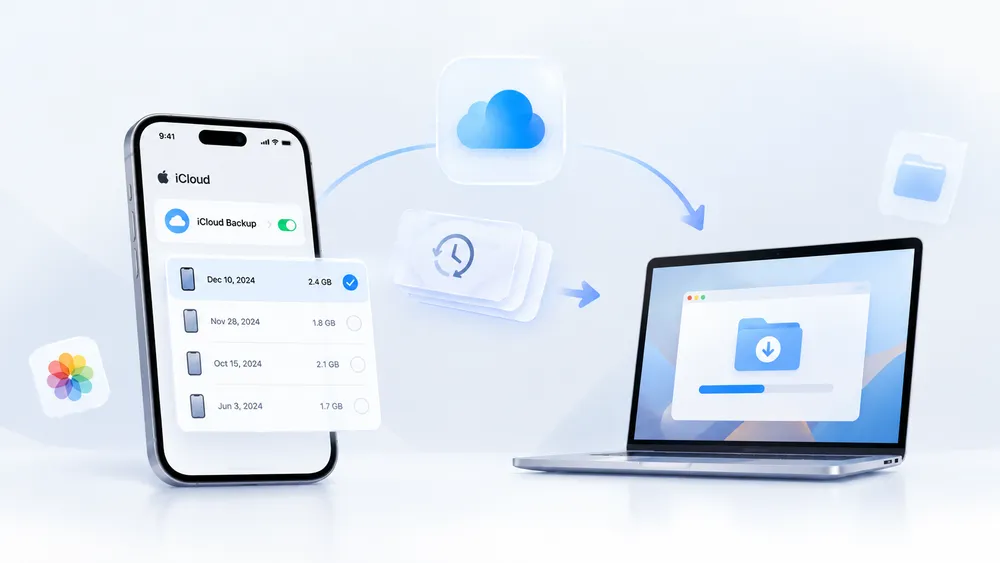
Gbyte also offers iCloud Backup Export for working with an available iCloud Backup.
The workflow is:
Sign in → Scan available backups → Select a backup → Export
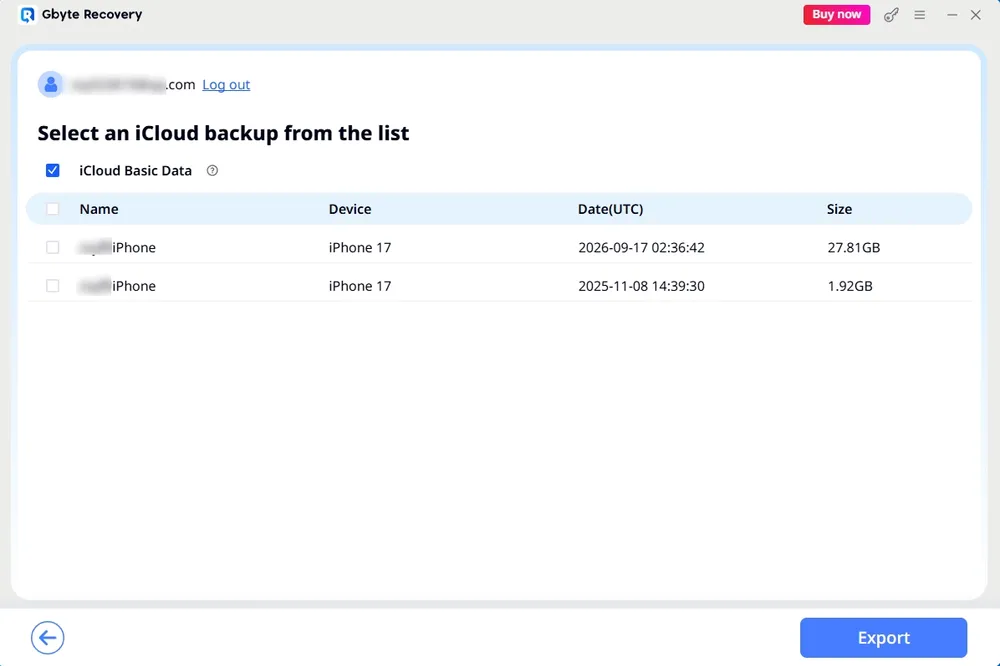
The important difference is that iCloud Backup Export exports the selected backup, while iOS Data Recovery is designed for scanning, previewing, selecting, and recovering supported data.
You still need to sign in to the Apple Account associated with the backup. Gbyte does not bypass Apple Account authentication.
Gbyte supports 26+ apps and data types, including WhatsApp, WhatsApp Business, LINE, WeChat, and Messenger.
However, support is not the same as saying that every piece of data inside every third-party app can be recovered. The available data depends on the supported app, data type, and surviving data source.
App / data source | Where your data may still exist | Gbyte | What to check |
Account, backup, or supported data source | ✔️ | Check the same account and available backup | |
WhatsApp Business | Account, backup, or supported data source | ✔️ | Check the same account and available backup |
LINE | Account, backup, or supported data source | ✔️ | Check account and available data |
Account, backup, or supported data source | ✔️ | Check account and available data | |
Messenger | Account or supported data source | ✔️ | Check the same account first |
Other supported apps | Varies by app | ✔️ | Check the current supported list |
Unsupported apps/data types | Varies | ❌ | Use the app's own recovery options |
The main reason is that iPhone app data does not all use the same storage method.
One app may keep its data on its own servers. Another may sync information through iCloud. Another may rely heavily on local device storage or an iPhone backup.
This is why reinstalling one app may bring everything back while reinstalling another app gives you an empty account.
When you delete an app, its local data can be removed along with it.
Reinstalling the app does not automatically recreate information that existed only on the old installation. There needs to be another surviving copy, such as an account, cloud service, backup, or another device.
iCloud Backup and iCloud Photos work differently. iCloud Backup stores device data that is not already synced through another iCloud service, while iCloud syncing keeps supported data available across your devices.
This is where recovery expectations need to be realistic.
Gbyte's internal product research states that data that has been completely deleted from an iPhone with no backup is not currently recoverable through the supported iPhone recovery mechanisms.
If you do not have an iCloud or computer backup, check the app account, its own cloud service, another iPhone, or an exported copy before assuming that the data is gone.
Recovering deleted app data on iPhone starts with finding out where the data was stored. Reinstall the app and check its account first, then look for an older iCloud or computer backup, another iPhone, or another surviving copy. When you have supported backup data but do not want to replace your current iPhone with a full restore, Gbyte Recovery can scan, preview, and selectively recover supported data. If no backup or other copy exists and the data was completely deleted, recovery may not be possible.
You may be able to recover deleted app data when another copy still exists. Reinstall the app and sign in to the same account first, then check for an iCloud or computer backup, another iPhone, or the app's own cloud recovery options.
Sometimes. Check whether the app stores your data in an account or cloud service, or whether the data still exists on another iPhone. If the data was completely deleted and no surviving copy exists, it may not be recoverable.
Not always. Reinstalling the app only restores the app itself. Your old data can return when it was saved to the app's account, cloud service, or another available backup, but data stored only on the deleted installation may be gone.
It depends on whether a copy of the data still exists. Start by reinstalling the app and signing in to the same account, then check an older iCloud or computer backup, another iPhone, or a supported recovery method.
Yes, when the backup was created while the app data was still available. Apple's standard iCloud Backup restore puts the iPhone back to the state of that backup, so it is a full-device restore rather than a way to restore only one app's data. If you only need specific supported data, selective recovery can be an alternative.

 Add Gbyte as a preferred source on Google
Share


Related articles


Copyright ©2026 Gbyte. All rights reserved. Gbyte’s software is not developed by or affiliated with Apple Inc.
The installation wizard will automatically start after downloading.
After registration, the recovery process can be managed through the web interface.
You get it all with your purchase - no locked features, no hidden limitations.