

Gbyte Recovery
Gbyte Recovery
Free scan and selective preview of 25+ data types like messages, photos, and WhatsApp. No data overwritten — recover only what you need.
Table of contents
You're trying to recover deleted photos on your iPhone, but your "Recently Deleted" folder is empty and you never created any backups. If photo recovery were a video game, this would be nightmare mode.
But don't panic just yet. In this guide, we'll walk you through some practical methods to recover permanently deleted iPhone photos without backup.
Yes, but your options are limited.
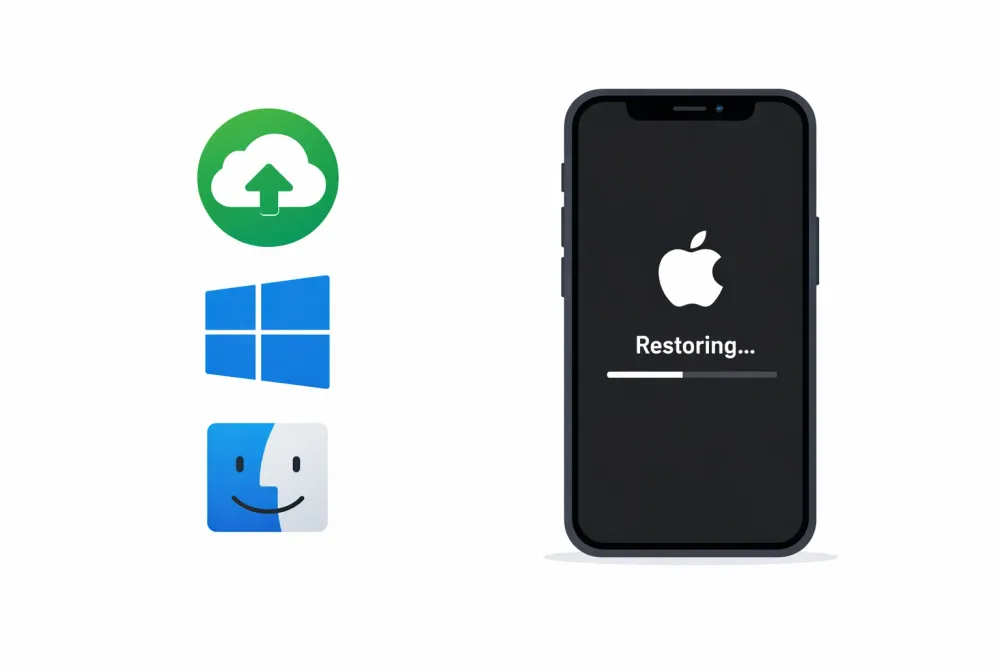
Let's be clear about what "easy" recovery looks like first: If you have an iCloud or computer backup(iTunes/Finder/Apple Devices), or your photos are still sitting in the "Recently Deleted" album, you can restore deleted photos quickly using Apple's built-in tools.
But if you're reading this guide, chances are you've already checked those options and come up empty. You have two options:
Using a third-party recovery tool that scans your iPhone's storage directly.
Tracking down copies you may have uploaded to other platforms (like iCloud, Google Photos, social media, or messaging apps) before the photos were deleted.
With Gbyte Recovery, you can recover deleted photos from your iPhone’s historical snapshots and also scan connected third-party app accounts in one go.
Options are limited, but the number of recovery tools out there is overwhelming. Choosing the right one is the first big challenge.
To give you some context, here's what I was dealing with:
Photos deleted: About 3 months ago
iPhone model: iPhone 14 Pro
iOS version: iOS 26
Storage: 256GB
Photos lost: Around 150 family vacation photos
How they were lost: Accidentally deleted while trying to free up storage space
I tried many iPhone recovery tools before, hoping to recover photos I had permanently deleted. Most of them required connecting my iPhone to a computer via USB. After scanning, they only showed photos that were still in my Recently Deleted folder—nothing older, nothing truly gone. I was frustrated.
Then I found Gbyte iOS Recovery. At first, I was skeptical, but since it offers free scanning and preview on mobile, I decided to try it. To my surprise, it actually recovered photos I had deleted months ago!
So how does it work?
Think of your iPhone as taking tiny snapshots of its storage every second. Gbyte compares these snapshots to see which files disappeared, allowing it to detect and recover photos, videos, messages, and other data—even if you never made a backup.

Why it stands out:
Works without any backup.
Can recover files deleted weeks or months ago.
Supports multiple file types beyond photos.
Search deleted photos across cloud and social accounts
Free scan and preview to check what’s recoverable before restoring.
Steps to use Gbyte iOS Recovery
Step 1: Download Gbyte Recovery on your computer for free.
Step 2: After setting up, select Photos. Then hit Scan and sign in with your iCloud account.
Step 3: Gbyte Recovery will make a deep scan. Please be patient at this step since it will take a while if you have lots of data.
Step 4: When it loads all the related photos, you can preview and select the one you want to restore. Simply tap the Recover to PC button, and a folder will automatically be created on your desktop. All of the restored data will be here for you to check.
You might have backups you don't even realize exist. Here are some places worth checking:
Google Photos
Cloud storage
Here’s something many people don’t know: even if you never manually created a backup, your photos might still be in iCloud.
Social media
Messaging apps - Photos shared in chats are often stored separately.
Shared Albums
💡Pro tip: Don't forget to check the trash or "recently deleted" folders within these apps too—they often keep deleted files for 30 days.
Based on practical testing and iPhone restrictions, here's a quick overview of all iPhone Photos recovery methods:
Method | Needs Backup? | Success Rate | Ease of Use | Notes |
Recently Deleted folder | ❌ | Low (30-day limit) | Easy | Only works for recent deletions; cannot recover older photos |
Gbyte iOS Recovery | ❌ | High | Easy | Scans device storage; free scan & preview; supports photos, videos, messages, and more |
Finder / iTunes / iCloud | ✅ | High | Medium | Overwrites existing data; requires prior backup |
Recommendation
If you have a backup → Use Finder, iTunes, or iCloud to restore deleted photos safely.
If you don't have a backup → Follow these steps in order:
Check the Recently Deleted folder first. Apple keeps deleted photos there for 30 days.
Search other apps and platforms for copies. Think about where you might have shared or uploaded those photos—iCloud.com, Google Photos, social media, or messaging apps. You might have backups you forgot about.
Use a professional recovery tool. If the photos are truly gone, your best chance is a dedicated recovery tool like Gbyte iOS Recovery. It can scan your device and recover permanently deleted files—even without a backup.
Important: Stop using your iPhone immediately after you notice the deletion. Every new photo, app, or download could overwrite your deleted files and make them unrecoverable. The sooner you run a recovery scan, the better your chances.
Accidentally deleting photos on your iPhone can be stressful, especially if they’re permanently removed. Recovery is possible, but success depends on whether a backup exists and how long ago the photos were deleted.
With a backup, restoring from Finder, iTunes, or iCloud is generally reliable. Without a backup, recovery is limited to checking the Recently Deleted folder or using professional recovery software. Acting quickly and avoiding new data on the iPhone increases the chances of success.
By understanding these differences and acting promptly, you can make the best decisions to recover your permanently deleted photos and then store them more safely and systematically in a photo organizer.
If the deletion happened years ago, recovery is difficult because old data is more likely to be overwritten by new files. If you had an iCloud or iTunes backup from that period, restoring from the backup is the safest option. Without a backup, your only chance is to try a professional iPhone recovery tool like Gbyte iOS Recovery, which scans iPhone storage snapshots for traces of older files.
When you delete photos, they first go to the Recently Deleted album for 30 days. After that, they are flagged as “deleted” in storage and become invisible to you. However, until the system overwrites that storage space with new data, recovery is still possible.
Not always. If the deleted photo data hasn’t been overwritten by new files, recovery is still possible with specialized recovery tools. But the longer you use your iPhone after deletion, the higher the chance the files are permanently lost. That’s why it’s best to act quickly.
iCloud keeps deleted files (including photos, notes, contacts, etc.) for up to 30 days in the iCloud. Recently Deleted folder. After 30 days, they’re usually removed from Apple’s servers. If you have an older iCloud backup from before the deletion, you can restore your iPhone from that backup to get the files back.

Jason Kim
AuthorJason Kim holds a degree in Information Systems and has contributed to multiple patented technologies in cloud storage and mobile data management. His work centers on building scalable systems that make data storage, backup, and recovery more reliable.

Share


Related articles


Copyright @2026 Gbyte. All rights reserved.
The installation wizard will automatically start after downloading.
After registration, the recovery process can be managed through the web interface.
You get it all with your purchase - no locked features, no hidden limitations.