

Gbyte Recovery
Gbyte Recovery
Free scan and selective preview of 25+ data types like messages, photos, and WhatsApp. No data overwritten — recover only what you need.
Table of contents
Accidentally deleted important contacts from your phone? You’re not alone. Contacts can disappear due to mistaken deletions, syncing issues, system updates, or device changes — and it often happens when you least expect it.
The good news is that deleted contacts are often recoverable. Depending on your situation, you may be able to retrieve them using built-in backups or account syncing. And if those options don’t work, there are still reliable ways to recover lost contacts, even without a backup.
This guide walks you through the most effective methods to retrieve deleted contacts on both iPhone and Android, starting with the fastest solutions.
Answer these questions to find your best option:
Recently → Method 2: iCloud/Account Sync (1 min)
Weeks/months ago → Method 1: Gbyte Recovery
Yes (before deletion) → Method 2 iCloud/account backup or Method 3: iTunes backup
No/Not sure → Method 1: Gbyte Recovery
Email synced → Method 4: Email Account
💡 Not sure if your contacts are recoverable? Free to scan and preview first!
If you’re in a hurry to get important contacts back — especially if they were deleted a long time ago — starting with a direct recovery scan can save you time.
Unlike iCloud or account-based restores, Gbyte Recovery doesn’t rely on backups or syncing history. It also avoids common limitations of iTunes-style restores, such as overwriting current data or forcing you to recover everything at once.
A recovery tool lets you scan specifically for deleted contacts and preview what’s recoverable before making any decision. You can check names, phone numbers, and details first — and if nothing useful shows up, you don’t pay anything.
This option works on both computer and mobile. For users who want to avoid backup-related restrictions, this is often the most efficient place to start.
Step-by-Step: Recover Contacts with Gbyte Recovery
Step 1: Download and install Gbyte Recovery on desktop or access web version directly.
Step 2: Launch the software and select Contacts. Click on Scan to continue.
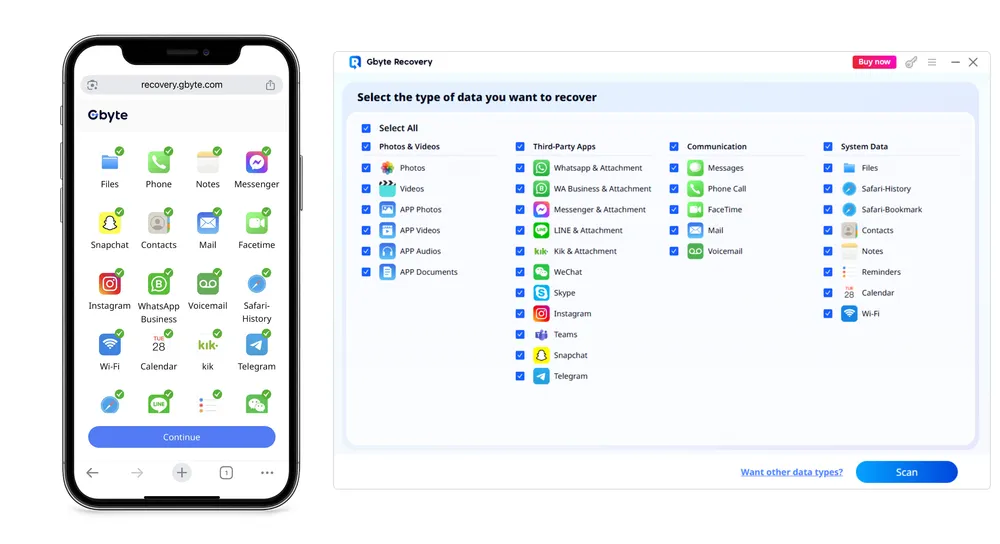
Step 3: Preview all found contacts—deleted items appear highlighted. Browse through to see if your missing contacts are there.
Step 4: Select the contacts you need and click "Recover to PC"
If your contacts were recently deleted and your device is synced with iCloud, Google, or another account, restoring from the backup can often bring them back quickly.
For iPhone users,
Step 1. Open Settings on your iPhone → tap your Apple ID name → iCloud → Show All under Apps Using iCloud.
Step 2. Find Contacts, toggle it off, then choose Keep on My iPhone when asked.
Step 3. Toggle Contacts back on and select Merge to sync iCloud contacts with your device.

For Android users:
Go to Settings → Google → Manage Your Google Account.
Select People & Sharing → Contacts → Bin.
Choose contacts to restore → Click Recover.
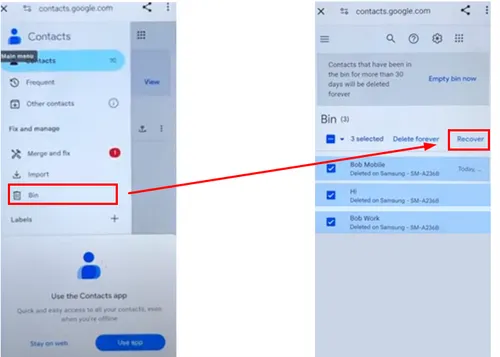
For Samsung Galaxy:
Open Settings → Accounts & Backup → Samsung Cloud → Restore Data.
Select Contacts → Restore.
Keep in mind that account-based restores may have some limitations:
They may overwrite existing contacts.
Only contacts included in the backup can be recovered.
Deleted contacts that were permanently removed or not synced may not appear.
If these methods don’t work or your deleted contacts aren’t available, you might need to consider a direct scan tool as a next step — one that allows you to preview recoverable contacts before making any changes.
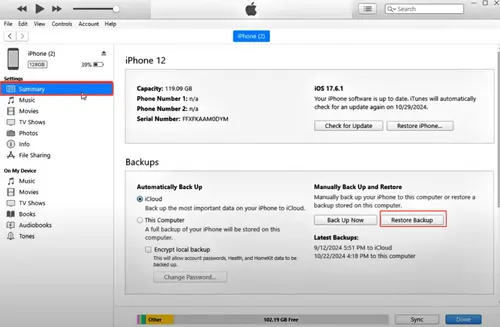
If you have an iTunes or local backup of your device, you can restore deleted contacts by recovering the entire backup.
However, this method comes with some important limitations and risks:
Restoring a backup will replace all current data on your device, not just contacts.
Only contacts included in the backup will be recovered — any changes made after the backup will be lost.
The process can be time-consuming, especially for large backups.
To proceed, connect your device to your computer, open iTunes, and choose “Restore Backup”. Select the most relevant backup and follow the prompts carefully.
Because of these restrictions, many users prefer to try a direct recovery scan first, which allows you to preview recoverable contacts before making any changes and avoid overwriting existing data.
If you use Gmail, Outlook, or another mail service to sync contacts, you can restore deleted contacts from your email account:
Steps:
Open Settings → Mail → Accounts.
Select each email account and ensure Contacts sync is enabled.
For Gmail users, visit Google Contacts to restore deleted numbers from the trash.
This is ideal if your contacts were not backed up to iCloud.
After trying the methods above, you should have a clearer idea of which contacts can be restored. If some contacts are still missing, you can take the following steps:
Double-check your backups – iCloud, Google, or local backups may contain contacts you missed.
Try a direct recovery scan – this allows you to preview recoverable contacts before making any changes, so you only act on what you actually need.
Act quickly – deleted data can be overwritten over time, so the sooner you scan, the higher the chance of recovery.
Remember: You don’t need to commit to anything upfront. You can scan and preview contacts for free to see what’s recoverable before deciding on the next step.
A: Yes, a direct recovery scan can often retrieve contacts that are no longer visible on your device or in cloud backups.
A: iCloud restores usually merge contacts, but iTunes/local backup restores will replace all current data on your device. Always check before proceeding.
A: It depends on the method and backup size. Direct scans are usually faster for specific contacts, while full backups can take longer.
A: Yes. Cloud restores and direct recovery scans typically work on both platforms, although the steps may vary slightly.

Share


Related articles


Copyright @2026 Gbyte. All rights reserved.
The installation wizard will automatically start after downloading.
After registration, the recovery process can be managed through the web interface.
You get it all with your purchase - no locked features, no hidden limitations.