

Gbyte Unlock

Gbyte Unlock
Safely remove any iPhone/iPad screen lock in a few clicks.
Table of contents
For a forgotten iPhone passcode, most current Apple-supported recovery options require erasing the device. The main exception is Previous Passcode Reset, which can restore access using the old passcode within a 72-hour window, with nothing erased.
Searching "bypass iPhone lock screen" turns up a mix of genuinely different problems wearing the same label — a forgotten passcode, a device stuck on Activation Lock, a company-managed phone, old tutorials describing tricks that stopped working years ago. Sorting out which one actually applies changes everything about what comes next.
What You See | What It Actually Is |
Enter Passcode | Screen Passcode |
iPhone Unavailable / Security Lockout | Screen Passcode lockout |
iPhone Locked to Owner | Activation Lock |
Remote Management / Supervised | MDM Lock |
This guide covers the Screen Passcode — the lock tied to a forgotten or disabled entry code. "iPhone Unavailable" and "Security Lockout" aren't separate lock types; they're lockout states caused by repeated incorrect passcode attempts, still part of the same Screen Passcode category. Activation Lock and MDM Lock are separate protections with their own resolution paths, touched on later.
What the User Wants | What Actually Happens |
Bypass the passcode and keep the data | Generally not possible |
Remove a forgotten passcode | Usually requires an erase |
Unlock after recently changing the passcode | Previous Passcode Reset may avoid an erase |
Remove Activation Lock | A separate issue, tied to Apple Account ownership |
Remove MDM | A separate device-management issue |
Every current, Apple-supported route to a forgotten passcode generally involves erasing the iPhone, removing the passcode, setting it up again, and restoring from an existing backup. None of it is a bypass in the sense of slipping past the lock while the existing data stays put.
The current or previous passcode. Knowing either changes which method applies.
Whether the passcode changed in the last 72 hours. This is the one condition that avoids an erase entirely.
The Apple Account password. Several official methods require it.
Whether Find My was turned on beforehand. This determines whether a remote erase is even available.
A backup. Whatever's on iCloud or a computer from before the lockout is what comes back after setup.
Computer access. Recovery Mode and guided tools both need one.
A Wi-Fi or cellular connection on the device. Both the lock-screen erase and Find My require it to complete.
The current passcode still being remembered settles this immediately — entering it clears the lock screen with nothing else to consider. From there, what's checked off the list above points to the right path.
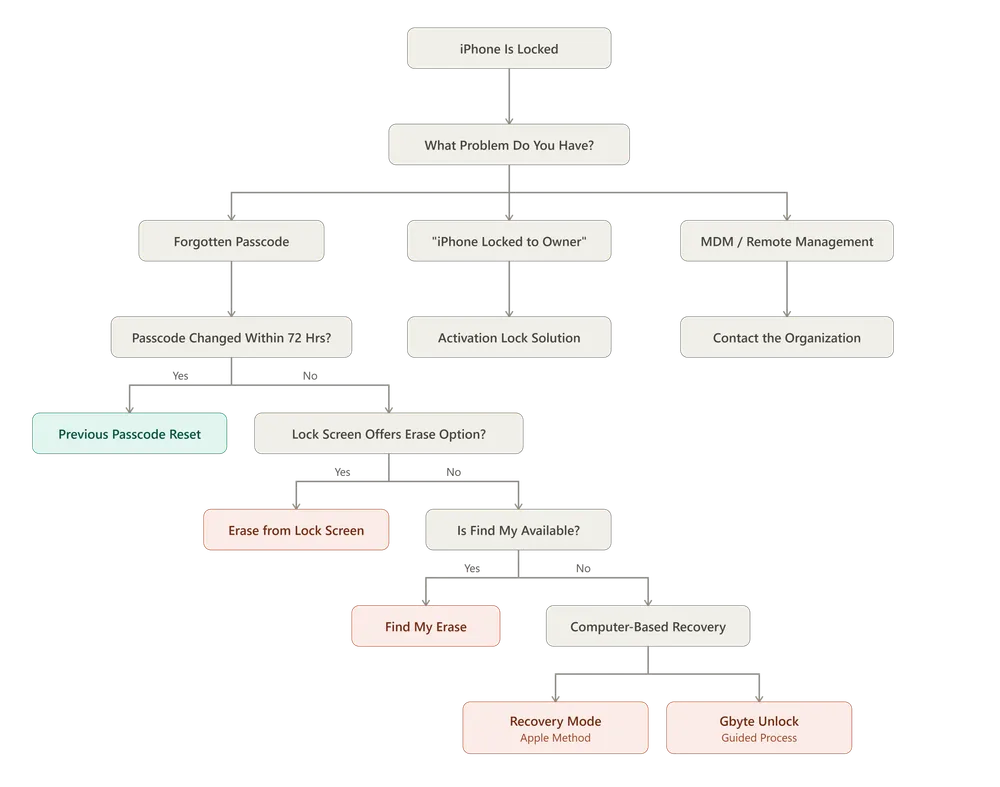
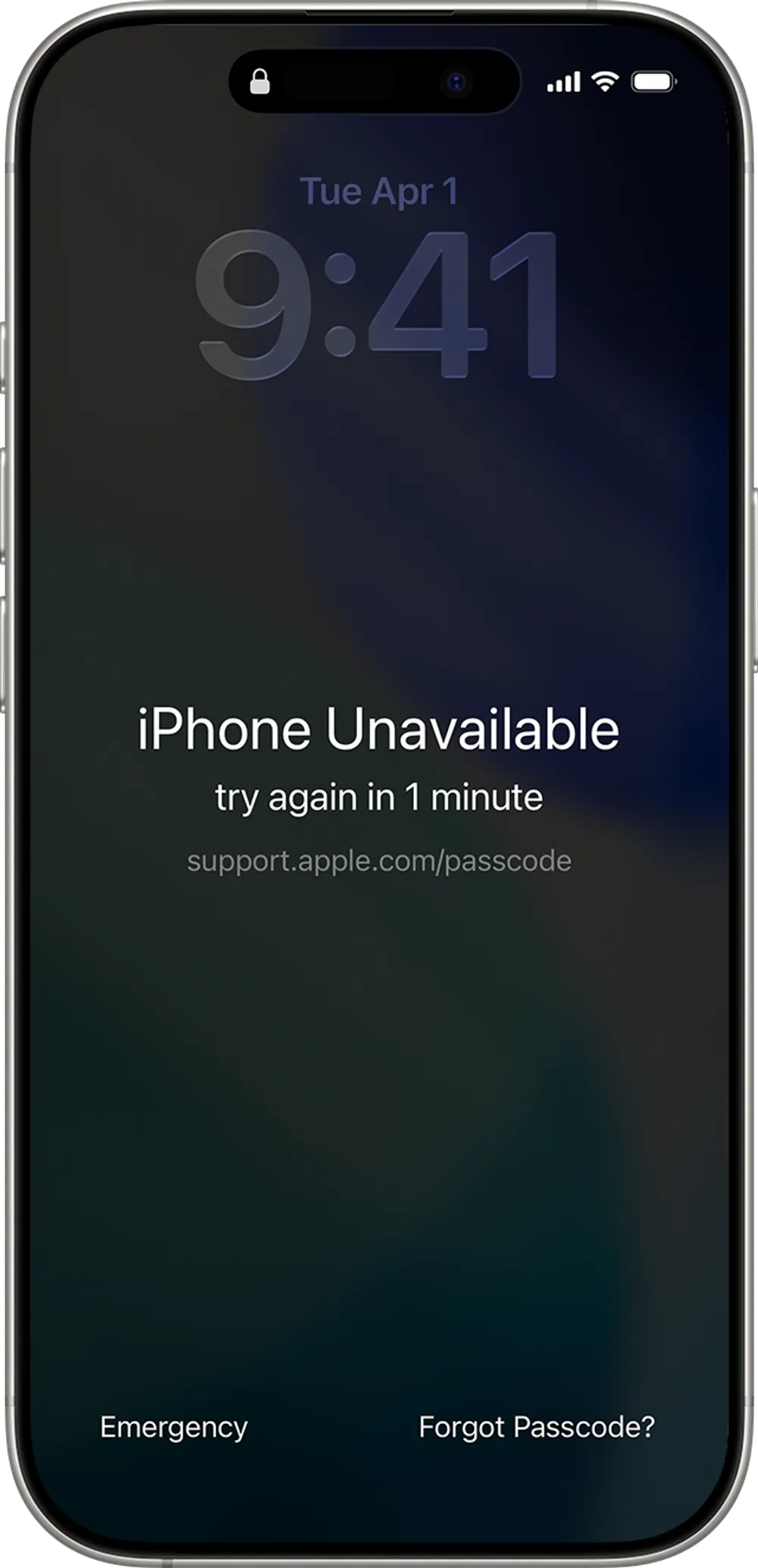
Best for: The passcode was changed within the last 72 hours, the previous one is still remembered, and the iPhone meets Apple's Passcode Reset requirements — iOS 17 or later, connected to Wi-Fi or cellular, and signed into an Apple Account.
Pros:
No data erased
No computer required
Fastest option when it applies
Cons:
Only available on iOS 17 and later
Only works within that 72-hour window
Requires an active network connection to complete
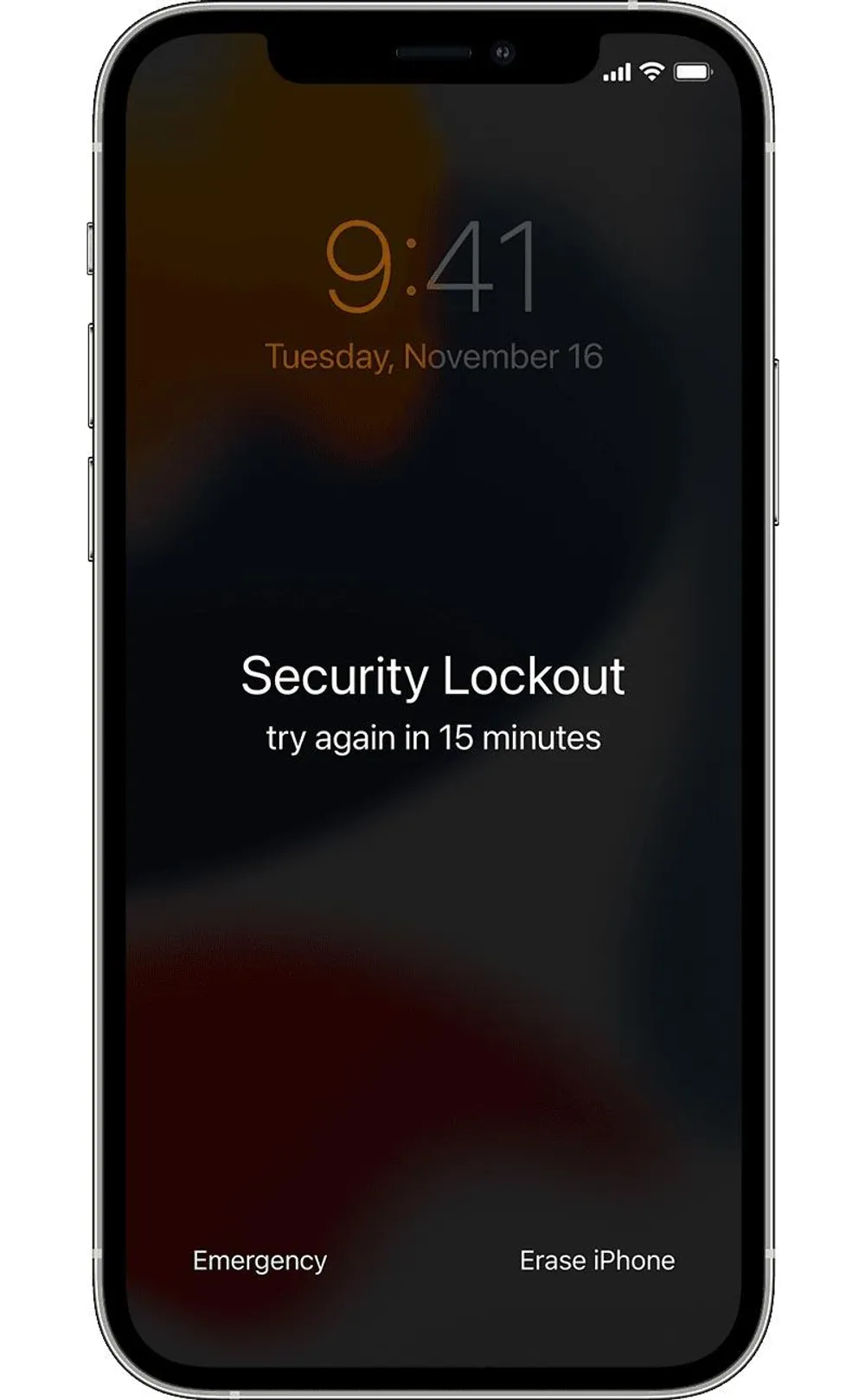
Best for: The lock screen shows "Forgot Passcode?" or "Erase iPhone," and the Apple Account password is known.
Pros:
No computer needed
Done entirely on the phone itself
Official, free Apple method
Cons:
Erases the device
Requires a network connection to complete
Won't appear unless Find My and the other underlying requirements are met
👉 See the full lock-screen erase steps
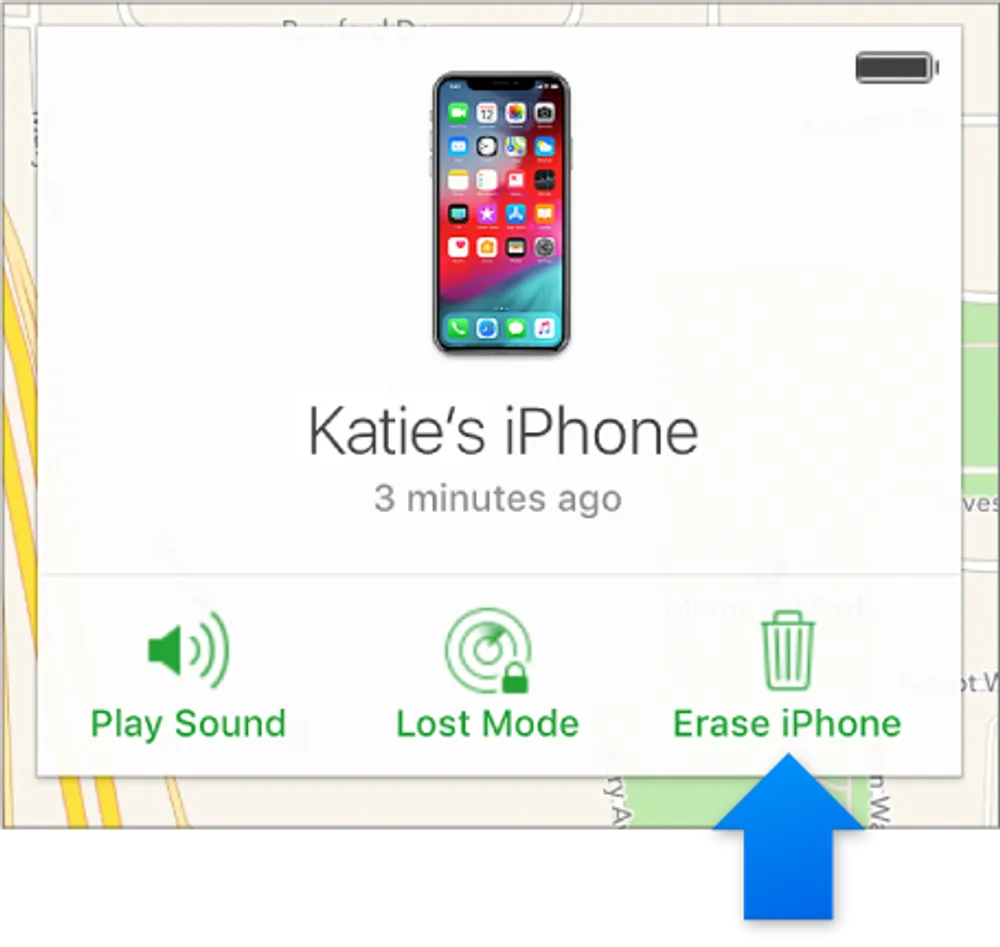
Best for: Find My was enabled beforehand, and a browser or another Apple device is preferred over the locked phone itself.
Pros:
No computer required
Official, free Apple method
Can be started from any device signed into the same Apple Account
Cons:
Erases the device
If the iPhone is offline, the request shows as "Erase Pending" and only begins once it reconnects
Activation Lock remains on afterward, tied to the same Apple Account
👉 Walk through the complete Find My erase process
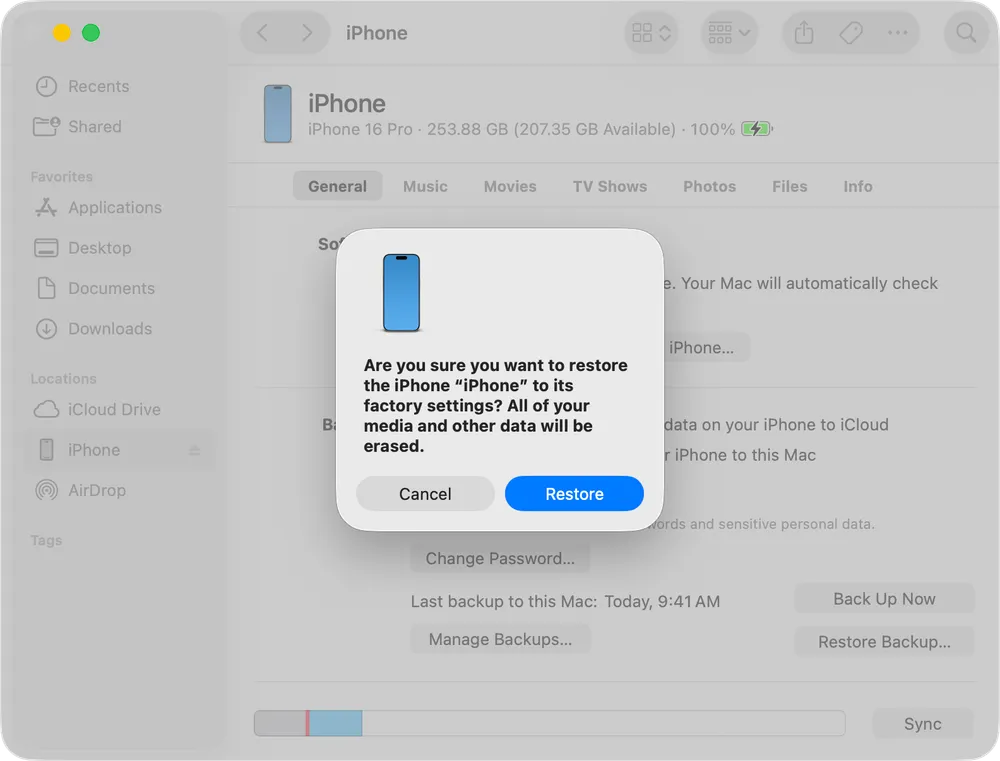
Best for: A computer is available, the lock-screen reset option isn't showing, and the standard Apple restore process is preferred.
Pros:
Official Apple recovery method, free
Doesn't require Find My to have been enabled
Doesn't require the current passcode
Cons:
Erases the device
Requires a computer and USB cable
The button sequence and menu navigation can be unfamiliar without prior experience
The firmware download can take a while
Doesn't remove Activation Lock
👉 Get the complete Recovery Mode instructions
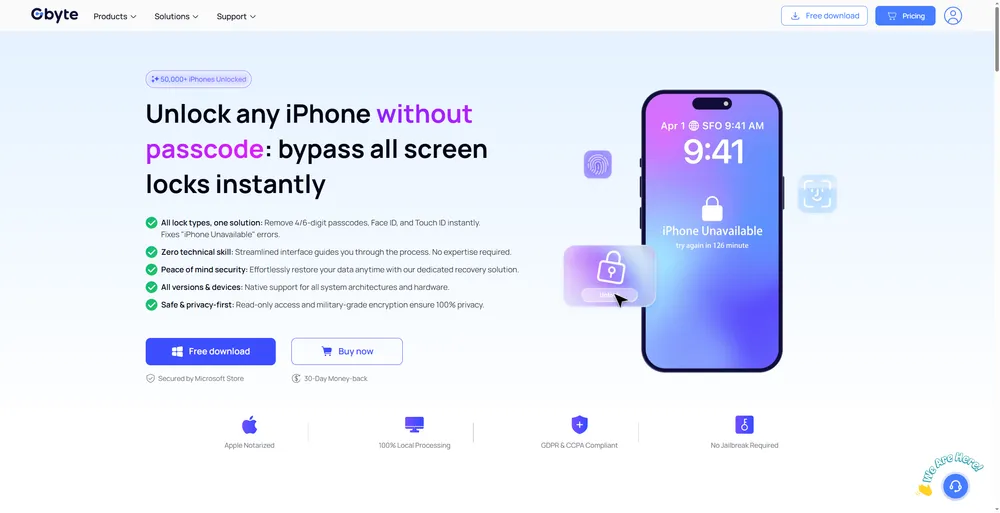
Best for: A computer is available, and a guided recovery workflow is preferred over handling Apple's standard restore process manually.
This still works by erasing the device, the same as every other route above. It doesn't restore the original passcode, and it doesn't bypass Activation Lock — a tool claiming otherwise is worth treating with real skepticism. Checking that the specific iPhone model and iOS version are supported before starting is worth the two minutes it takes.
Pros:
A guided workflow instead of manually navigating Apple's restore process
Firmware handling built into the process rather than a separate manual step
A dedicated interface designed specifically for this recovery scenario
Cons:
May require paid software
Still requires a computer
Erases the device, same as the official methods
Doesn't remove Activation Lock
A third-party unlock tool can be another option when a more guided process is preferred. Gbyte Unlock, for example, provides a guided computer-based workflow for supported iPhone models and iOS versions.
Method | Erases Data? | Computer? | Best For |
Previous Passcode Reset | No | No | Passcode changed within 72 hrs |
Lock Screen Erase | Yes | No | Eligible locked iPhones |
Find My | Yes | No | Find My enabled beforehand |
Recovery Mode | Yes | Yes | Standard Apple recovery |
Third-Party Tool | Yes | Yes | Guided computer recovery |
Erasing the iPhone removes the forgotten Screen Passcode, but it doesn't restore the data that was stored on the device. During setup, an existing iCloud or computer backup can be restored.
A separate distinction worth keeping in mind: an erase doesn't automatically remove Activation Lock. If Find My was associated with the iPhone, the Apple Account previously linked to it may still be required during activation.
Erase, data recovery, and Activation Lock removal are three separate outcomes — understanding that before starting avoids a lot of confusion afterward.
Siri bypass. Older tutorials describe using Siri to reach contacts, photos, or settings without entering a passcode. The well-known Siri-based lock-screen bypasses documented in these tutorials relied on vulnerabilities in older iOS releases and were subsequently patched. It has no bearing on current iPhones. Many of these tutorials remain online precisely because they describe vulnerabilities from years-old iOS releases — their continued presence in search results doesn't mean the technique still works on a current device.
Emergency Call tricks. Similar story — these exploited gaps in how older iOS versions handled the emergency dialer screen, and those gaps have been closed.
Jailbreak-based methods. Highly dependent on the exact device and iOS version, and carry their own risks around stability and security. Not a general-purpose solution for a locked screen.
"Activation Lock bypass" tools. A different problem entirely from a forgotten passcode. Software marketed as removing Activation Lock without the original Apple Account deserves real scrutiny — this is one of the more legally murky corners of the unlock software market.
Forgetting a Screen Passcode isn't a problem with a magic bypass waiting to be found — it's a matter of picking the safest legitimate recovery path for the situation at hand. Before starting any erase-based method, it's worth checking what's backed up and whether Activation Lock could show up during setup. And a screen reading "iPhone Locked to Owner" rather than "iPhone Unavailable" signals a different protection entirely, not a variation of the same fix.
Only within one specific window: a passcode changed in the last 72 hours can be reset using the old one, with nothing erased. Every other current method erases the device.
No. The vulnerabilities this relied on affected older iOS releases and were patched years ago.
No. Removing the passcode and removing Activation Lock are separate processes. Activation Lock is tied to the Apple Account associated with Find My on the device, and erasing the iPhone does not remove that protection. The previous owner can remove the device from their account, or the legitimate owner may be offered an Activation Lock support process by Apple when valid proof of purchase is provided.
No. A passcode lock and Activation Lock are different protections with different requirements — clearing one doesn't affect the other.
A Screen Passcode is the everyday entry code set by the device owner. MDM Lock comes from an organization managing the device remotely, typically through work or school, and requires that organization to release it — none of the methods above apply to it.
 Add Gbyte as a preferred source on Google
Share


Related articles


Copyright ©2026 Gbyte. All rights reserved. Gbyte’s software is not developed by or affiliated with Apple Inc.
The installation wizard will automatically start after downloading.
After registration, the recovery process can be managed through the web interface.
You get it all with your purchase - no locked features, no hidden limitations.