

Gbyte Unlock

Gbyte Unlock
Safely remove any iPhone/iPad screen lock in a few clicks.
Table of contents
When an iPhone shows "iPhone Unavailable" but "Erase iPhone" or "Forgot Passcode?" does not appear, it usually means Apple's on-device reset option is currently unavailable.
This can happen because the iPhone is running an older iOS version, cannot connect to the internet, does not meet Apple's recovery requirements, or the option appears under a different name on newer iOS versions.
Seeing "iPhone Unavailable" without an erase option does not always mean the iPhone is permanently stuck. In most cases, the missing option points to a specific condition that can be checked before moving to Recovery Mode or another recovery method.
The Erase iPhone or Forgot Passcode? option does not appear on every locked iPhone. Apple only shows this recovery path when certain requirements are met.
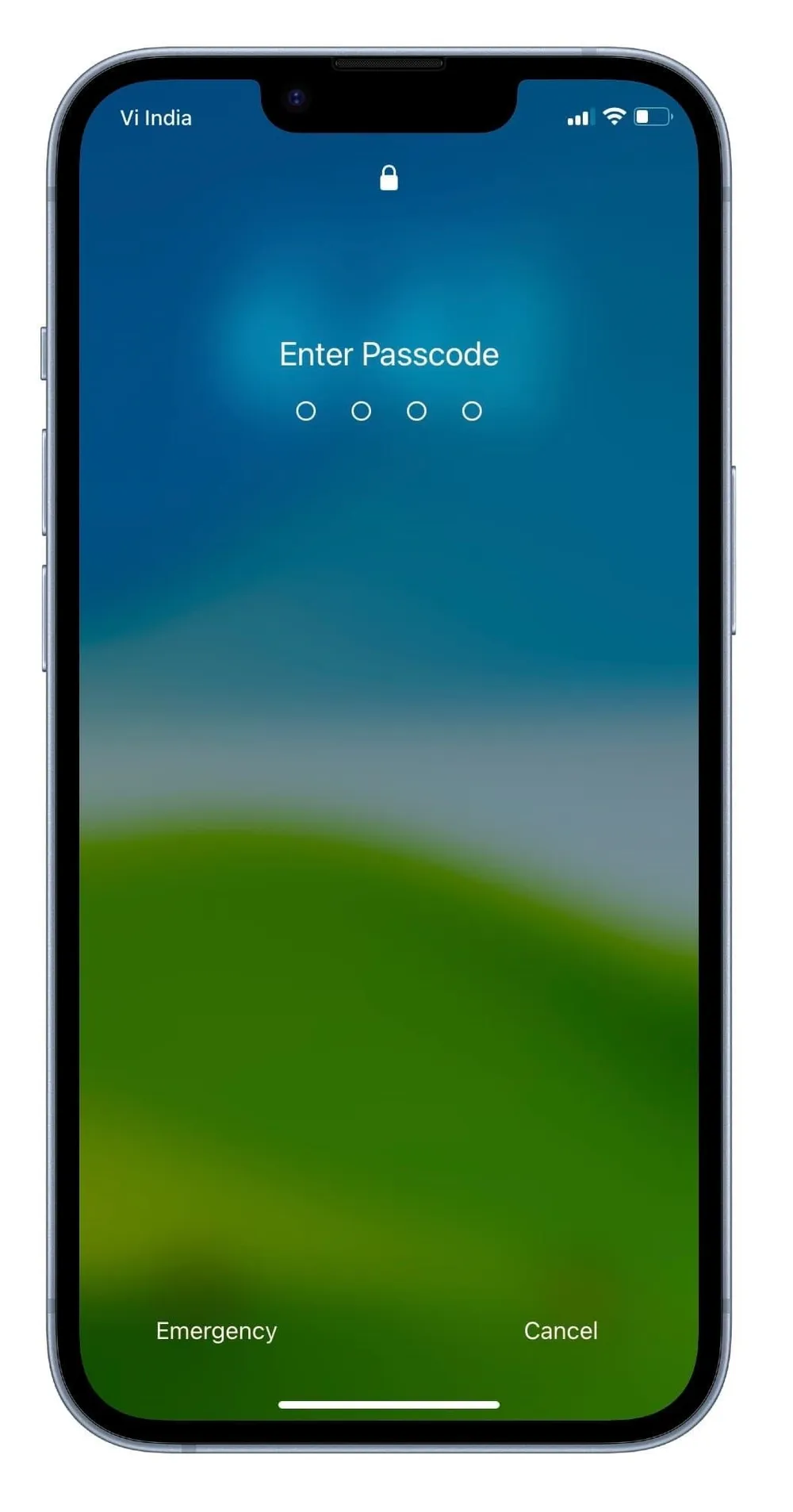
Use the situations below to identify what is happening with your device.
Situation | Root Cause | Fix |
Older iPhone running outdated iOS | iOS version does not support on-device erase | Recovery Mode |
Following an older tutorial | Newer iOS uses "Forgot Passcode?" instead of "Erase iPhone" | Use Forgot Passcode |
iPhone is offline | Device cannot complete Apple verification | Restore internet connection |
Option should appear but does not | Temporary system issue | Force restart and check again |
Still unavailable after checks | On-device recovery is unavailable | Recovery Mode / Guided Tool |
Every condition above checks out, and it's still not there | Possibly a temporary glitch | Worth a force restart as a quick check — if it still doesn't appear afterward, treat this as something deeper and move to Recovery Mode |
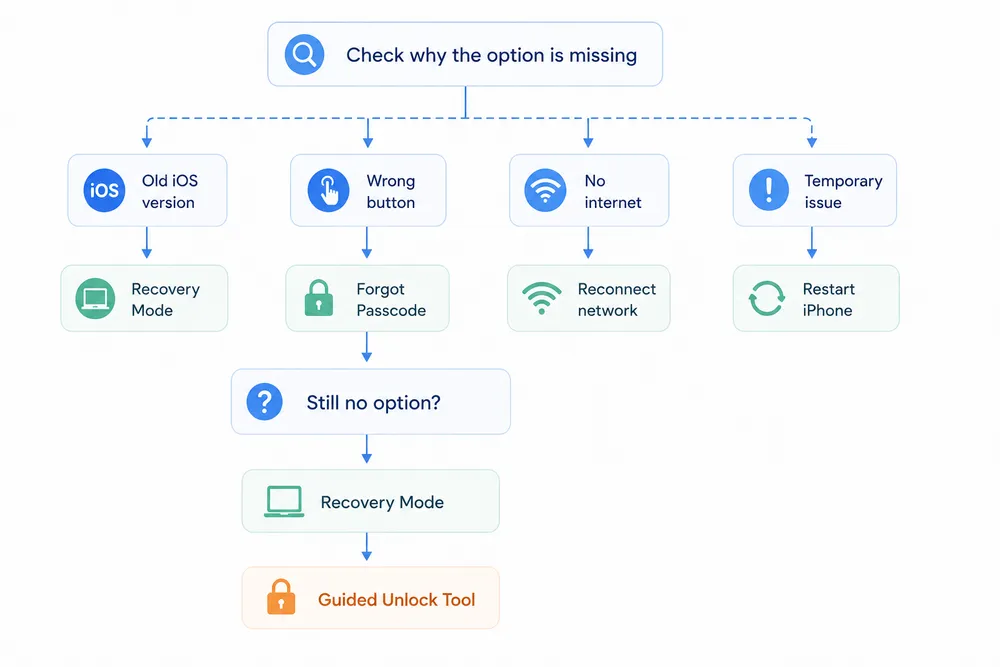
Not every iPhone stuck on the "iPhone Unavailable" screen needs the same solution. The missing "Erase iPhone" option may be caused by connection issues, iOS limitations, or a recovery process that has not been triggered correctly.
Try these fixes from the least disruptive option first. If the built-in recovery options are unavailable, you can move on to Apple's restore process or a guided recovery tool.
Best for: Your iPhone supports the lock-screen recovery option, but "Erase iPhone" or "Forgot Passcode?" does not appear because the device cannot complete Apple's verification process.
The on-device reset option requires the iPhone to communicate with Apple's servers. If the device is offline, the recovery process may not work correctly even though the feature itself is supported.
Common situations include:
The iPhone has no cellular signal
The saved Wi-Fi network is unavailable
Airplane Mode was enabled
The device lost connection before becoming unavailable
Before trying more advanced recovery methods, restore the connection if possible:
Move the iPhone closer to a previously connected Wi-Fi network
Insert a working SIM card if cellular service is unavailable
Make sure Airplane Mode is turned off
Wait briefly after reconnecting and check the lock screen again
If the iPhone can reconnect successfully, the missing reset option may appear automatically.
Free solution
Does not erase your data
No computer required
Only works when connectivity is the actual problem
Requires access to a working Wi-Fi or cellular connection
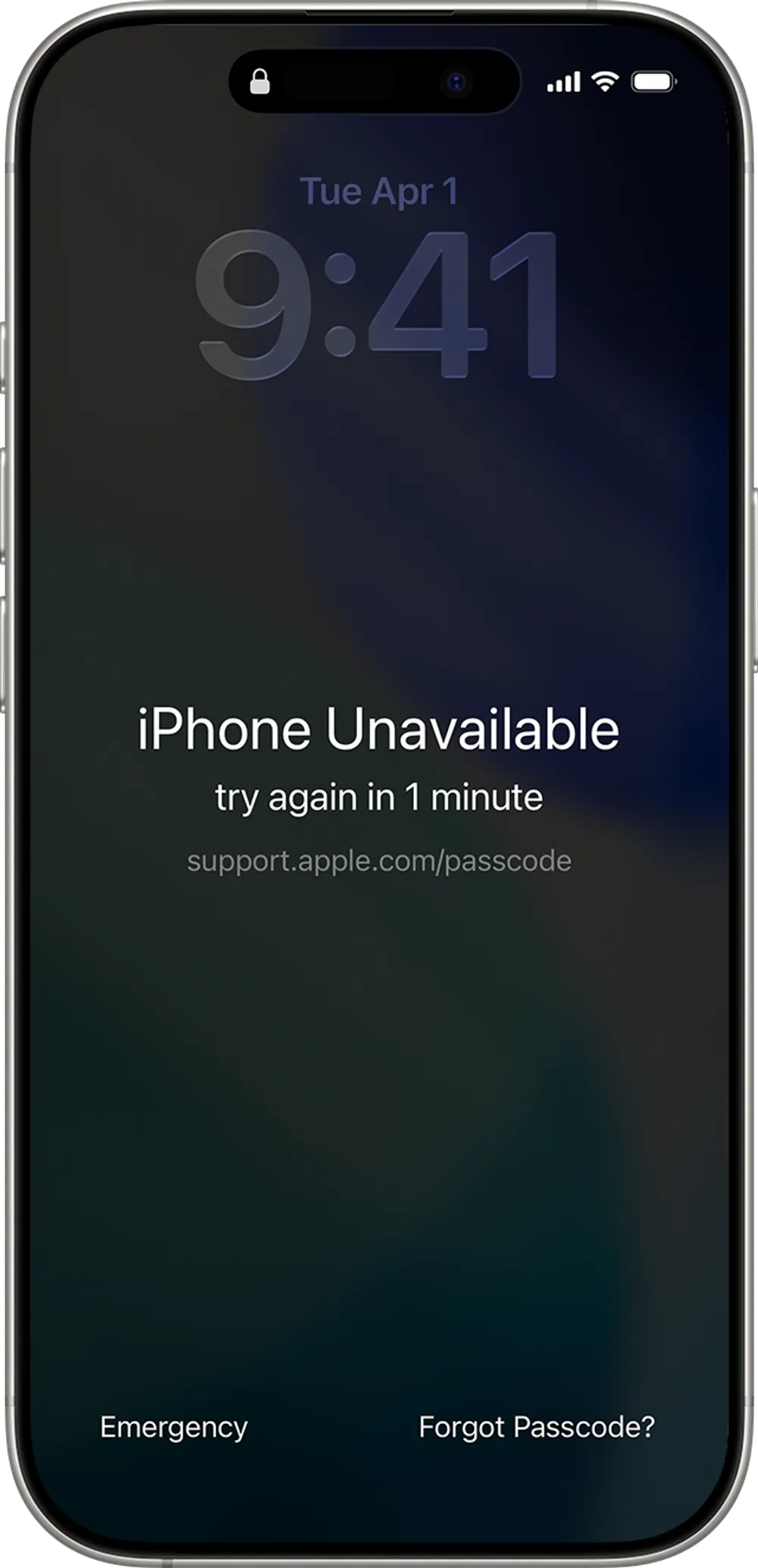
Best for: Your iPhone shows "Forgot Passcode?", and you recently changed your passcode but still remember the previous one.
On iOS 17 and later, Apple uses the "Forgot Passcode?" option instead of the older "Erase iPhone" wording.
If the passcode was changed within the last 72 hours, Apple allows you to use the previous passcode to regain access without erasing the device.
This is the only current lock-screen recovery method that may restore access without losing your data.
Can recover access without data loss
No computer required
Uses Apple's built-in recovery process
Only available on supported iOS versions
The no-data-loss option expires after 72 hours
Requires remembering the previous passcode
👉 Follow the complete Forgot Passcode recovery steps
Best for: Your iPhone meets the expected requirements, but the reset option still does not appear after checking your connection.
A temporary software issue can sometimes prevent the lock-screen recovery process from loading correctly.
A force restart refreshes the system without deleting your data or changing your settings. It is worth trying before moving to a full restore.
The restart process depends on your iPhone model:
iPhone 8 and later: press and quickly release Volume Up, press and quickly release Volume Down, then hold the Side button
iPhone 7 series: hold Volume Down and Side button together
iPhone 6s and earlier: hold Home and Side button together
After the iPhone restarts, check whether the reset option becomes available.
Quick to try
Does not erase data
Does not require a computer
Only fixes temporary issues
May not help if the device does not meet Apple's recovery requirements
👉 Learn the force restart steps for your iPhone model
Best for: Your iPhone remains stuck on "iPhone Unavailable", but neither "Erase iPhone" nor "Forgot Passcode?" appears, or the lock-screen recovery option cannot be completed.
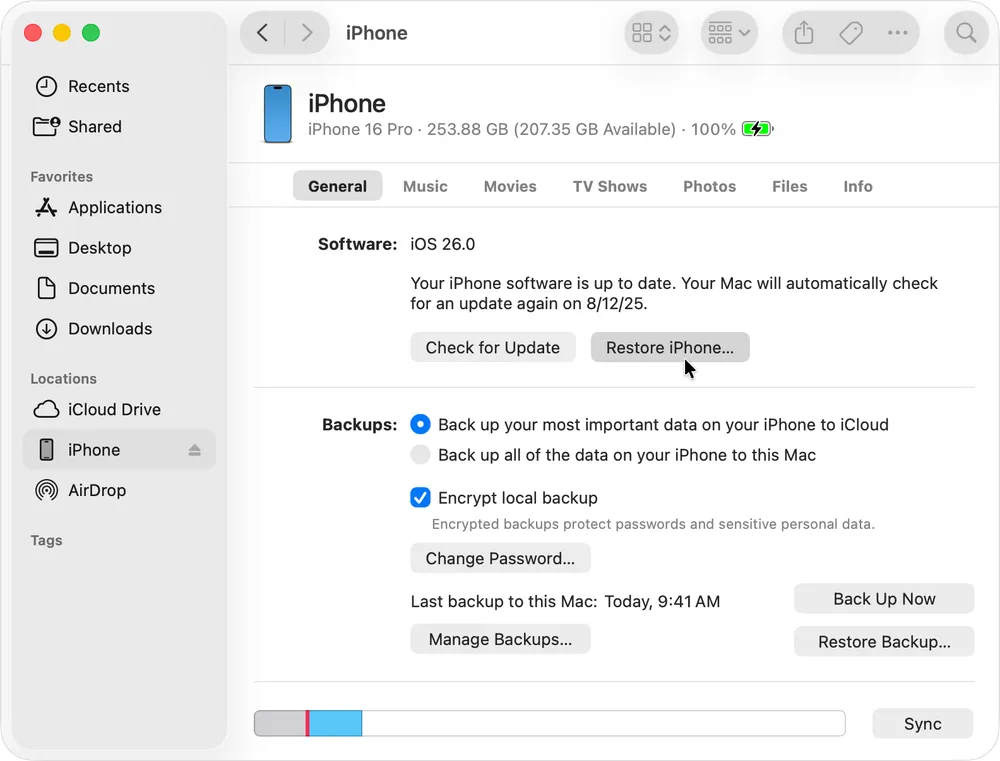
Recovery Mode is Apple's official solution when the device itself cannot complete the reset process.
It allows a computer to reinstall iOS and remove the forgotten screen passcode by erasing the iPhone.
You can complete the restore using:
Finder on Mac
Apple Devices on newer Windows computers
iTunes on older Windows systems
The steps are generally:
Connect the iPhone to a computer with a USB cable
Enter Recovery Mode
Open Finder, Apple Devices, or iTunes
Choose Restore
Wait for iOS to download and reinstall
After the restore finishes, the iPhone can be set up again.
Official Apple recovery method
Works even when no lock-screen reset option appears
Does not require knowing the current passcode
Erases all data stored on the device
Requires a computer and USB cable
Requires downloading iOS firmware
Does not remove Activation Lock
👉 Follow the complete Recovery Mode restore walkthrough
Best for: You have access to a computer but prefer a guided recovery process instead of manually entering Recovery Mode and handling the restore steps yourself.
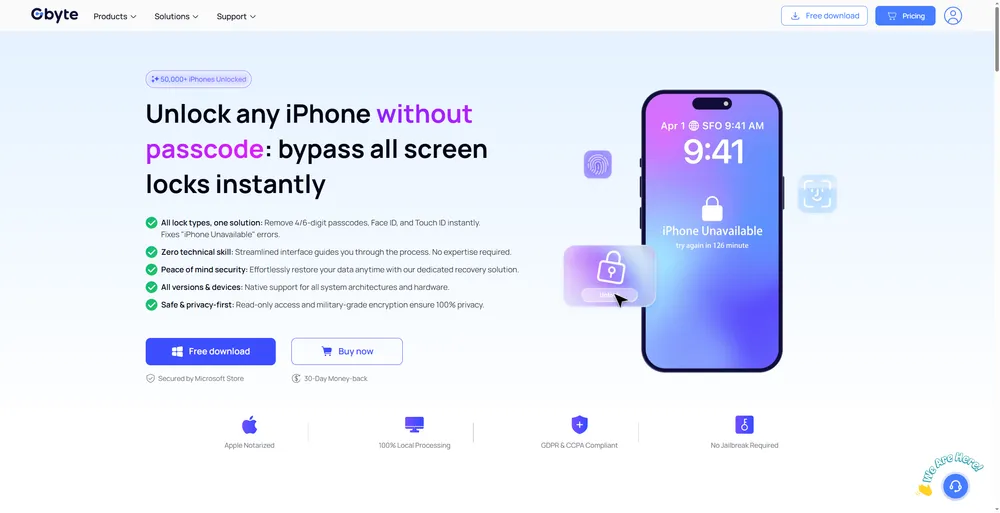
A third-party unlock tool does not recover the original passcode or remove Apple's security protections.
Instead, it simplifies the same basic restore workflow:
Connect the iPhone
Detect the device
Download the required firmware
Complete the restore process
Remove the forgotten screen passcode
Tools like Gbyte Unlock are designed for users who want a more guided computer-based recovery experience.
This option is most useful for users who already know they need a restore but want fewer manual steps.
Guided recovery workflow
Firmware download handled inside the software
Easier than managing restore steps manually
May require paid software
Still requires a computer and USB cable
Erases the device
Does not remove Activation Lock
Restoring an iPhone removes the forgotten Screen Passcode, but it does not bring back the data that was stored on the device.
After the erase process finishes, the iPhone returns to the setup screen. From there, you can either:
Restore from an existing iCloud backup
Restore from a computer backup
Set up the iPhone as a new device
The amount of data you can recover depends entirely on whether a backup existed before the lockout happened.
One of the most common misunderstandings is assuming that restoring an iPhone removes every type of lock.
It does not.
A Screen Passcode and Activation Lock protect different things.
Screen Passcode: prevents access to the device interface
Activation Lock: protects the device after a reset by requiring the Apple Account previously linked through Find My
If the iPhone was signed into an Apple Account before it became unavailable, that account may still be required during setup after the erase.
This is especially important for:
Secondhand iPhones
Devices received from another person
Devices with an unknown ownership history
A restore can remove the forgotten passcode, but it cannot remove Activation Lock.
Before starting any erase-based recovery method, take a moment to check the following.
Check Whether You Have a Backup
An erase removes the data currently stored on the iPhone.
Only backups created before the lockout can restore your photos, messages, apps, and settings.
Check whether you previously used:
iCloud Backup
Finder backup
iTunes backup
Make Sure You Know the Apple Account Password
Even after restoring the device, Activation Lock may require the Apple Account credentials previously associated with the iPhone.
If you do not know that account information, restoring the iPhone will not complete the activation process.
Confirm What Type of Lock You Are Dealing With
Not every locked iPhone has the same problem.
Before trying recovery methods, confirm that you are dealing with:
Forgotten Screen Passcode
Not Activation Lock
Not Carrier Lock
Not MDM restrictions
Choosing the wrong solution can waste time because these protections are handled differently.
The erase option only appears when Apple's requirements are met. Your iPhone needs a supported iOS version, an active internet connection, Find My enabled, and an Apple Account linked to the device. On iOS 17 and later, the option may also appear as "Forgot Passcode?" instead of "Erase iPhone." If the option never appears, Recovery Mode is the official fallback.
Yes. They are different labels for the same recovery process. Older iOS versions show "Erase iPhone," while iOS 17 and later use "Forgot Passcode?" after repeated failed passcode attempts. Both options erase the device and remove the forgotten screen passcode.
Only in one specific situation. If the passcode was changed within the last 72 hours and the previous passcode is still remembered, iOS 17 or later may allow a Previous Passcode Reset without erasing the device. Other current recovery methods remove the passcode by erasing the iPhone.
Yes. Recovery Mode does not rely on the lock screen erase option, Find My, or the current passcode. It restores the iPhone through Finder, iTunes, or Apple Devices on a computer, but the process erases the device and does not remove Activation Lock.
 Add Gbyte as a preferred source on Google
Share


Copyright ©2026 Gbyte. All rights reserved. Gbyte’s software is not developed by or affiliated with Apple Inc.
The installation wizard will automatically start after downloading.
After registration, the recovery process can be managed through the web interface.
You get it all with your purchase - no locked features, no hidden limitations.