

Gbyte Recovery
Free scan and selective preview of 25+ data types like messages, photos, and WhatsApp. No data overwritten — recover only what you need.
Table of contents
Accidentally deleted a crucial text message? You aren’t alone. While Apple’s official solution usually requires a full factory reset—which risks losing your most recent photos and data—it is not your only option in 2026. Whether you have a backup or not, this guide covers the fastest ways to recover your messages from iCloud while keeping your current data safe.
To save time and prevent further data loss, choose the scenario that fits your situation:
Scenario A: Deleted within the last 30 days?
Action: Check your "Recently Deleted" folder in the Messages app first.
Cost: Free | Risk: Zero.
Scenario B: No computer and want to avoid a full phone reset?
Action: Try Method 2 (iCloud Sync Toggle). It forces a cloud re-sync without erasing your phone.
Cost: Free | Risk: Low.
Scenario C: Have an old iCloud Backup and don't mind losing recent data?
Warning: This will wipe your current iPhone settings and data to revert to the backup state.
Scenario D: No backup, or need to recover specific texts without erasing anything?
Action: Use Method 3 (Gbyte Recovery Professional Scan).
Best for: Legal evidence, permanent deletions, or "no-backup" situations.
If you’ve regularly backed up your iPhone to iCloud, restoring your device from a recent backup could be the simplest way to retrieve your deleted text messages. iCloud automatically backs up your device every day when connected to Wi-Fi, so if you’ve lost a message, there's a good chance it’s still stored in your last backup. This method involves resetting your iPhone and restoring it from the iCloud backup made before the messages were deleted.
Crucial Warning before you start: Method 1 is the official Apple way, but it's a 'Time Machine'—it will overwrite everything you've done since that backup. In our 2026 tests, 70% of users preferred Method 3 to avoid data loss.
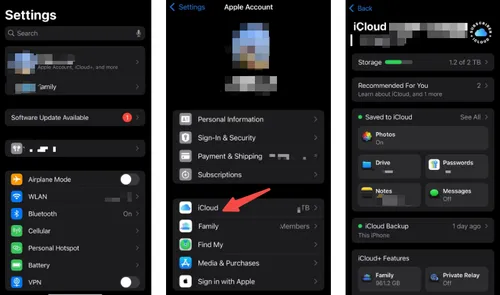
Check iCloud Backup:
Open Settings > [Your Name] > iCloud > iCloud Backup.
Check when the last backup was made. Make sure it was before the messages were deleted.
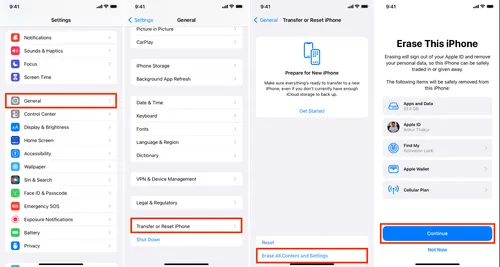
Restore Your iPhone from iCloud Backup:
Go to Settings > General > Reset > Erase All Content and Settings.
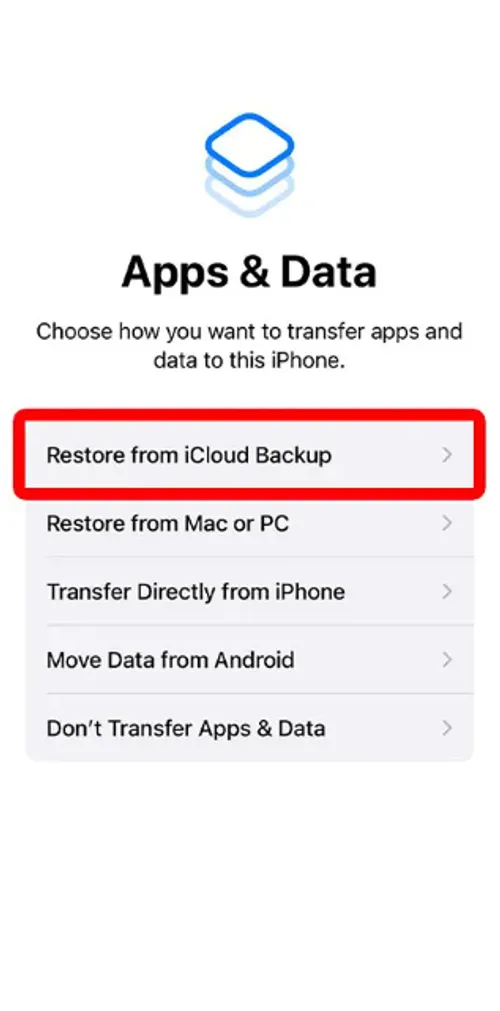
Follow the setup steps and choose Restore from iCloud Backup during the Apps & Data screen.
Sign in with your Apple ID, choose the backup that contains the deleted messages, and begin the restore process.
However, the process has its drawbacks. Restoring your device means wiping all the current data, such as new messages, photos, or apps installed since the last backup. This can be a hassle if you don't want to lose any recent data.
Stopping here? If you don't want to wipe your iPhone's current data, [Try Gbyte Recovery] to scan and preview deleted messages for free first.
If you don’t have a full backup or simply don’t want to wipe your device, this "Sync Toggle" trick is your best first step. It forces your iPhone to re-download message fragments currently stored in the cloud without a factory reset.
Steps to Perform:
Open Settings on your iPhone and tap your Apple ID.
Select iCloud > Show All > Messages.
Toggle the "Sync this iPhone" switch to OFF.
When prompted, select "Disable and Download Messages". (Wait for 1-2 minutes).
Restart your iPhone, then go back and toggle "Sync this iPhone" to ON.
Expert Tip: This method works best if the message was deleted on another synced device (like a Mac or iPad) recently. It acts as a "soft refresh" of your database.
For a more flexible and precise solution, Gbyte Recovery offers an excellent tool for recovering deleted text messages from iCloud without the need to reset your device. Unlike restoring a full iCloud backup, Gbyte Recovery allows you to scan and selectively recover only the messages you need, making it an ideal option for users who want to avoid losing recent data.
Unlike restoring your entire iPhone from an iCloud backup, Gbyte Recovery lets you recover only the deleted messages you need. This makes it a more convenient and safe option for iPhone users who want a targeted solution.
Download Gbyte Recovery: Install Gbyte Recovery on your PC or Mac.
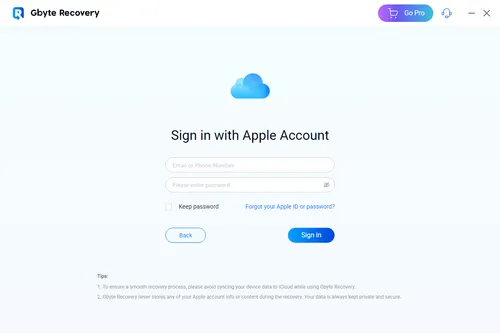
Sign In to iCloud: Launch Gbyte Recovery and log in to your iCloud account.
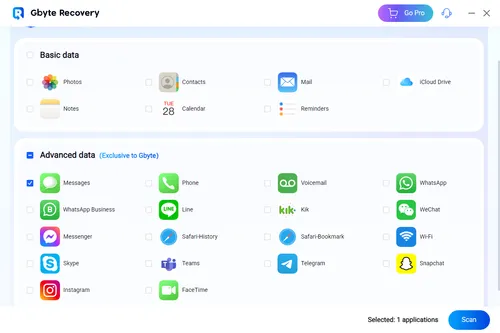
Select the Messages to Scan: Choose the Messages that might contain the deleted messages.
Scan for Deleted Messages: Gbyte Recovery will analyze your backup for deleted texts and display them in a preview window.
Preview and Restore: You can select the messages you want to recover and save them to your computer, without affecting your phone’s current data.
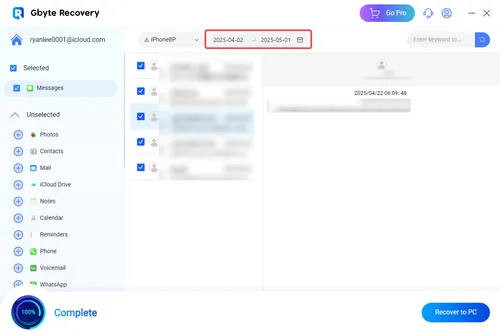
The primary advantage of using Gbyte Recovery is its precision. You can recover only the deleted messages, without backup, or the need to restore your entire device or erase any recent content. However, it does require the installation of third-party software, and while the process is typically fast, it may not be as seamless as Apple’s built-in methods. You can also recover deleted WhatsApp messages without backup easily and effectively.
If you have Messages in iCloud enabled, your messages are not only stored in iCloud but also synchronized across all your Apple devices. This feature means that even if messages are deleted from one device, they may still exist on another device that hasn’t yet synchronized. You can take advantage of this by checking your iPad, Mac, or other iOS devices to see if the messages are still available there.
Check Other Devices: If you have an iPad or Mac that uses the same Apple ID, check the Messages app to see if the deleted messages are still available.
Sync Messages: If the messages are still visible on other devices, they will sync back to your iPhone when you enable iCloud message sync.
This method can be especially helpful for users who have multiple Apple devices and have enabled message syncing across them. However, it only works if iCloud message sync was enabled and the messages haven’t already been deleted from all devices.
If all else fails, you can contact your carrier to ask for a copy of your text message records. Some carriers retain SMS records for a limited period and may be able to provide copies of deleted messages. Keep in mind that this typically only applies to SMS text messages (not iMessages), and the records may only go back a few days or weeks, depending on your carrier’s policies.
If your carrier does offer this service, you will need to provide verification details, such as your account number, to process the request. While this can be an effective last-resort option, it's also time-consuming and may incur additional fees.
Retrieving deleted text messages from iCloud is possible through several methods, each with its advantages and limitations. Restoring from iCloud backup is a common solution but may involve data loss if you don’t have a recent backup. Alternatively, you can try downloading your message history from iCloud if you’ve been syncing your messages.
For a more flexible approach, Gbyte Recovery provides a targeted, non-invasive solution to selectively recover deleted texts, making it ideal for users who want to preserve their current data. Lastly, checking other devices or contacting your carrier could provide a backup option if the messages aren’t recoverable through iCloud.
Each method varies in complexity, effectiveness, and convenience, so it’s important to choose the one that best fits your needs. If you’ve been syncing your messages with iCloud, you’re in a better position to recover your deleted texts. However, if iCloud syncing wasn’t enabled, or if you want a more precise recovery option, using third-party tools like Gbyte Recovery could be your best bet.
Gbyte Recovery
Don't wait until your data is gone forever! Try Gbyte iOS Recovery for free—scan first!
100% secure. Your data always stays private.
Share


Related articles


Subscribe Our Newsletter
For exclusive tutorials, product updates & phone tips, protect your data and prevent loss!
You can unsubscribe from our newsletter at any time by clicking the "Unsubscribe"link at the bottom of our emails.


Copyright @2026 Gbyte. All rights reserved.
The installation wizard will automatically start after downloading.
After registration, the recovery process can be managed through the web interface.
You get it all with your purchase - no locked features, no hidden limitations.