

Gbyte Unlock

Gbyte Unlock
Safely remove any iPhone/iPad screen lock in a few clicks.
Table of contents
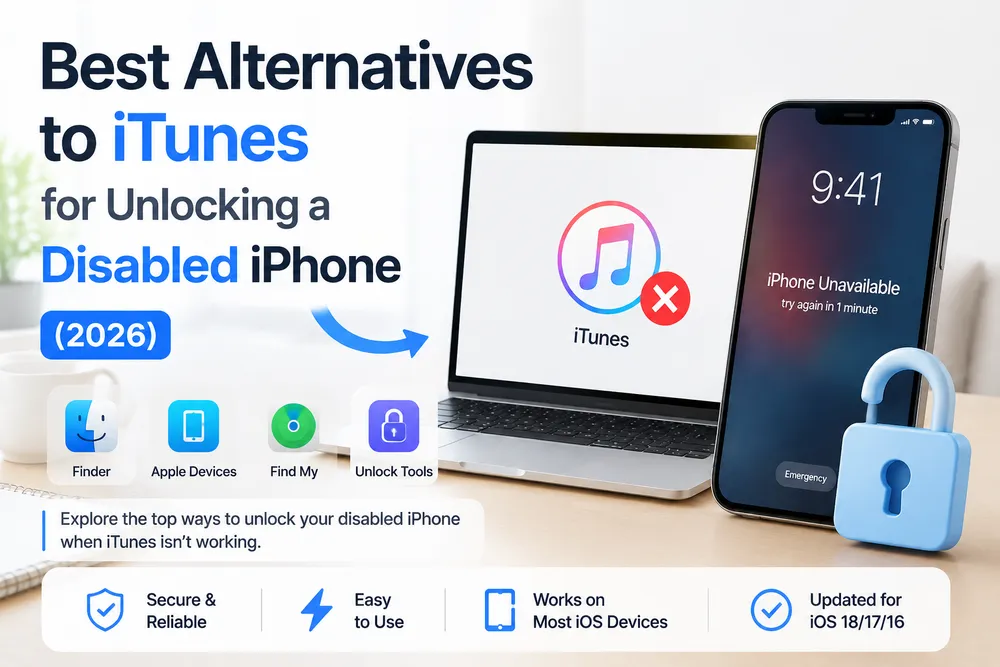
Yes, you can unlock a disabled iPhone without iTunes. The “Connect to iTunes” message is a recovery instruction, not a requirement to use iTunes itself. Apple now uses Finder on Mac and Apple Devices on newer Windows systems, and some recovery options do not require a computer at all.
Seeing “Connect to iTunes” on your iPhone does not mean iTunes is the only way to recover it. Apple’s recovery process has changed over time, and the right path starts with what you have available — Find My, a Mac or Windows computer, or another recovery option.
Start with the option that matches what you still have access to. Most disabled iPhone cases fall into one of these situations.
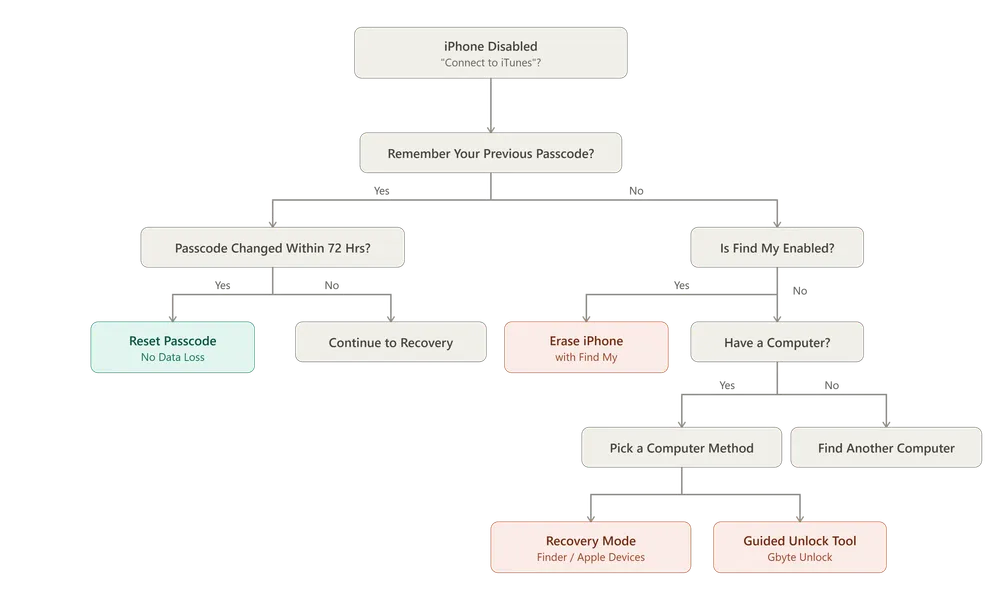
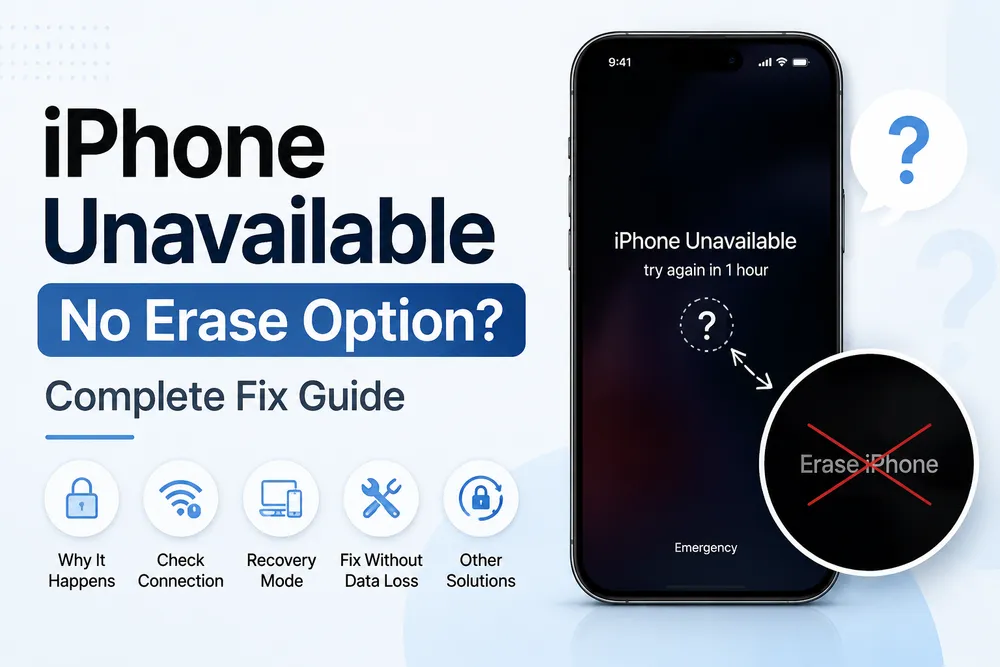
Best for: Find My was turned on before the iPhone was disabled, and you know the Apple ID password linked to the device.
Pros:
No computer or USB cable needed
Official Apple recovery method
Can be done from another phone, tablet, or browser
Cons:
Erases all data on the iPhone
The device must be connected to Wi-Fi or cellular data
Requires the Apple ID password used on the iPhone
Steps:
On another device, open Find My or go to iCloud Find Devices and sign in with your Apple ID.
Select the disabled iPhone from your device list.
Choose Erase iPhone and confirm the erase request.
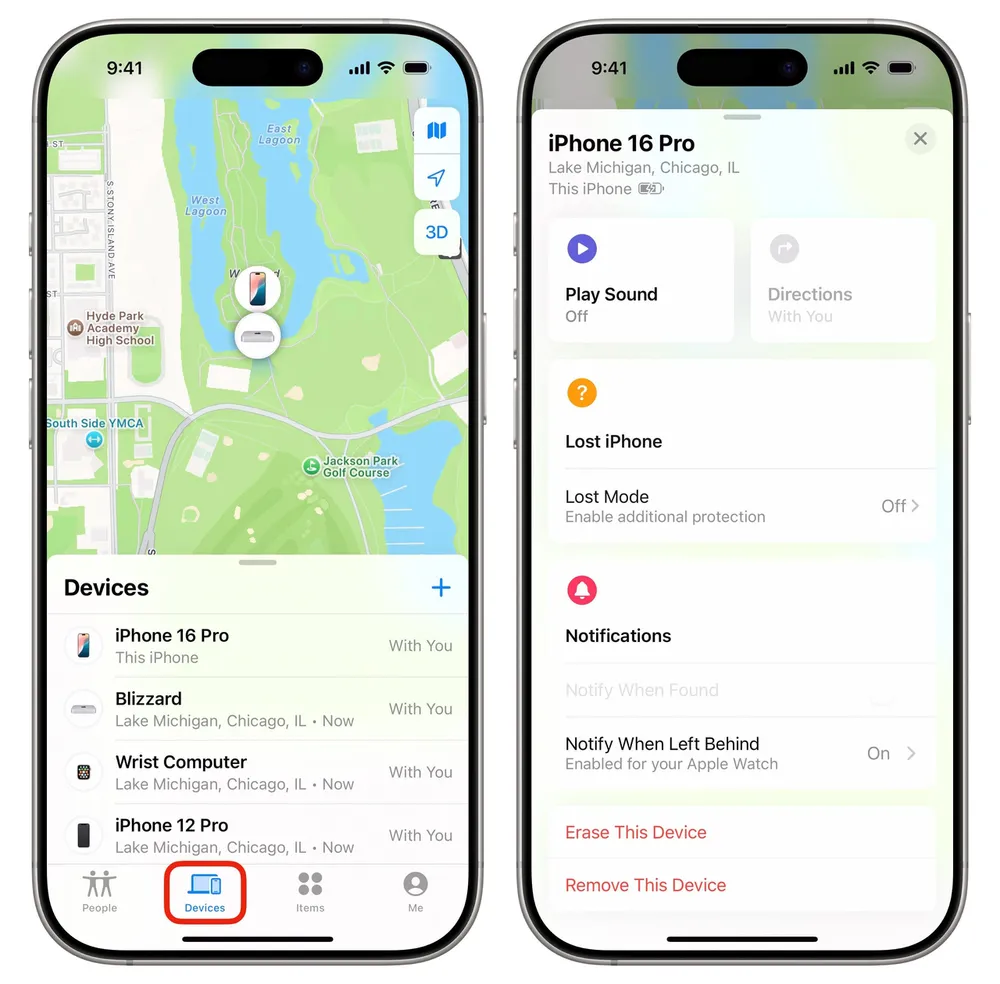
👉 Use Find My to erase a disabled iPhone
Best for: You have access to a computer and want to use Apple's built-in recovery tools.
Pros:
Does not require iTunes specifically
Finder handles recovery on Mac, while Apple Devices handles recovery on Windows
Does not require Find My to be enabled before recovery
Cons:
Erases the iPhone
Requires a USB cable and Recovery Mode
You may need to enter a specific button combination based on your iPhone model
Steps:
Connect the iPhone to your computer using a USB cable.
Put the iPhone into Recovery Mode.
Open Finder on Mac or Apple Devices on Windows.
Select the Restore option when the device is detected.
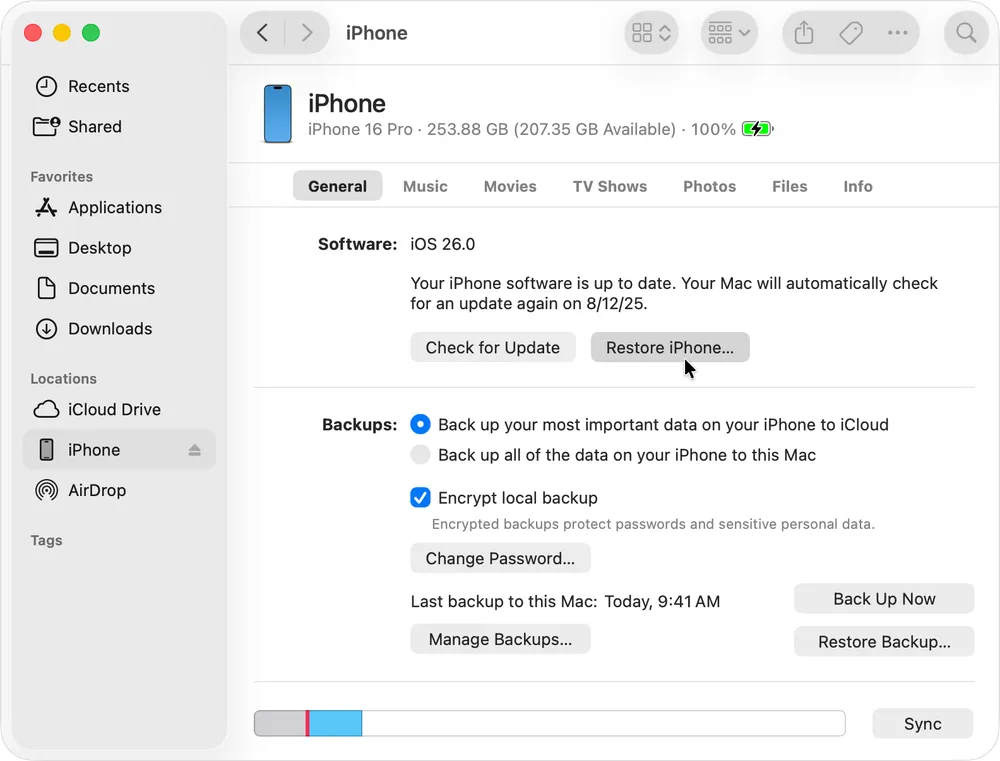
👉 Follow the Recovery Mode restore steps for a disabled iPhone
Best for: Your available computer cannot run Apple's recovery tools, such as a Chromebook, a locked-down work laptop, or an outdated system.
Pros:
Some desktop unlock tools provide a guided recovery process
Does not require Find My to be enabled beforehand
Can be an alternative when Apple's built-in recovery tools are not practical
Cons:
Requires access to a compatible Windows or Mac computer to run the software
Usually erases the device
Third-party tools are paid solutions
website
Steps:
Download and install a compatible iPhone unlock tool on a Windows or Mac computer.
![gbyte-unlock-start-screen-for-ios-screen-removal[1].webp](https://resource.gbyte.com/20260717/large/gbyte-unlock-start-screen-for-ios-screen-removal[1].webp "remov ios screen lock")
Connect your disabled iPhone to the computer using a USB cable.
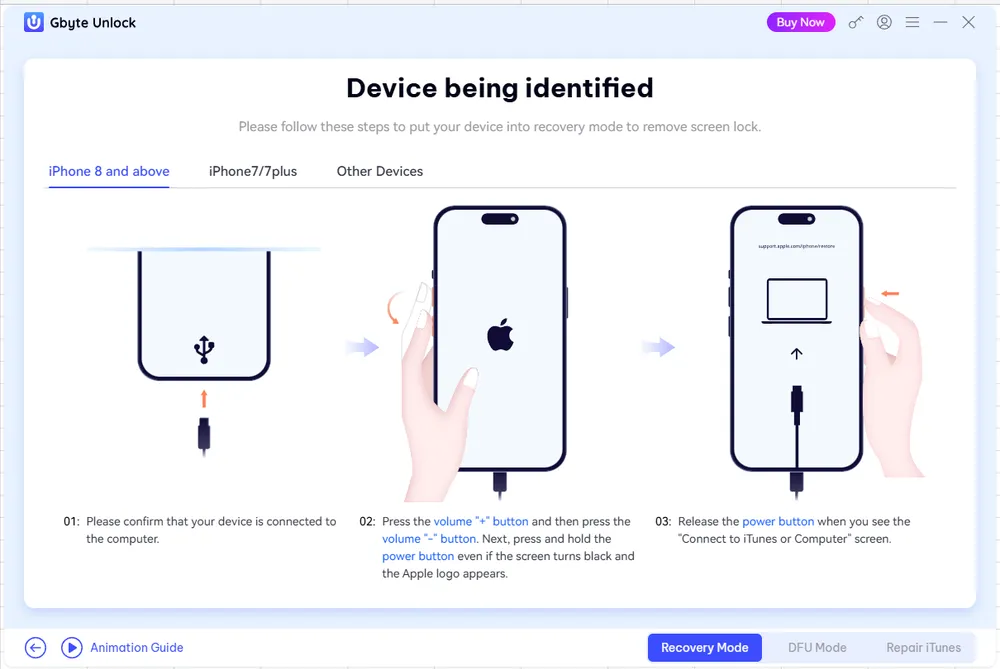
Follow the on-screen instructions to detect your device and download the required firmware.
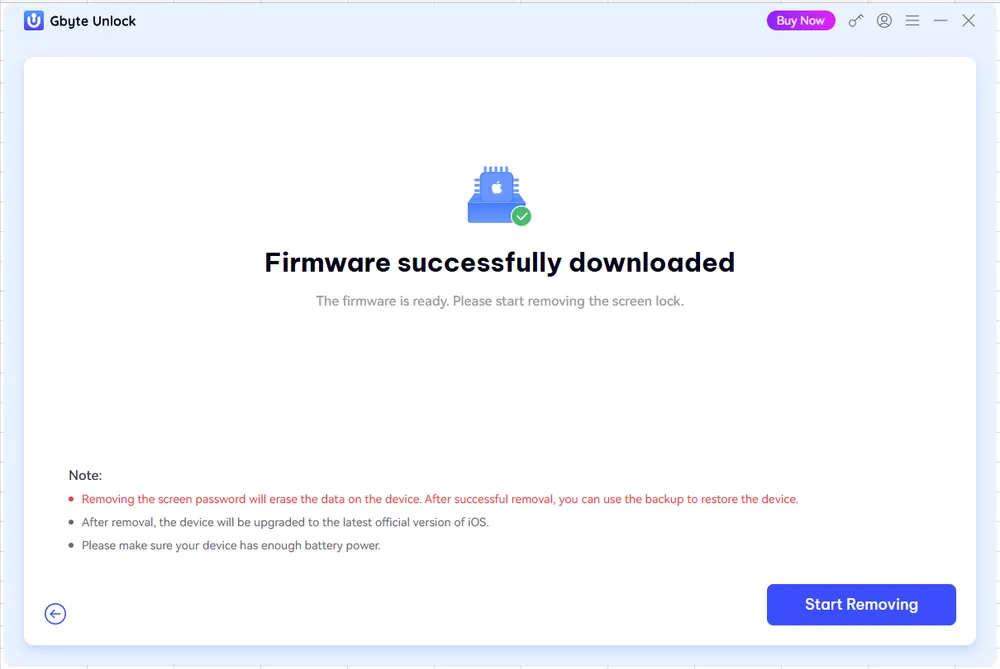
Start the unlock process and wait for the tool to remove the screen passcode.
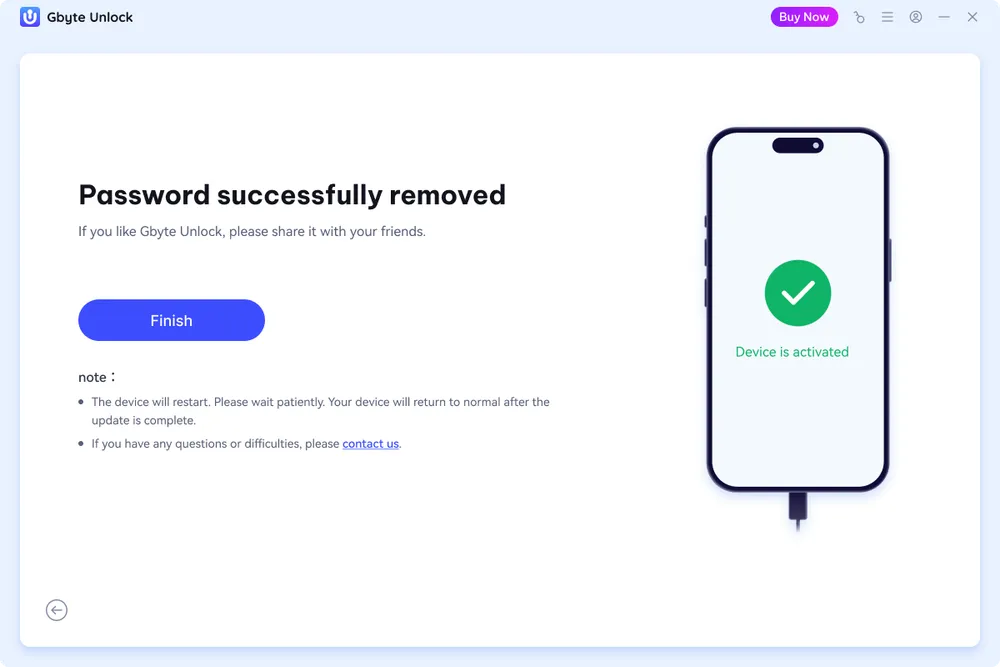
Set up your iPhone again after the process is complete.
If Apple's recovery tools are not available on your current computer, a desktop unlock tool can provide another way to complete the process. For example, Gbyte Unlock offers a guided workflow on Windows and Mac without requiring iTunes, which can be useful when the standard Apple recovery setup is not available.
👉 See how the unlock software process works
Best for: You remember your previous passcode, and the current passcode was changed within the last 72 hours.
Pros:
Does not erase your data
Does not require a computer
Does not require your Apple ID password
Cons:
Only available on iOS 17 and later
Only works within 72 hours after changing the passcode
Requires you to remember the previous passcode
Steps:
Enter the wrong passcode until the Forgot Passcode? option appears.
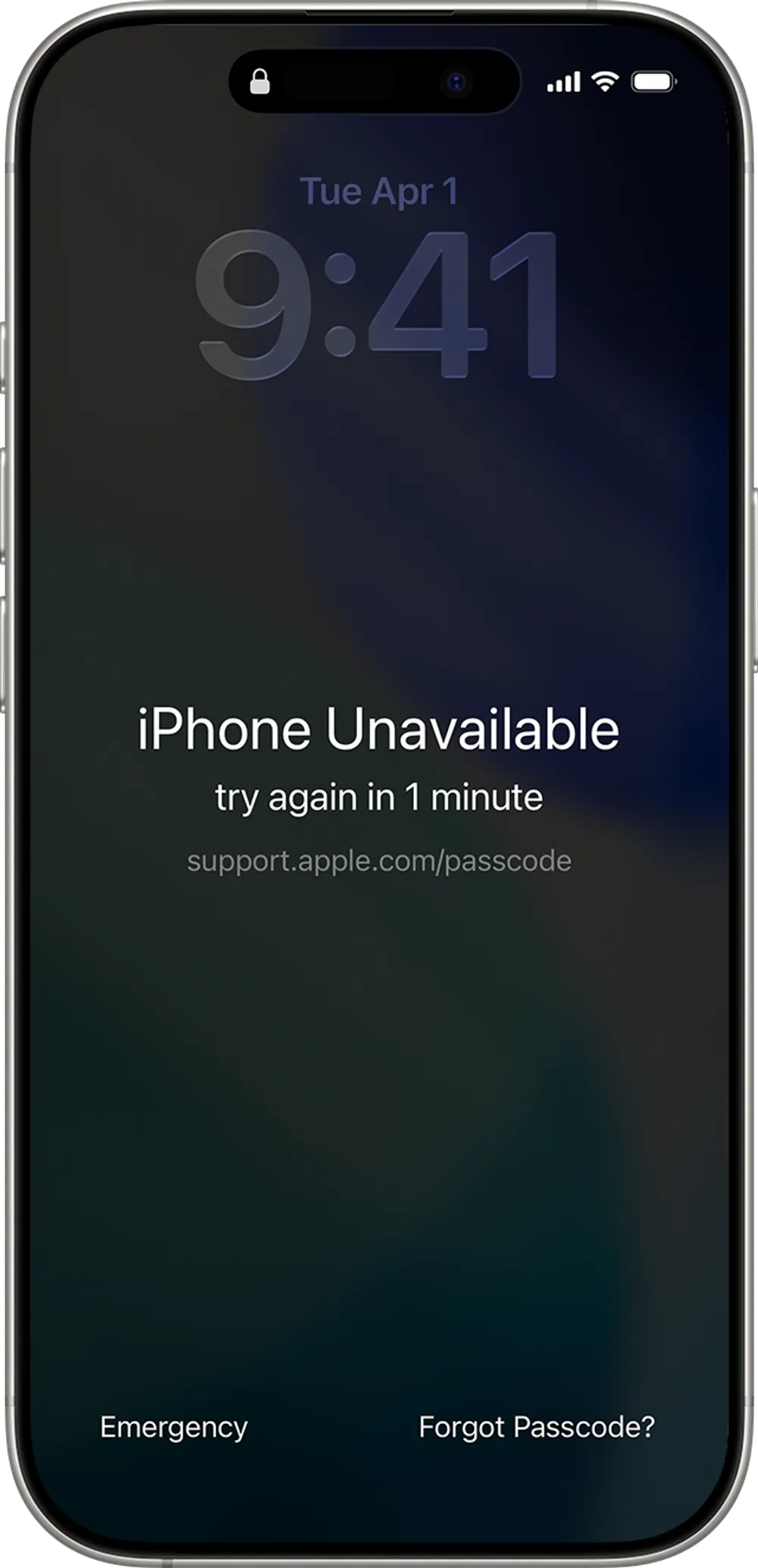
Tap Enter Previous Passcode.
Enter your previous passcode and follow the instructions to reset access.
👉 Reset an iPhone passcode without erasing data
Method | When to Use It | Computer Needed | Apple ID Needed | Data Loss | Internet Needed | Main Limitation |
Reset with Previous Passcode | You changed your passcode within the last 72 hours and remember the old one | No | No | No | Yes | Only works on iOS 17+ and within the 72-hour window |
Erase with Find My | Find My was enabled before the iPhone became disabled | No | Yes | Yes | Yes | Requires the Apple ID password and erases all data |
Recovery Mode Restore | You have access to a Mac or Windows PC and want Apple's official computer method | Yes | No | Yes | No | Requires a USB cable and putting the iPhone into Recovery Mode |
iPhone Unlock Software | Apple's built-in recovery options do not fit your situation | Yes | No | depends | Yes | Requires third-party software and access to a compatible computer |
If none of Apple's built-in recovery options match your situation, a third-party iPhone unlock tool can provide another way to regain access. Unlike methods that require a remembered passcode, Find My to be enabled beforehand, or specific account access, tools like Gbyte Unlock are designed for situations where your iPhone is already locked, disabled, or unavailable.
Gbyte Unlock guides you through the unlocking process with a simple workflow: connect your iPhone, download the required firmware, and follow the on-screen steps to remove the screen passcode. The guided process helps simplify the recovery steps, making it easier to complete the unlock process without navigating complex recovery procedures manually.
If Apple's official methods are not available for your iPhone, Gbyte Unlock provides a practical alternative to help you regain access to your device.
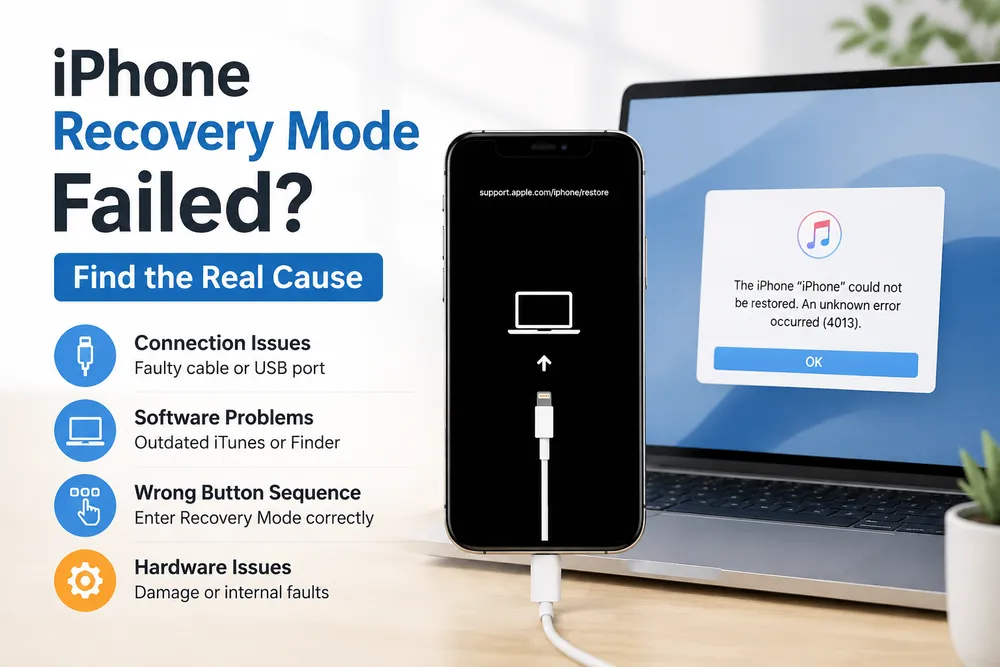
The “Connect to iTunes” message comes from an older iPhone recovery workflow. When Apple introduced this recovery process, iTunes was the main desktop tool used to restore iPhones, update software, and fix disabled devices.
Apple later changed how iPhone recovery works. Finder now handles iPhone restoration on Mac, and Apple Devices provides the same function on newer Windows systems. However, some iPhone recovery screens still use the older “Connect to iTunes” wording.
This message does not mean that iTunes itself is required. It refers to the recovery process rather than a specific application. Depending on the tools available, the same recovery task can be completed through Find My, Finder, Apple Devices, or other supported recovery options.
For example, users with Find My enabled can erase the iPhone remotely without connecting it to a computer. Users who need a computer-based restore can use Finder or Apple Devices instead of iTunes.
Look for a backup first. An iCloud or computer backup made before the lockout is what determines whether the data comes back afterward.
Use an original Apple cable for Recovery Mode or a third-party tool. Off-brand or charge-only cables are a common cause of the computer failing to detect the device.
Confirm the device is online before trying Find My. The erase command has nowhere to go without a connection.
Note when the passcode last changed. That single detail decides whether the no-data-loss reset option is even on the table.
A disabled iPhone can usually be recovered as long as you choose the right recovery path for your situation. Before starting any restore or erase process, check whether a backup is available and make sure you understand what data may be removed.
If Apple's built-in recovery options do not fit your setup, a guided unlock solution can provide another way to complete the process without relying on iTunes.
In most cases, yes. Recovery Mode, Find My, and third-party tools all erase the device to remove the passcode. The one exception is resetting from the lock screen within 72 hours of the last passcode change, which uses the old passcode instead and erases nothing.
Yes, through Find My — as long as it was enabled beforehand and the device has a network connection. The passcode reset option also skips the computer entirely, when its conditions are met.
Not directly through iTunes or Finder, since neither runs on Chrome OS. Find My works from a Chromebook's browser if its conditions are met. Otherwise, a guided unlock tool installed on a separate Windows or Mac computer is the more reliable route.
No. Finder restores the device the same way iTunes does, without requiring the Apple ID or Find My to have been set up beforehand.
No. These are separate protections. Removing the passcode clears the lock screen; Activation Lock stays tied to whichever Apple ID was last signed in, and needs that account's cooperation, or Apple's official support process with proof of ownership, to release.
 Add Gbyte as a preferred source on Google
Share


Related articles


Copyright ©2026 Gbyte. All rights reserved. Gbyte’s software is not developed by or affiliated with Apple Inc.
The installation wizard will automatically start after downloading.
After registration, the recovery process can be managed through the web interface.
You get it all with your purchase - no locked features, no hidden limitations.