

Gbyte Repair

Gbyte Repair
Fix 150+ iOS issues yourself, no tech skills needed, no data loss
Table of contents
Quick Answer
If you're on Windows and want an iOS system repair tool that gives you more control over how much data you keep during a repair, Gbyte iOS System Repair is the strongest ReiBoot alternative we tested. It matches ReiBoot's 150+ issue coverage, makes Recovery Mode entry and exit genuinely free (exiting required payment in our test with ReiBoot), and lets you choose Keep Data or Erase Data independently of how deep the repair goes. It costs slightly more per month than ReiBoot but is cheaper on annual and lifetime plans, with more devices included.
Choose ReiBoot instead if you need Mac support, data backup/restore, or broader device coverage (iPod touch, Apple TV).
Tenorshare ReiBoot has been one of the go-to names for fixing an Apple logo stuck, a boot loop, or a device stuck in Recovery Mode. But if you've searched for "ReiBoot alternative," you've probably already run into a few sticking points that send people looking elsewhere:
The free version is limited. Entering Recovery Mode is free, but exiting it and running an actual system repair usually isn't — despite some confusion online about whether it's "free within a few uses."
Pricing questions. Monthly, annual, and lifetime plans all cover a fixed number of devices, and it's not always obvious which tier is worth it. Its annual and lifetime prices are higher than some alternatives, including Gbyte — see the full comparison below.
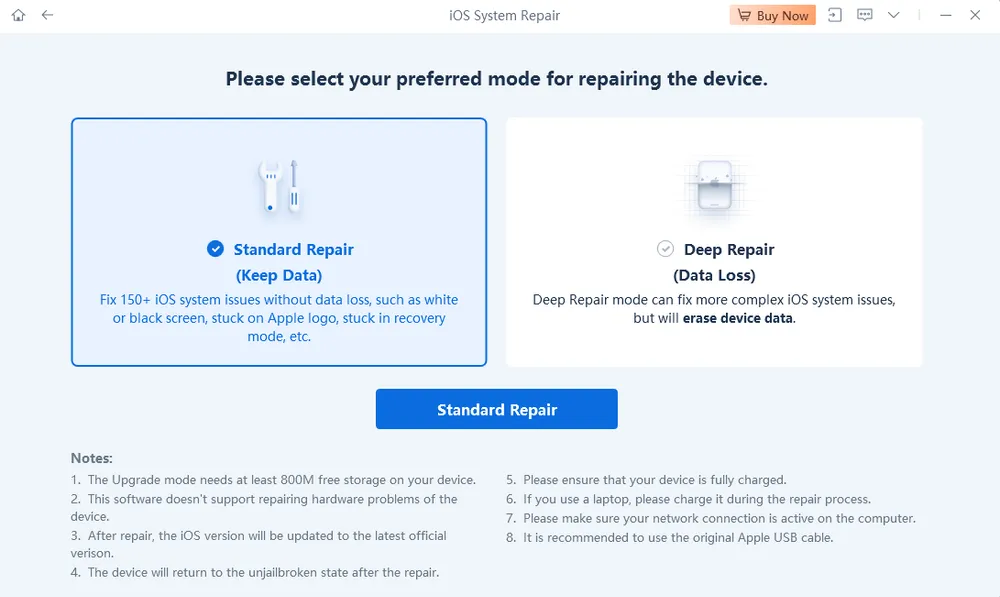
Data outcome is tied to repair mode. With ReiBoot, the mode you pick decides the data outcome — Standard keeps your data, Deep erases it. There's no way to attempt a deeper fix while still trying to preserve your data.
None of this means ReiBoot is a bad tool — it isn't, and plenty of Tenorshare ReiBoot alternatives on the market are actually worse. But if you want more flexibility around what gets erased and what doesn't, or you're simply comparing options for iOS system repair software on Windows before you spend money, it's worth knowing what else is out there.
👉 Want the full picture of ReiBoot itself first? Read our full ReiBoot review.
We ran this comparison on iPhone 16e, iOS 26.6.1, deliberately pushing the device into a boot loop after interrupting an iOS update, using a Windows 10 PC. We tested both tools' free Recovery Mode entry/exit, then ran Standard Repair on each to compare data safety and completion time. Pricing was checked directly against both vendors' official pricing pages on September 9, 2026. This round of testing focused on Standard Repair, the mode most users reach first.
USB connection issues can happen with any iOS repair tool — a locked screen, an untrusted computer, or a cable that isn't fully seated can all stop a phone from being recognized, no matter which software you're using.
What differs is how quickly you can get unstuck. In our test, before we'd even connected the phone or clicked into a repair mode, Gbyte's home screen automatically surfaced a "Device Connection Assistant" after about 10 seconds of not detecting a device — a checklist (reconnect, try a different USB port, enter Recovery Mode) alongside a short guided demo, with no clicks needed to find it.
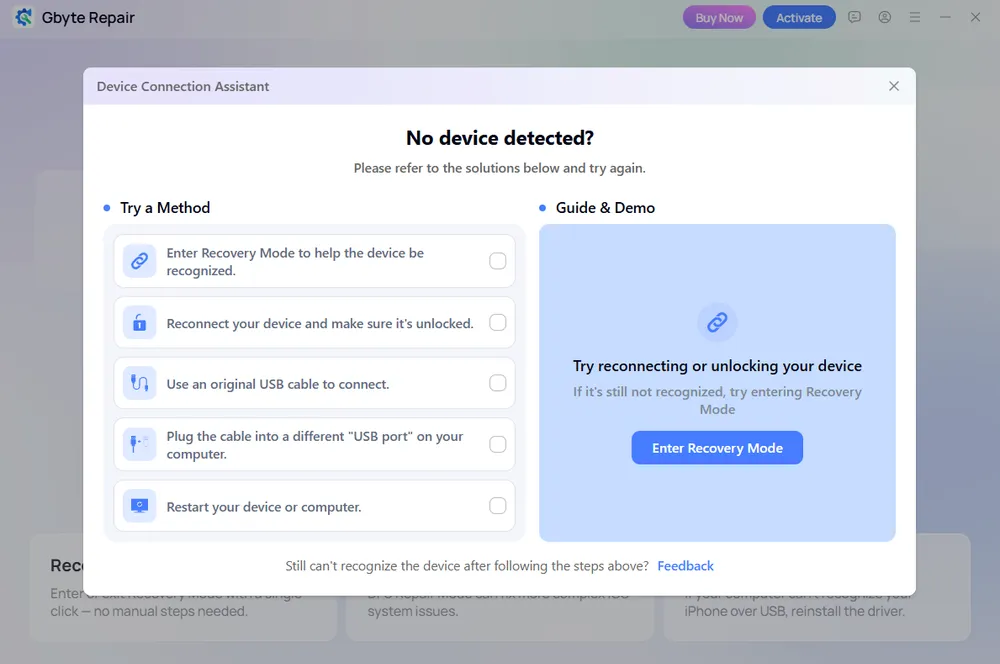
With ReiBoot, the equivalent guidance only appeared after we'd clicked "Start Repair" and selected a repair mode — meaning you have to get partway into the repair flow before finding help. For anyone who isn't especially technical, that gap matters as much as the repair itself.
Feature | Tenorshare ReiBoot | Gbyte Repair |
No jailbreak required | ✅ | ✅ |
Common iOS system issues fixed | 150+ | 150+ |
iTunes/Finder required | ❌ | ❌ |
Enter Recovery Mode | ✅ Free | ✅ Free |
Exit Recovery Mode | ⚠️ Official FAQ: free within 5 times; required payment in our test | ✅ Free |
Standard Repair | ✅ Preserves data | ✅ Keep Data or Erase Data |
Deep repair | ✅ Deep Repair Mode: erases data | ✅ Deep Repair via DFU Mode: Keep Data or Erase Data |
Repair time (in our test) | 17 minutes | 15 minutes |
iOS upgrade/downgrade | ✅ | ✅ |
Data Backup/Restore | ✅ | ❌ Not included in this product (available via a separate Gbyte tool) |
Desktop platform | Windows & Mac | Windows |
Apple device support | iPhone, iPad, iPod touch, Apple TV | iPhone, iPad |
Monthly plan | $24.95 / 5 devices | $24.99 / 5 devices |
Annual plan | $51.95 / 5 devices | $44.99 / 6 devices |
Lifetime plan | $89.95 / 5 devices | $69.99 / 8 devices |
30-day money-back guarantee | ✅ | ✅ |
24/7 support | ✅ | ✅ |
ReiBoot's free tier covers entering Recovery Mode without much friction, but exiting it is where things get murky — the official FAQ describes a "free within 5 times" allowance, and in our test, exiting required a paid license. Gbyte's Recovery Mode entry and exit stayed free throughout our test, with no license prompt.
ReiBoot asks you to choose between Standard Repair and Deep Repair before proceeding — each option is clearly labeled with its data impact, but it's still a decision you have to make upfront. In our test, Gbyte's "Start Repair" button on the home screen went straight into Standard Repair by default; DFU-based Professional Repair is available as a separate option, rather than something you have to choose between upfront. For anyone who isn't sure which mode they need, this may be more beginner-friendly. Users with more experience can choose DFU mode directly to attempt a deeper repair right away.
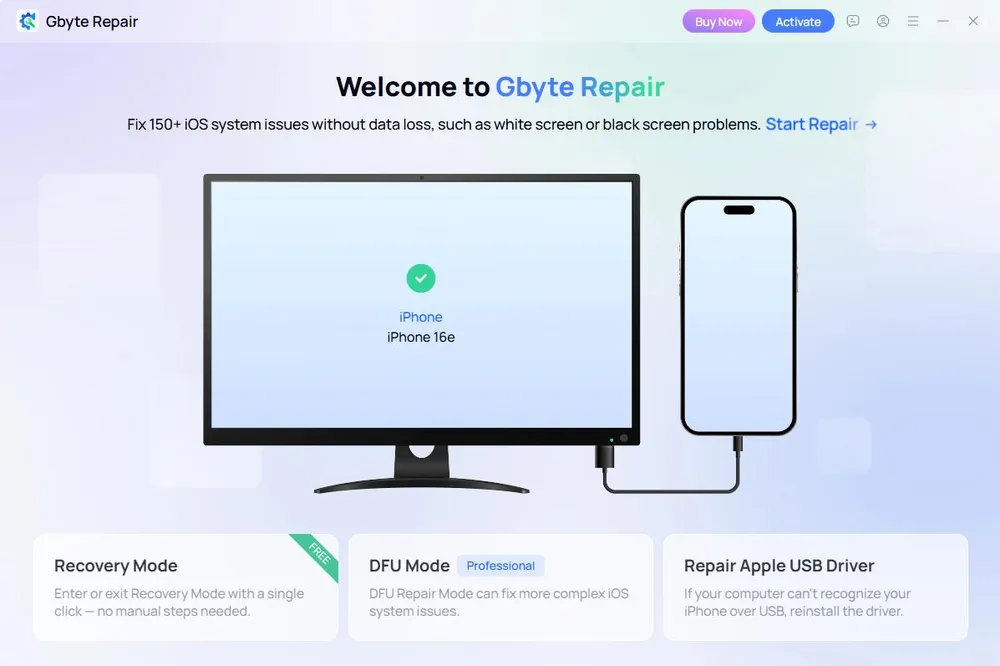
With ReiBoot, the mode you pick determines the data outcome — Standard keeps your data and Deep erases it. Gbyte separates these two decisions: you choose the repair path (Standard Repair or DFU-based Professional Repair) and separately choose Keep Data or Erase Data.
That said, this is an option, not a guarantee. If a device is damaged badly enough to need DFU-level repair, choosing "Keep Data" is an attempt at preservation — how much actually survives depends on how deep the underlying corruption goes.
DFU mode is Apple's lowest-level device state, used when normal recovery options aren't enough to fix or restore a device. In ReiBoot, DFU mode does show up — but only as part of device connection troubleshooting, when the software can't detect the iPhone at all and offers guidance to manually enter Recovery Mode or DFU mode. That's a different scenario from Standard Repair itself failing to fix the issue while the device is still detected and working. In that case, ReiBoot's mode-selection screen simply labels Deep Repair as the option for "more complex iOS system issues" — there's no equivalent prompt to switch the device into DFU mode as a separate, data-preserving repair attempt. It's easy to overlook that switching device states is even an option here, so if you're willing to accept data loss, Deep Repair becomes the obvious next step.
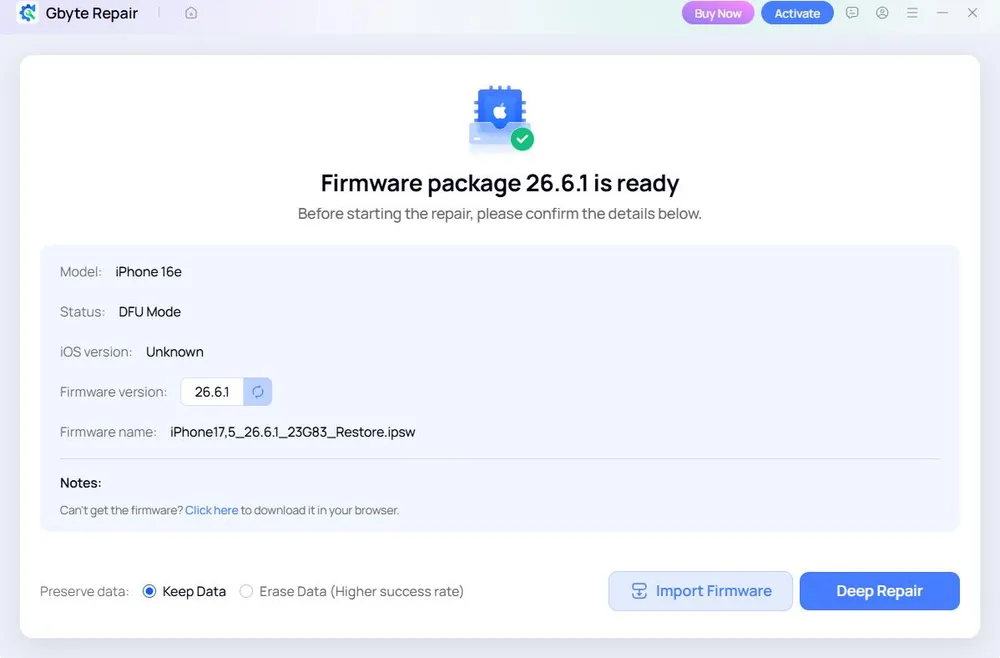
Gbyte's flow works differently here: Standard Repair runs by default and keeps your data, and if it doesn't fix the issue, you can go back to the home screen and try Professional Repair, which puts the device into DFU mode and lets you choose Keep Data or Erase Data again — a separate attempt before you have to accept erasing everything.
Gbyte's monthly plan is marginally more expensive ($24.99 vs. $24.95 — effectively a rounding difference), but the annual and lifetime plans are both cheaper than ReiBoot's, and cover more devices per license (6 annually and 8 for lifetime, vs. ReiBoot's 5 across all tiers).
To be fair to ReiBoot, there are real reasons it's the more established choice for some users:
Mac support. ReiBoot works on both Windows and Mac, Gbyte currently doesn't.
Broader device coverage. ReiBoot supports iPod touch and Apple TV in addition to iPhone.
Built-in data backup and restore. ReiBoot includes this as part of the same tool; Gbyte doesn't include it in iOS System Repair, though it's available through a separate Gbyte product.
Track record. Tenorshare has been in this space longer, and that history counts for something if brand tenure matters to you.
You need Mac support in addition to Windows
You need extra features such as data backup/restore alongside system repair
You want broader possible Apple device coverage (iPhone, iPad, iPod touch, Apple TV)
You prefer a longer-established brand in this space
You want to choose repair depth and data handling independently, rather than having them bundled together
You want Recovery Mode entry and exit to be free
You want better value on annual or lifetime plans, with more devices per license
You want a beginner-friendly, straightforward repair tool with clear guidance along the way
You can start repairing your device with Gbyte Repair in just 3 steps:
Download and launch Gbyte iOS System Repair on your Windows PC, then connect your iPhone/iPad to the computer.
Click "Start Repair" to run Standard Repair, or choose DFU Mode directly for a Deep Repair. Once Gbyte detects the matching firmware for your device, download it.
Once the firmware is ready, choose Keep Data or Erase Data, then start the repair. The repair process is entirely automatic.
Yes. ReiBoot has a free version, but its iOS features are limited. You can enter Recovery Mode for free, but exiting it and a full iOS system repair require the paid version.
Yes. You can use Apple's built-in recovery options through Finder or Apple Devices/iTunes, or free tools such as 3uTools. However, their features and repair processes differ from dedicated iOS system repair software.
Partly. Gbyte Repair lets you enter and exit Recovery Mode for free, but its full iOS system repair features require a paid plan.
It depends on what you need. Gbyte is a better fit if you want free Recovery Mode entry and exit, flexible data options, and a simple Windows-focused repair tool. ReiBoot is better if you need Mac support, data backup/restore, or broader Apple device support.
Generally, yes, if you use reputable software and download it from the official source. However, no repair is risk-free, so back up your iPhone when possible and check whether the selected repair option may erase data before starting.
 Add Gbyte as a preferred source on Google
Share


Related articles


Copyright ©2026 Gbyte. All rights reserved. Gbyte’s software is not developed by or affiliated with Apple Inc.
The installation wizard will automatically start after downloading.
After registration, the recovery process can be managed through the web interface.
You get it all with your purchase - no locked features, no hidden limitations.