

Gbyte Unlock

Gbyte Unlock
Safely remove any iPhone/iPad screen lock in a few clicks.
Table of contents
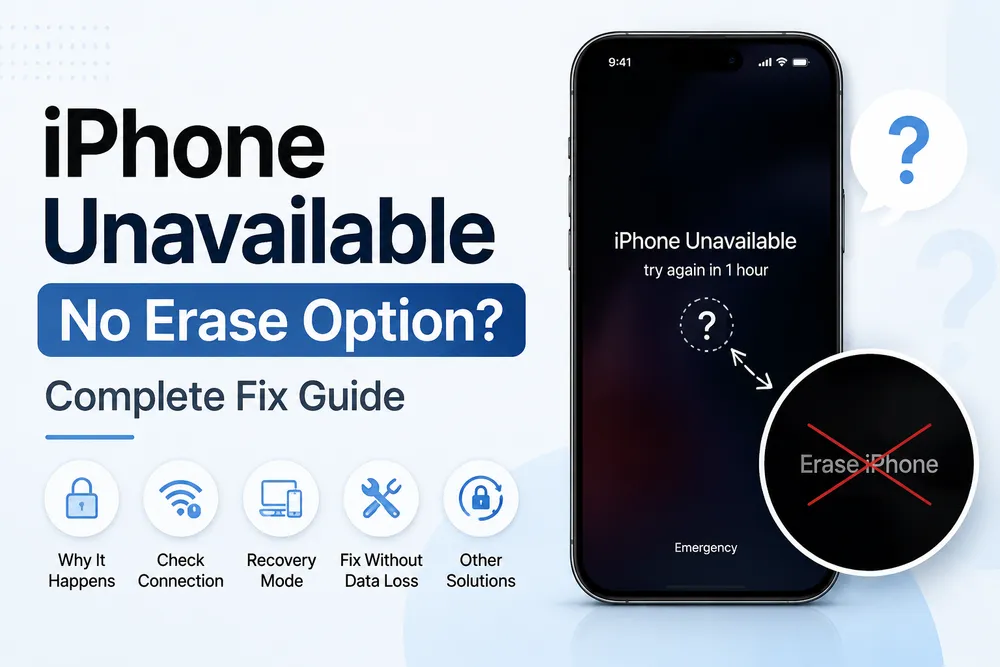
A missing timer on the "iPhone Unavailable" screen usually means the device has moved past the timed-wait stages of a passcode lockout — waiting no longer does anything. Which recovery option is actually available depends on separate factors: whether Find My was enabled, whether the device is online, and whether the screen itself is responding reliably. The fix is Forgot Passcode, Recovery Mode, Find My, or a guided unlock tool, depending on which of those apply.
A normal "iPhone Unavailable" screen at least gives a number to wait out. One with no countdown at all is a different, more specific problem, and figuring out which of a few known causes applies is the fastest way to the right fix.
A blank timer traces back to a single underlying event: enough failed passcode attempts have pushed the device past the stages where a countdown applies. Early on, iOS shows a wait time — a minute, then longer. After enough failed entries, the device can move into a state where waiting no longer provides another chance to enter the passcode, and there's no number left to show for it.
Separately, a few other factors decide which recovery options are actually available on that same screen — this is where Find My, network status, and the screen's own reliability come in:
Whether "Forgot Passcode?" or "Erase iPhone" shows up at all. This option depends on meeting several conditions at once — a supported iOS version, an active network connection, and Find My having been enabled beforehand. If any of those aren't met, the option simply won't appear, leaving a bare "Unavailable" screen with nothing to tap.
Whether the device is online. Both the on-screen erase option and a remote Find My erase require a working connection to complete. Without one, neither can go through, regardless of whether the option is showing.
Whether the screen itself is behaving reliably. This one's a bit different — it's less about the timer and more about how the device got here in the first place. Physical screen damage can cause ghost touch, where the display registers phantom taps that were never made, including passcode digits. A phone left untouched on a table can rack up failed attempts this way, arriving at "Unavailable" without anyone actually entering a wrong passcode on purpose.
The exact wording on screen — "iPhone Unavailable," "iPhone Disabled," or "Security Lockout" — also shifts depending on iOS version and connection status, which is worth knowing so the terminology itself doesn't add to the confusion.
Which option applies comes down to what's actually showing on screen, and what's available:
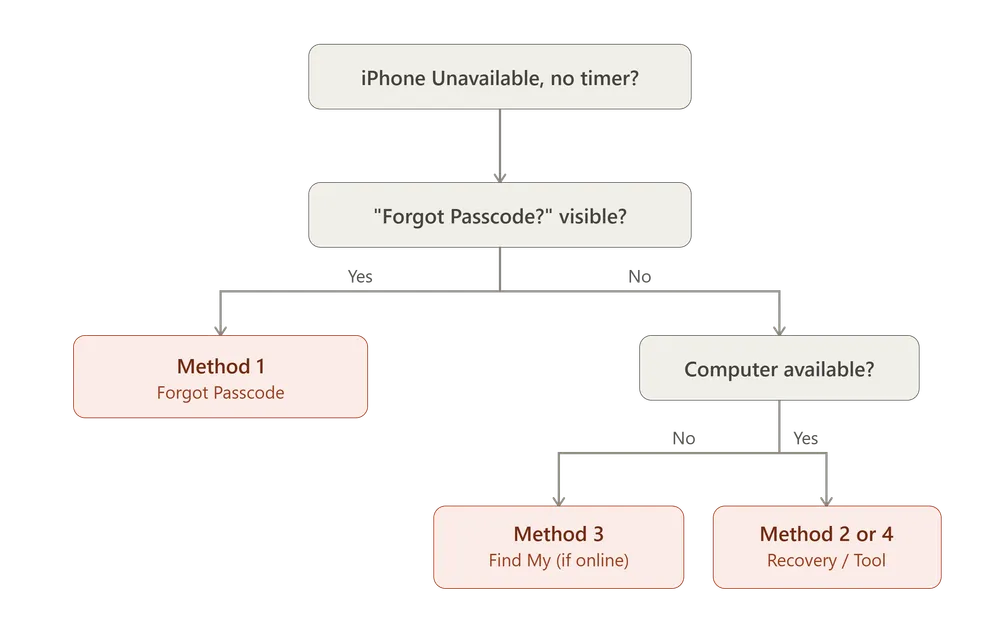
Whether this option appears at all depends on several conditions together — a supported iOS version, an active connection, and Find My having been enabled beforehand. Seeing it means those conditions are met and this is the most direct path back in.
Advantages:
No computer required
Official Apple recovery method
Available directly from the lock screen
Limitations:
Requires the Apple ID password linked to the device
Erases all data stored on the iPhone
Won't appear if any of its underlying requirements aren't met
Tap Forgot Passcode? on the lock screen.
Choose Start iPhone Reset.
Enter your Apple ID password.
Wait for the iPhone to erase and restart.
Set up your iPhone and restore from a backup if available.
On iOS 17 and later, this shows as "Forgot Passcode?" On earlier supported versions, it appears as "Erase iPhone" instead. After starting the reset, the device erases and returns to the setup screen, where a backup can be restored if one exists.
👉 Check if your iPhone shows the built-in reset option
This is the one route that has nothing to do with whether the lock screen is displaying correctly. It doesn't matter whether the missing timer traces back to a dead Wi-Fi connection, a disabled Find My, or a glitchy touchscreen — connecting to a computer sidesteps all of it.
Advantages:
Free, official Apple method
Works even when the lock screen itself can't be trusted or interacted with
Doesn't require the previous passcode
Limitations:
Requires a computer and USB cable
More technical than tapping through a menu
Erases the device during restoration
Connect your iPhone to a computer using a USB cable.
Put your iPhone into Recovery Mode.
Open Finder or iTunes.
Select Restore when prompted.
Wait for the process to finish and set up your iPhone again.
The button sequence to enter Recovery Mode varies by model. Once Finder (on Mac) or iTunes (on Windows) detects the device, choosing Restore — not Update — removes the forgotten passcode along with everything else.
👉 See a simpler way to complete the restore process
This depends on the same underlying requirements as Method 1 — Find My enabled beforehand, plus the device being online right now to receive the command. If either isn't true, this option isn't available, and a computer-based method becomes the way forward instead.
Advantages:
Can be done remotely from another device
No USB cable required
Official Apple solution
Limitations:
Requires Find My to have been enabled before the lockout
Requires the device to be connected to the internet
Removes all content from the iPhone
Open Find My on another Apple device or visit iCloud Find Devices.
Select your locked iPhone.
Choose Erase This Device.
Confirm the erase request.
Set up the iPhone after the erase completes.
👉 See what happens after a remote iPhone erase
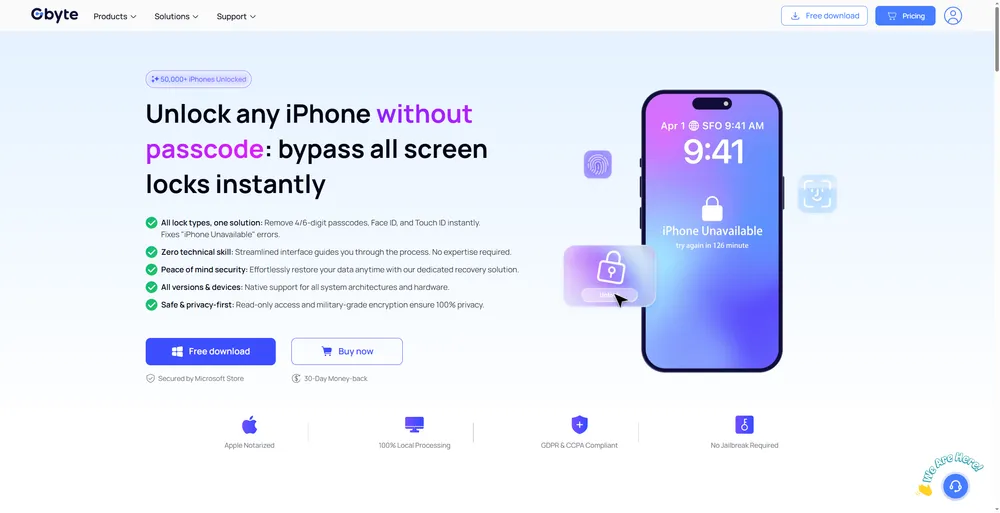
For a screen that isn't registering input reliably — the ghost-touch scenario described above — continuing to interact with the lock screen itself is often the least dependable option. A computer-based tool sidesteps the touchscreen entirely, similar to Recovery Mode, but with a guided process instead of manual button sequences and menu navigation.
Advantages:
Step-by-step guided workflow
Automatically detects the connected iPhone
Doesn't depend on the touchscreen responding correctly
Limitations:
Paid software
Requires a computer and USB connection
Erases the device during the unlock process
Connect your unavailable iPhone to your computer.
Launch Gbyte Unlock and let it detect your device.
Download the required firmware package.
Follow the on-screen instructions to complete the unlock process.
Tools like Gbyte Unlock are built for this kind of guided workflow, without requiring prior Recovery Mode experience going in.
👉 See how the unlock software process works
Method | Best For | Requirements | Data Loss | Difficulty |
Forgot Passcode? / Erase iPhone | You see the reset option directly on your lock screen | Internet connection + Apple ID password | Yes | Easy |
Recovery Mode | You don't see reset options and have a computer available | USB cable + computer + button combinations | Yes | Medium |
Find My Erase | You can access your Apple ID from another device | Find My enabled + internet connection | Yes | Easy |
Gbyte Unlock | You want a guided process instead of manual restore steps | USB cable + computer | depends | Easy |
For users who already know they need a computer-based solution, Gbyte Unlock offers a simpler alternative to manually restoring an unavailable iPhone through Finder or iTunes. Instead of searching for the right button combinations and restore steps, the guided workflow helps you move through the process with clear instructions.
In most cases, no. Apple's security design prevents bypassing a forgotten passcode while keeping the encrypted data accessible.
There's one exception: if the passcode was changed within the last 72 hours and the previous one is still remembered, iOS allows resetting access using that old passcode without erasing anything. Outside that specific window, every path back in involves an erase — any backup stored in iCloud or on a computer can be restored afterward using the same Apple ID.
Check for a backup first. Whether the data comes back afterward comes down to whether a recent iCloud or computer backup exists.
Use an original Apple cable for Recovery Mode. Off-brand or charge-only cables are a common cause of the computer failing to detect the device.
Confirm the device is online before trying Find My or Erase iPhone. Neither can complete without a network connection.
If ghost touch is suspected, avoid repeated manual attempts. Continuing to tap an unreliable screen can add failed attempts without the input being intentional at all.
A missing timer usually means the device has moved past the normal waiting stage of a passcode lockout. Which recovery option actually shows up next depends on separate factors — Find My, connection status, and the screen's own reliability. Recovery Mode is the one method unaffected by any of them, which makes it the reliable fallback when the exact situation isn't clear. Whichever method ends up fitting, a backup made before the lockout is what determines what comes back afterward.
Not necessarily. A device that's simply offline, or missing the on-screen reset option because Find My wasn't enabled, can often still be recovered through Recovery Mode without any waiting involved. A device that has genuinely moved past the timed-wait stages needs recovery rather than waiting either way — but that's a separate question from what's causing the timer itself to be missing.
Only in one specific case: a passcode changed within the last 72 hours can be reset using the previous passcode, with no data lost. Every other official recovery method erases the device.
No. This message relates to passcode security and failed unlock attempts — or, in some cases, a connectivity issue or a hardware problem with the screen. None of the known causes involve unauthorized access.
Only if "Erase Data after 10 Failed Attempts" is turned on in Settings. With it off, the device stays locked rather than erasing itself — though getting back in without the correct passcode still requires erasing it manually at that point.
No. These are separate protections. Removing the passcode restores access to the lock screen; Activation Lock stays tied to whichever Apple ID was last signed in, and needs that account's cooperation, or Apple's official support process with proof of ownership, to release.
 Add Gbyte as a preferred source on Google
Share


Copyright ©2026 Gbyte. All rights reserved. Gbyte’s software is not developed by or affiliated with Apple Inc.
The installation wizard will automatically start after downloading.
After registration, the recovery process can be managed through the web interface.
You get it all with your purchase - no locked features, no hidden limitations.